A tablet can hold the book you want to finish and every app that interrupts it. The useful change is to make starting a reading session predictable: open a chosen book, quiet unnecessary alerts, and leave yourself an obvious route back to normal notifications.
This guide covers iPadOS 27 and Apple Books, using an iPad you already own. It suits ordinary ebooks whose text can resize. PDFs, borrowed titles in other apps, and Android tablets have different reading controls. Apple Books availability also varies by country or region.
Choose the book before the reading session
Start in Books’ Library with a title you already have permission to read. Open its cover and reach the chapter you intend to read. A browsing session in the store or a recommendations feed can easily consume the time you meant to spend with a book.
For reading away from reliable internet, prepare the complete download beforehand. A cover in a library is not a useful offline check by itself. Before leaving home, temporarily disconnect internet access using your usual network controls, reopen the book, and try a later chapter as well as your current page. Restore connectivity afterward. This is a check for you to perform, not a reported device test.
If the book requests a connection, complete its download while online and repeat the check. If it opens only a sample, resolve that through the normal library or purchase route before setting aside reading time. Keep another locally available title ready if the first cannot be prepared. Signing out of your Apple Account is unnecessary for this routine.
Make the page comfortable, then stop adjusting it
In an open book, tap the page to reveal the reading controls. Open the Menu button near the bottom, then choose Themes & Settings. The panel contains the small and large A controls, a brightness slider, page themes, and Customize. Apple’s Books instructions explain these controls.
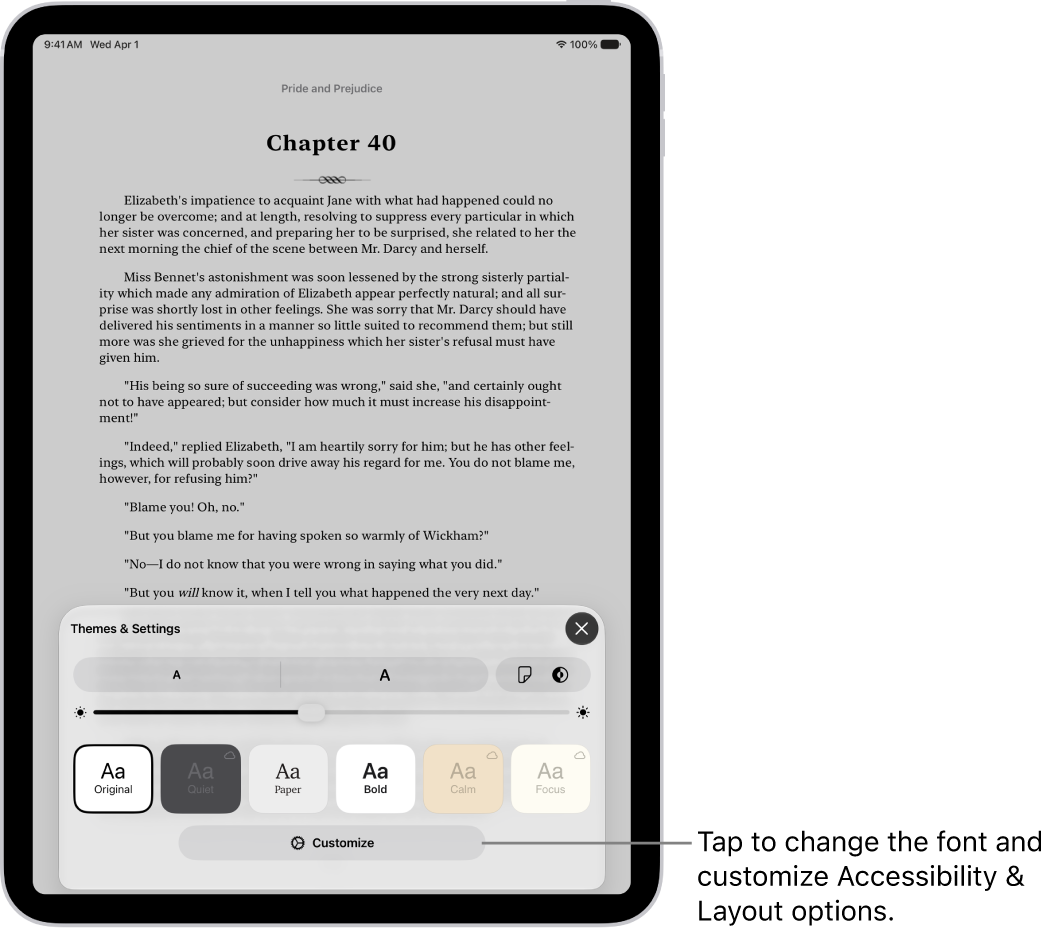
Apple’s iPadOS 27 Books reference shows Themes & Settings before your changes: small and large A, brightness, themes and Customize. Original is selected; your preferred size or theme is not pictured.
Version notes
Downloaded unchanged from Apple’s iPadOS 27 guide on 2026-10-31. Current reference visually checked against the separately downloaded iPadOS 26 counterpart: updated appearance/control artwork, different source and hash. Exact patch build and capture date unknown. Vendor example, not a tested personal iPad.Increase the text with the large A until you can read from your normal sitting position without leaning toward the glass. Read a paragraph before adjusting again. Choose a background you find comfortable in the room, then set brightness by looking at the words rather than the blank page. A brighter display is not automatically easier to read.
If page movement distracts you, open the page-turn control and try Fast Fade or Scroll. Keep whichever makes it easier to follow the next sentence. If spacing is the problem, Customize offers further layout adjustments; change one thing at a time. To recover from an unhelpful combination, use Reset Theme in the customization controls. Text and layout options differ for PDFs, so a missing font control there does not mean your iPad is malfunctioning.
Rest the tablet on a stable support if holding it makes you shift constantly. Settle the angle before beginning. These small physical choices reduce the temptation to keep touching the screen for reasons unrelated to the book.
Create a Focus you recognize immediately
Go to Settings → Focus and tap the + button. The chooser includes Custom and Reading. Choose Custom to create a separately named setup for this routine; the image shows this chooser before either option is selected.
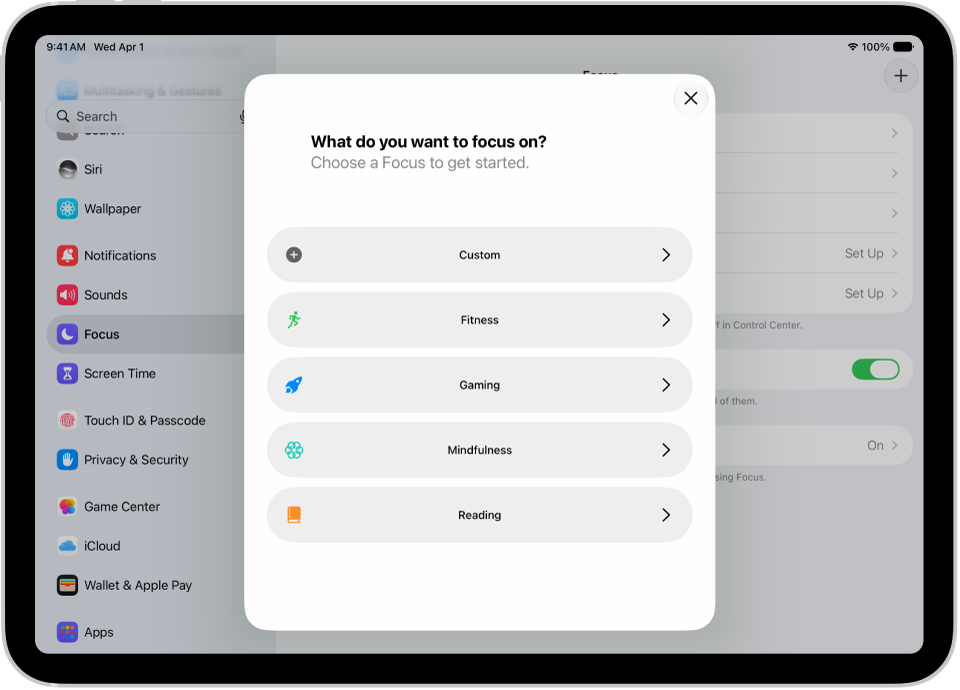
Apple’s current iPad chooser offers Custom at the top and Reading at the bottom. This is the selection stage; Book time has not yet been created.
Version notes
Downloaded unchanged from Apple’s iPadOS 27 guide on 2026-10-31. Current reference visually checked against the separately downloaded iPadOS 26 counterpart: updated appearance/control artwork, different source and hash. Exact patch build and capture date unknown. Vendor example, not a tested personal iPad.Name it “Book time,” choose a color and icon, then continue through Next and Customize Focus. Before changing notification lists, return to the main Focus settings and check Share Across Devices. Turn it off if this reading routine should apply only to the iPad. That switch affects Focus sharing generally, so remember its previous state if you use shared work or sleep settings. These setup options are documented in Apple’s Focus guide.
In Book time, use Options to hide notification badges and keep silenced alerts off the Lock Screen. If you already have a simple Home Screen page for reading, select it as this Focus’s Home Screen page. That provides a quieter starting point, but the other apps remain accessible. Focus does not prevent you from opening a social app yourself.
Decide who can interrupt before you turn it on
Open People inside Book time and choose Allow Notifications From. Add only the contacts you want to hear from during reading. Then open Apps and use its Allow Notifications From list for essential apps. Check that you selected an allow list: an empty Silence Notifications From list has a very different purpose.
Review the call options separately. Repeated calls can allow two or more calls from the same person within three minutes. Leave that exception enabled if it serves your needs, or turn it off if it defeats the quiet period you intend. With Time Sensitive Notifications enabled, apps can deliver time-sensitive alerts immediately. Turn it off for a stricter session unless you rely on those alerts.
On supported devices, also review Intelligent Breakthrough & Silencing if present. Disable it when you want your explicit choices to govern rather than automatic importance judgments. Existing Emergency Bypass settings for contacts can still allow sounds through. Apple documents these exceptions in its notification rules; a Focus is not a promise of absolute silence.
Use a short session to find the remaining distractions
Open Control Center, tap Focus, then select Book time. Look for its icon in the status bar or on the Lock Screen. Return to your prepared book. For a hypothetical first session, choose one chapter or twenty minutes: enough time to notice what interrupts you without redesigning the whole tablet.
If a banner arrives, note the app and check its allow list and exception settings after the session. If the screen remains quiet but you keep checking messages, move the nearby phone out of reach and keep a piece of paper for things to look up later. Each interruption needs its own response; adding more notification rules will not remove the habit of switching apps.
When finished, open Control Center, tap Focus, then tap the active Book time Focus to turn it off. Confirm its status icon disappears and review silenced notifications when convenient. Books saves your place automatically when you close the book. You can leave the Focus configured for tomorrow.
If Book time later activates unexpectedly, inspect its schedules and Smart Activation under Settings → Focus → Book time. Disable the unwanted trigger and check Share Across Devices if another Apple device seems involved. Apple’s activation guide covers manual controls and schedules. Begin manually; add a schedule only after the routine works for you.
Sources, versions & scope
The steps describe the documented controls and expected checks; they are not a claim that every device or software release has been physically tested. Platform and version differences are stated with the procedure.