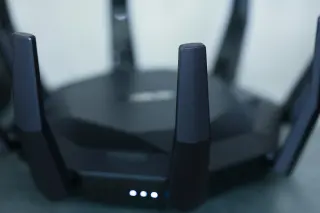
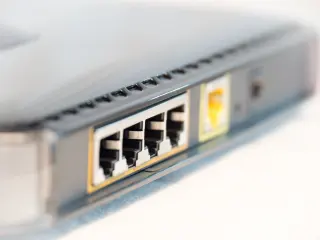
A travel router can give your devices a familiar private Wi-Fi network while using the hotel’s connection upstream. It still needs the hotel’s permission and a valid internet session. A successful connection does not establish that sharing it is allowed.
This guide uses the GL.iNet browser admin panel and its current Router Docs 4 controls, with Wireless instructions for firmware 4.9 and above. It covers an approved Wi-Fi repeater connection, not Ethernet sockets, phone tethering or another router brand’s menus. Check your model’s documentation if the named controls differ.
Settle the allowance before connecting
Ask the front desk for the exact guest network name and whether a personal travel router may serve your devices. Explain how many devices you intend to connect, and ask how device limits, fees and session expiry apply. Keep any instructions they provide. A generic manufacturer tutorial cannot grant permission on a hotel’s network.
Hypothetical example: your room includes access for two devices and you brought a laptop, phone and tablet. A router presenting one upstream connection does not automatically make all three permitted. Ask whether sharing is included or purchase the appropriate access. If routers are prohibited, leave yours unplugged and connect approved devices directly.
Ask staff to register the router itself if their system requires registration. Do not copy an already authorized phone’s identity, rotate addresses for fresh sessions, change packet settings to conceal sharing, or use a VPN to evade a restriction.
Prepare the private side before arrival
At home, power the router with its specified adapter. Join the Wi-Fi name printed on its underside using the printed key, then type 192.168.8.1 into your browser’s address bar. Use your recorded local address if you previously changed it. The official setup guide explains initial admin-password creation and reconnecting after Wi-Fi changes. Keep the admin password distinct from the Wi-Fi password you share with companions.
For an already configured router, open WIRELESS. Under Main Network, use the gear beside each band you use to set a recognizable private network name and strong password, retaining password-based security. The current Wireless guide documents these per-band controls. Apply changes and reconnect your laptop to the new name; losing the old connection at this point is expected.
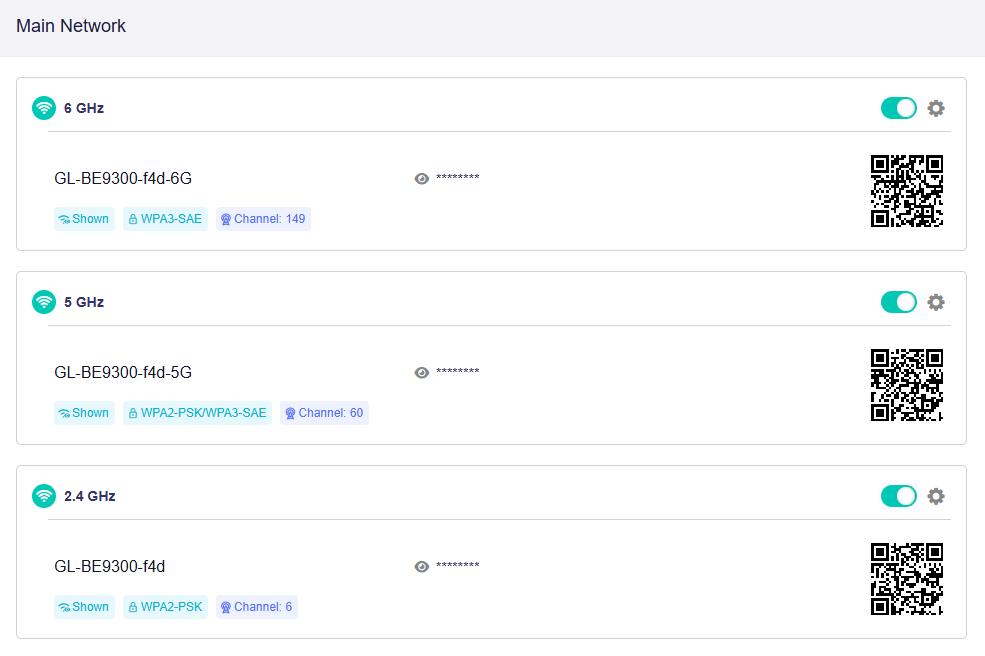
Open the gear for the band you use under Main Network. GL.iNet’s example has three radios; available bands vary by model. These sample names and QR codes belong to the vendor example, not a hotel session.
Version notes
Official unchanged vendor reference checked 2026-10-31. Released host family verified separately in GL.iNet’s STABLE listing (Flint 3 firmware 4.10.1). The Wireless guide explicitly covers v4.9 and above. Exact screenshot capture date/build undisclosed; illustrates only the listed control and pictured state. No live router, hotel or performance test claimed.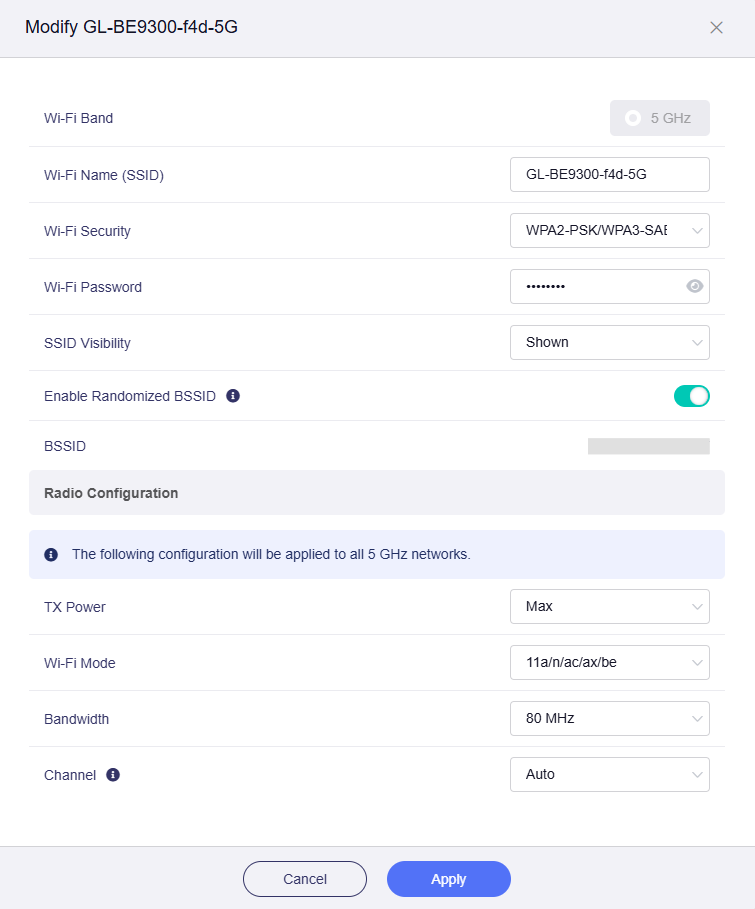
In the band editor, set Wi-Fi Name (SSID) and Wi-Fi Password, keep password-based Wi-Fi Security, then Apply. GL.iNet’s 5 GHz example uses WPA2-PSK/WPA3-SAE. Leave the unrelated radio controls unchanged.
Version notes
Official unchanged vendor reference checked 2026-10-31. Released host family verified separately in GL.iNet’s STABLE listing (Flint 3 firmware 4.10.1). The Wireless guide explicitly covers v4.9 and above. Exact screenshot capture date/build undisclosed; illustrates only the listed control and pictured state. No live router, hotel or performance test claimed.Check that the local admin panel opens again. Record your private network name, local admin address and existing VPN/DNS settings somewhere available offline. Prepare supported firmware updates at home rather than starting an update while dependent on a hotel login.
At the hotel, put the powered router on an open desk or shelf where it receives guest Wi-Fi. Keep it ventilated. Connect only the laptop or phone you will use for setup initially; leave other clients disconnected until login and protection checks finish.
Join as the router, then complete the hotel login
- While connected to your private Wi-Fi, open the router admin panel. Go to INTERNET, find Repeater, and click Connect. A list of available upstream networks should appear.
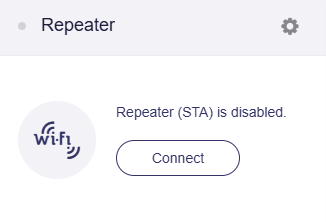
Visual 03 · GL.iNet Router Docs 4 — browser admin panel Start with Connect in the Repeater card. The gray indicator and disabled message show the state before an upstream connection is configured. This is the vendor’s reference, not a hotel test.
GL Technologies & Microuter Technologies / GL.iNet Router Docs. Copyright retained. Image source · Usage termsVersion notes
Official reference currently embedded in the Repeater documentation updated 20 October 2026; checked 31 October 2026. Original capture date and precise firmware build are not disclosed. Scope is the named controls and pictured pre-change state; no personal router or hotel test claimed. Original bytes unchanged. - Select the exact guest network confirmed by staff. Enter its Wi-Fi password if required. This password joins the radio network; a room-number or voucher login may still follow in the browser.
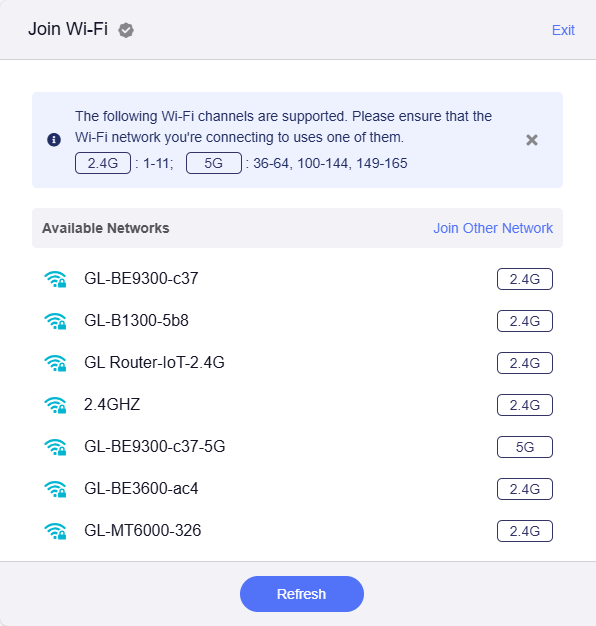
Visual 04 · GL.iNet Router Docs 4 — browser admin panel Choose the staff-confirmed network from Available Networks. GL.iNet’s reference lists vendor lab names, not an authorized hotel network. Refresh can rescan; appearing in this list does not establish permission or completed internet access.
GL Technologies & Microuter Technologies / GL.iNet Router Docs. Copyright retained. Image source · Usage termsVersion notes
Official unchanged vendor reference checked 2026-10-31. Released host family verified separately in GL.iNet’s STABLE listing (Flint 3 firmware 4.10.1). Exact screenshot capture date/build undisclosed; illustrates only the listed control and pictured state. No live router, hotel or performance test claimed. - Before applying, inspect the separate Auto-Enable Login Mode for Public Hotspots and Enable Camouflage switches. The official reference shows both off, MAC Mode set to Random, and an Apply button; it is a control-location example, not the finished configuration for this guide.
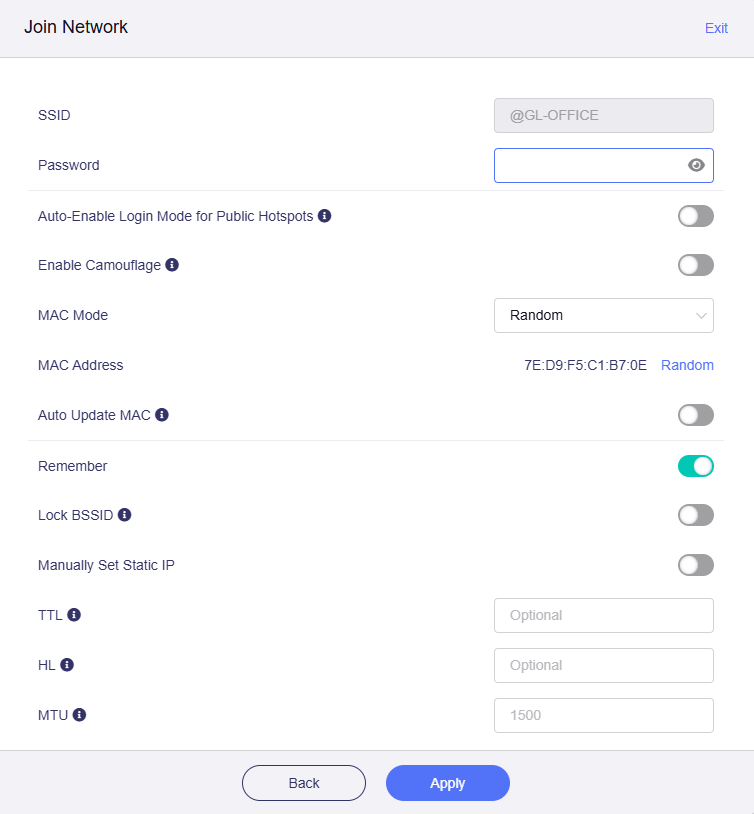
Visual 05 · GL.iNet Router Docs 4 — browser admin panel Locate the independent login-mode and camouflage switches. This unchanged vendor example uses @GL-OFFICE and Random MAC mode, with login mode off. For this guide, enable login mode, leave camouflage off, and choose Factory before Apply; the image does not show those completed changes.
GL Technologies & Microuter Technologies / GL.iNet Router Docs. Copyright retained. Image source · Usage termsVersion notes
Official reference currently embedded in the Repeater documentation updated 20 October 2026; checked 31 October 2026. Original capture date and precise firmware build are not disclosed. Scope is the named controls and pictured pre-change state; no personal router or hotel test claimed. Original bytes unchanged. - Enable Auto-Enable Login Mode for Public Hotspots. Leave Enable Camouflage off. Select Factory under MAC Mode and leave Auto Update MAC off, giving staff a stable router identity to authorize. Leave static-IP, TTL and HL overrides untouched. Click Apply.
GL.iNet’s Repeater documentation describes a routed private network by default. Keep that arrangement rather than changing network mode during hotel setup. It separates the local network, but does not itself encrypt the internet path or increase your allowance.
Once the upstream connection is established, follow any captive-portal prompt on the setup device. Confirm you are still on your private Wi-Fi, then complete the hotel’s normal terms, voucher or paid-access process. Use only the credentials supplied for your stay. If the page requests unexpected payment or unrelated credentials, confirm its address with staff before proceeding.
Keep background synchronization and sensitive work paused during login mode. The vendor says it suspends some services and switches DNS to automatic, so your usual filtering or VPN arrangement may not be in effect. A Wi-Fi connection indicator alone is not evidence of completed hotel authorization.
If the portal does not appear, make one bounded recovery
Stay on the router’s Wi-Fi and reopen the hotel portal address supplied by staff. On a phone, try switching Wi-Fi off and on, then rejoin your private network. GL.iNet’s captive-portal troubleshooting includes this reconnect step. Do not dismiss a certificate warning on a hotel payment or sign-in page.
If login mode still fails, record the current settings before trying the vendor’s manual alternative: under NETWORK → DNS, use Automatic and temporarily disable DNS Rebinding Attack Protection; under VPN → VPN Dashboard, disable VPN connections; under APPLICATIONS → AdGuard Home, stop AdGuard Home if it is running. Retry only the portal, with other clients still disconnected. These temporary reductions are for authentication, not general browsing.
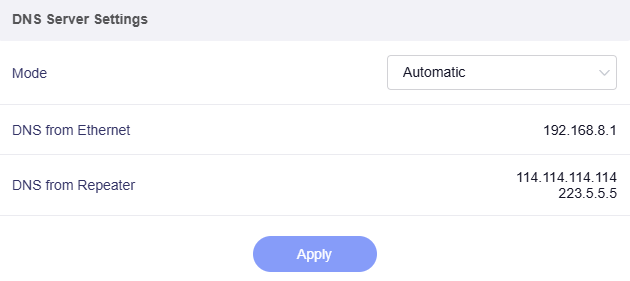
For the bounded portal-recovery step, select Automatic under DNS Server Settings. Upstream addresses shown here are GL.iNet’s examples. This panel does not show DNS Rebinding Attack Protection; check that separate control and restore your recorded protection after login.
Version notes
Official unchanged vendor reference checked 2026-10-31. Released host family verified separately in GL.iNet’s STABLE listing (Flint 3 firmware 4.10.1). Exact screenshot capture date/build undisclosed; illustrates only the listed control and pictured state. No live router, hotel or performance test claimed.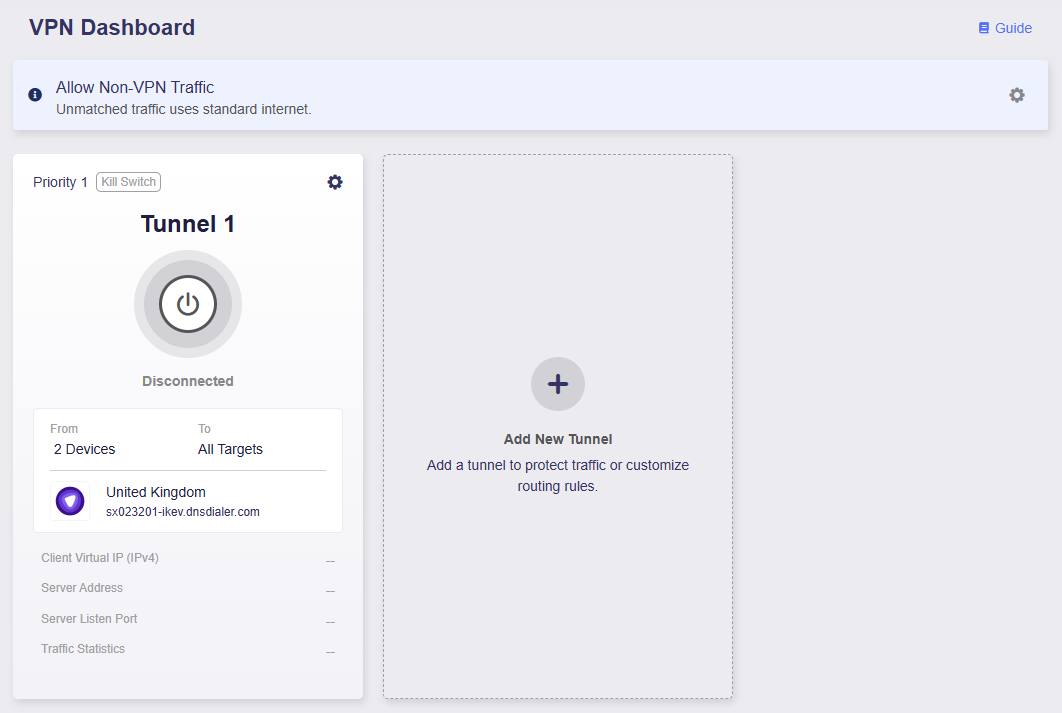
The current dashboard uses a power control within each tunnel card. GL.iNet’s reference shows Tunnel 1 Disconnected; inspect every configured tunnel during the temporary portal recovery. Its sample policy covers two devices and does not prove your own routes or a completed hotel login.
Version notes
Official unchanged vendor reference checked 2026-10-31. Released host family verified separately in GL.iNet’s STABLE listing (Flint 3 firmware 4.10.1). The VPN Dashboard guide explicitly covers v4.9.x and above. Exact screenshot capture date/build undisclosed; illustrates only the listed control and pictured state. No live router, hotel or performance test claimed.If that fails, restore the recorded settings and ask hotel support to authorize the router’s factory address for this repeater connection. Different router interfaces can have different MAC addresses; have staff confirm the address shown for the upstream connection rather than guessing from an unrelated label. Ask them to release a stale registration if necessary. Do not factory-reset the router or clone your phone as the next experiment.
If the guest network is absent, recheck its name and move the router to a clearer position. A manually entered name cannot fix an unsupported radio channel. Ask for a supported guest connection instead of altering hotel equipment.
Verify the session, then leave it cleanly
After authorization, check that login mode has ended and restore the DNS protection, filtering and permitted VPN configuration you recorded. Verify their actual status in the admin panel. If a required VPN cannot reconnect, keep sensitive work paused and use another approved connection.
Load an ordinary HTTPS website on the setup device. Then join each additional device allowed by your agreement and check it independently. On a test phone, temporarily turn cellular data off so a working mobile connection cannot disguise failed hotel access; restore it afterward. If access expires overnight, renew through the normal portal rather than changing the router’s identity.
Before checkout, log out through the hotel portal if offered. In INTERNET → Repeater, open Switch Network, find the hotel under Known Networks, and use its trash icon to remove the saved connection. If disconnected, Connect also opens network management. Then unplug and pack the router. Remove any hotel network saved directly on your devices too, using their normal forget-network control.
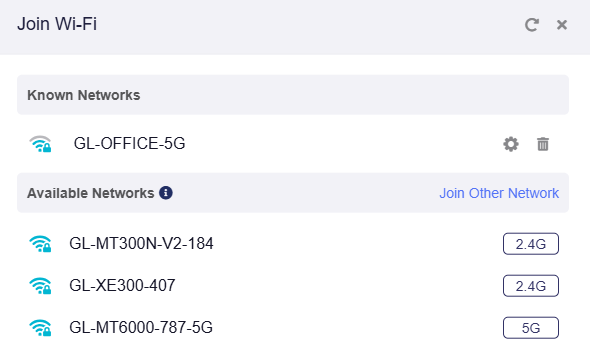
Under Known Networks, use the trash icon beside the saved hotel entry at checkout. GL-OFFICE-5G is GL.iNet’s example saved name. This shows the removal control before deletion, not a completed forget operation.
Version notes
Official unchanged vendor reference checked 2026-10-31. Released host family verified separately in GL.iNet’s STABLE listing (Flint 3 firmware 4.10.1). Exact screenshot capture date/build undisclosed; illustrates only the listed control and pictured state. No live router, hotel or performance test claimed.Sources, versions & scope
The steps describe the documented controls and expected checks; they are not a claim that every device or software release has been physically tested. Platform and version differences are stated with the procedure.