Give every device a place in the plan
A household backup can look healthy while one rarely used tablet has not copied anything for months. The useful unit is each device and its owner. Paying for cloud space is only one part of the job.
This plan covers a household using several iPhones and iPads with iCloud Backup. Computers and Android devices need their own backup arrangements. Gather the phones and tablets, their owners, and chargers for an initial review; include the tablet that normally stays in a drawer.
Make a private record with these columns: device, owner, Apple Account identifier, last successful backup, essential content needing separate attention, and next reviewer. Record identifiers securely, but keep passwords and recovery secrets out of this checklist. Give each row a named person responsible for noticing failure.
Decide how much missing work each person could tolerate. A tablet used once a month may need a check after each session; a phone capturing daily family events deserves more frequent attention. These are household choices, not guarantees about how often a service will finish copying.
Share capacity while preserving ownership
Apple's family storage arrangement supports the subscriber plus five other people. Each uses their own Apple Account; sharing capacity does not give everyone access to everyone else's private files. Keep that separation when assigning responsibility.
- With Family Sharing already set up, the person sharing an existing iCloud+ plan opens Settings > Family > Subscriptions > iCloud+ and follows the sharing instructions.
- A member already paying for an individual plan can use that same route and choose Use Family Storage. Apple says free-plan members join shared storage automatically; existing paid-plan members can keep their own plan instead.
- Open Settings > Family > Subscriptions > iCloud+ to review the total capacity, available space, and family members' usage. Record the available amount; this screen does not certify that every device has backed up.
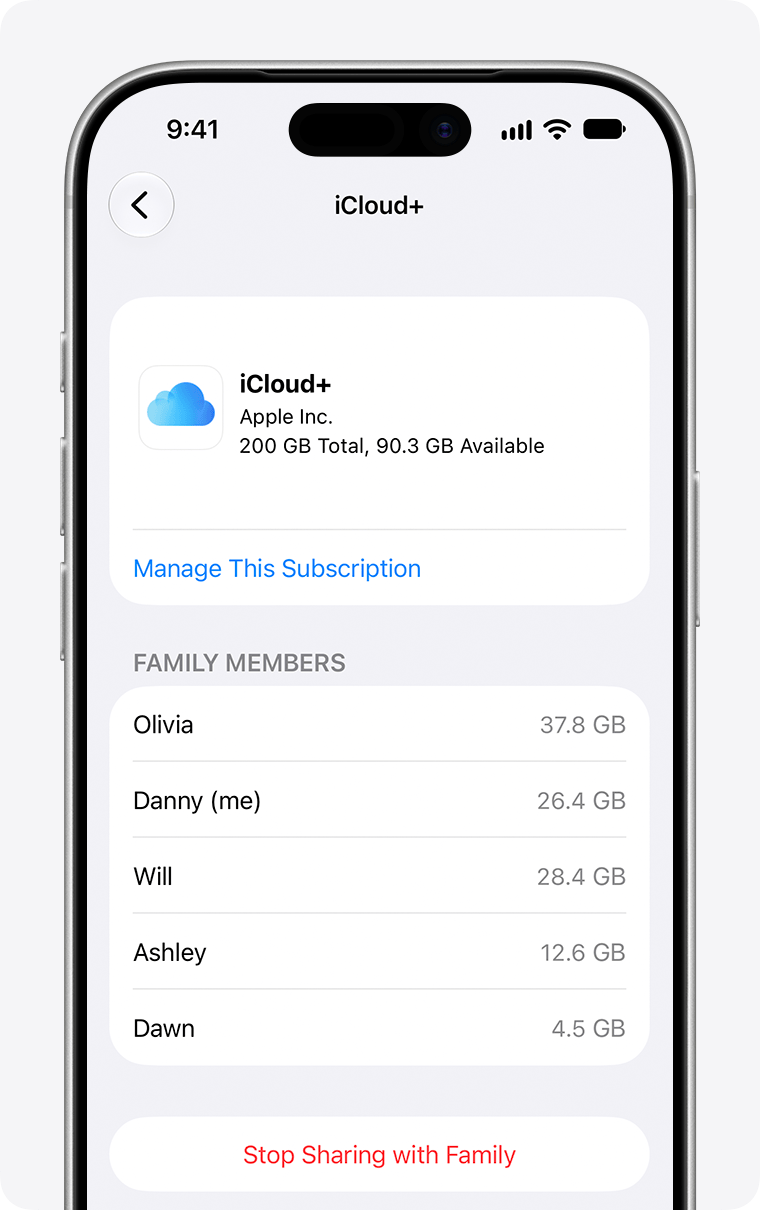
Visual 01 · Apple iPhone / iOS 27 Review total capacity and available space above the family usage rows. Apple’s example values belong to its demonstration; this screen does not show individual backup completion.
Apple Inc. Official instructional screenshot; copyright retained by Apple. Contextual educational interface quotation. Image source · Usage termsVersion notes
Official current support page links an explicitly ios-27 iPhone 17 Pro illustration. Exact minor version/build unspecified. Vendor example state only; no personal session or successful author test.
Nominate a second person who knows who pays for the plan and when the household last reviewed it. This person need not receive anyone else's account password. Their job is to raise an overlooked storage alert or remind an owner to inspect a stale backup.
Budget the pool before it becomes an emergency
Use observed storage consumption rather than adding the advertised capacities printed on the devices. A 256 GB phone is not necessarily holding 256 GB of material, and the household's synchronized content also needs room. Avoid counting the same photo library again merely because it appears on two screens.
For a hypothetical 200 GB pool, suppose synchronized libraries and documents use 115 GB and device backups use another 52 GB. That leaves 33 GB. If net usage then grows by 8 GB each month, four months would add 32 GB, leaving just 1 GB. This arithmetic is a planning warning, not a prediction of backup compression or future consumption.
Write a review trigger, such as checking capacity again after adding a device or importing a large photo collection. Leave breathing room rather than treating the last available gigabyte as usable operating space. Agree who may authorize additional spending before a family member needs an urgent backup.
If the group stops sharing its plan, a member exceeding their available allowance needs replacement capacity; otherwise new backups stop. Arrange that transition before changing the subscription. A payment or membership change belongs on the same checklist as a new phone.
Get a completed backup from every device
Work through the household record one row at a time. Apple documents this backup route for both iPhone and iPad:
- Connect the device to Wi-Fi. Open Settings, tap the owner's name, then choose iCloud > iCloud Backup.
- Make sure Back Up This [Device] is enabled. Tap Back Up Now and keep Wi-Fi connected until the operation ends.
- Read the last successful backup date and time beneath Back Up Now. Copy that timestamp into this device's row only after completion; an enabled switch alone is insufficient evidence.
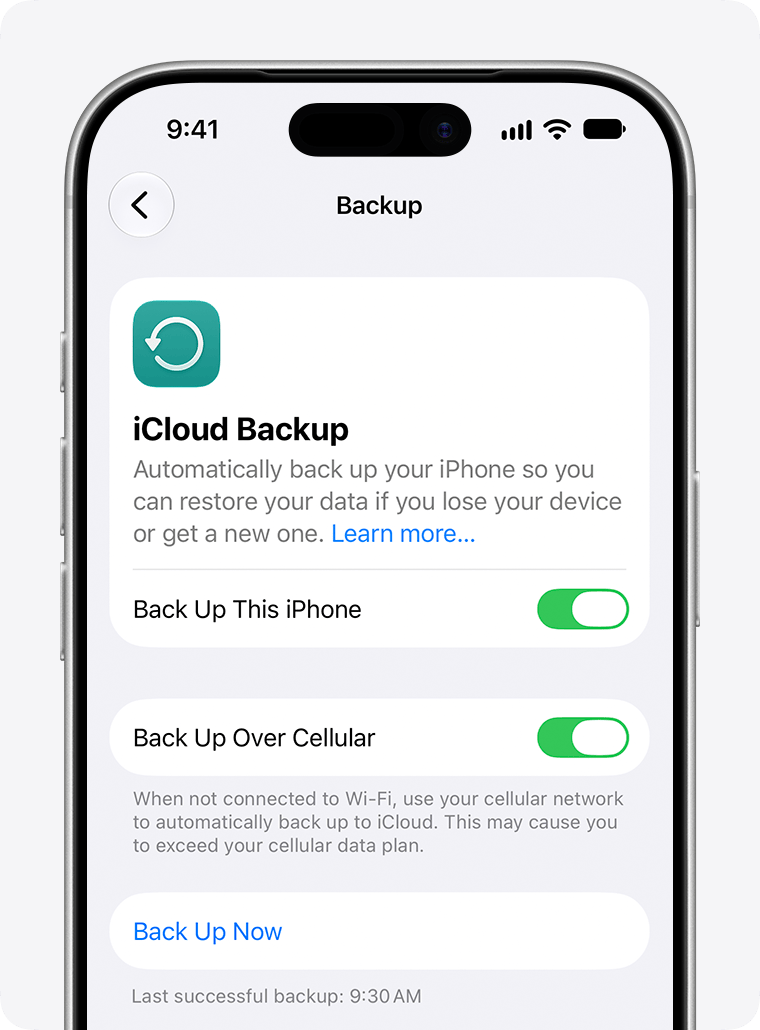
Visual 02 · Apple iPhone / iOS 27 Check the last successful backup beneath Back Up Now. Apple’s example reads 9:30 AM; record your own device’s result. The example also has cellular backup enabled, which this Wi-Fi procedure does not require.
Apple Inc. Official instructional screenshot; copyright retained by Apple. Contextual educational interface quotation. Image source · Usage termsVersion notes
Official current support page links an explicitly ios-27 iPhone 17 Pro illustration. Exact minor version/build unspecified. Vendor example state only; no personal session or successful author test. - For subsequent automatic backups, leave the device connected to power and Wi-Fi with its screen locked. Repeat this arrangement for the seldom-used iPad.
If storage is insufficient, resolve capacity and run the backup again. If completion remains unconfirmed, mark the row unresolved and keep the device's contents. Do not delete important app data to force a green result.
After the first household pass, compare timestamps with each owner's acceptable loss window. Revisit an overdue row after another charging session. A completed backup is evidence of copying, not a rehearsal of recovering every application.
Give irreplaceable content its own decision
iCloud Backup excludes information already synchronized to iCloud. With iCloud Photos or Messages in iCloud enabled, those collections are not duplicated inside the daily device backup. iCloud Drive content likewise lives outside that backup. Device settings and eligible local app data follow a different recovery path.
Beside each device, list the two or three things its owner would be most upset to lose: a child's drawings, recordings, or an ongoing project, for example. Ask where each item lives and how its application retrieves it. If nobody can explain that route, leave an explicit unresolved entry instead of assuming that the device backup covers it.
Choose a separate archive task for irreplaceable material that needs protection beyond the account's current synchronized state. Define what will be exported, who will preserve it, and where the independent copy will live. Keep the source until the saved copy opens correctly. Our guide to sync and backup explains why two visible copies can still share a failure.
Write the replacement-device instructions now
For a real replacement or a deliberately spare device, Apple's recovery sequence starts at the Hello screen. Continue setup to Transfer Your Apps & Data, choose From iCloud Backup, and sign in with the affected owner's Apple Account. Compare backup dates and sizes before selecting the appropriate copy. Follow any required software-update instructions and keep Wi-Fi and power connected.
Do not erase a working daily device merely to inspect this workflow. A device already set up must be erased for this restoration route. Preserve anything unique on a spare before using it. Apps and cloud content can continue downloading after setup, so reaching the Home Screen is not the finish line.
Write an acceptance list with each owner: open a recent important document, check a recognizable photo, and verify the essential app's contents. Note which items arrived through account synchronization and which required other sign-ins. Record missing items before retiring the previous device. No successful household restore is claimed here; this is the rehearsal to perform when a suitable replacement is available.
Finally, ask how the owner will sign in if their everyday phone is lost. Keep instructions for locating their account recovery arrangements somewhere they can access independently. Review the household record monthly and whenever a device, account, payer, or owner changes. The next reviewer should be able to identify the exact overdue device and the person who can fix it.
Sources, versions & scope
The steps describe the documented controls and expected checks; they are not a claim that every device or software release has been physically tested. Platform and version differences are stated with the procedure.