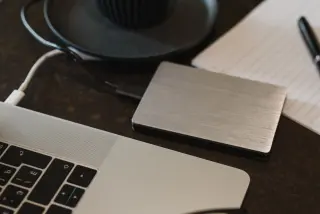
Start with the copies that will survive deletion
Before clearing a large folder from your Mac, ask where its contents will live afterward. If the answer is “only in Time Machine,” pause. You are about to turn a backup into the sole surviving copy. Even a successful restore today cannot guarantee that copy will remain available indefinitely.
Apple says Time Machine deletes its oldest backups when the disk fills. Files you remove from the Mac may eventually disappear from retained history. For material you want to keep permanently, create a deliberate archive and protect that archive separately before reclaiming local space.
This guide covers ordinary local files on a Mac with an existing external Time Machine backup. It excludes cloud-only files, synchronized folders, Photos libraries and other app-managed databases. Those need their own export or library-migration instructions. Here, the decision concerns one named batch of documents, pictures or recordings, not an entire device wipe.

Name the batch, then freeze its contents
Write down the folder’s full location, what it contains and why it is being removed. Close applications using those files and finish pending saves. Avoid editing the batch while checking it: otherwise the version you approve and the version you delete can diverge.
In Finder, select the folder and choose File > Get Info. Record its location, size and item count when available. These are discrepancy checks, not proof of integrity. Equal totals can conceal one missing document and one unwanted duplicate. Look inside each subfolder, including the oldest material and recent additions.
Choose files whose contents you recognize: the revised contract with its final clause, the long recording with sound near the end, the spreadsheet with the last worksheet. Include different file types and dates. In a hypothetical folder of 200 photos, opening five proves those five are readable; it does not certify the other 195. Open every irreplaceable item where practical, and record what remains unchecked.
Confirm a completed copy of this batch
Connect the known Time Machine disk. Open Apple menu > System Settings > General > Time Machine and confirm the destination. An unfamiliar disk name or an erase/setup prompt is a reason to stop. This check uses an established backup, so creating a new destination is unnecessary.
If the Time Machine menu is visible in the menu bar, choose Back Up Now. Otherwise let the next scheduled backup finish while the disk is connected. Inspect the latest completed backup date afterward; a progress indicator is not completion. Record that date and the destination alongside your folder inventory.
Now open the batch’s folder in Finder. Use Spotlight to search for and open Time Machine. Follow Apple’s restore instructions: navigate with the arrows beside the Finder windows to the completed backup you intend to rely on. Locate the actual folder and representative filenames in that dated view. A recent timestamp for the computer does not establish coverage of this particular folder.
If a needed file or revision is absent, leave the originals alone. Confirm its real location, review exclusions in Time Machine’s Options, then complete another backup and look again. A backup taken before the final edit cannot contain that edit.
Bring a real file back without sacrificing its original
Time Machine normally restores an item to its original location. Protect the current file before testing that route. Start with an ordinary standalone document whose temporary renaming will not break a project. Close its app. Exit Time Machine before making changes in the live folder.
- In Finder, rename the chosen original by adding
-before-restorebefore its extension. For example, the hypotheticalcontract.pdfbecomescontract-before-restore.pdf. Keep the extension unchanged. Do not move it to the Trash. Check that the renamed original still opens, then close it. - Open its containing folder, reopen Time Machine through Spotlight and select the previously recorded backup date. Choose the file under its original name, then click Restore. If asked to replace an existing item, cancel and inspect the live folder; the expected original name should be absent.
- Back in Finder, locate the restored file at the original path. Open it explicitly from that folder, rather than through an app’s recent-file list. Compare its meaningful contents with the renamed original. Check the final clause, worksheet or other detail you selected earlier.
- Record the filename, backup date and result. Repeat with other standalone samples. Keep both versions until you have resolved any differences. To undo the rehearsal, remove only the identified restored test copy, then return the preserved original to its original name.
A successful opening establishes that this file can be retrieved and used on this Mac. It does not prove every file, a replacement computer or an entire application library can be recovered. If the restored item opens with missing content or errors, that sample fails even if the restore operation reported success.
A failed check keeps deletion on hold
If the drive disconnects or restoration fails, preserve both the originals and existing backup. Apple’s troubleshooting guidance recommends checking the connection and connecting a local backup disk directly rather than through a hub. It also notes that nearly full Mac storage can prevent a backup from completing. Do not erase the backup disk as a shortcut while it contains copies you need.
If files were unavailable during backup, try a manual backup while the Mac is unlocked, as Apple advises. Repeat the same retrieval after the problem is resolved. If encryption blocks access, establish that you can obtain the backup password before proceeding; automatic access on the present Mac is weak evidence that you could unlock it elsewhere.
Make the archive earn its place
For files you intend to retain after local deletion, copy the complete batch to a clearly named archive on separate storage. Keep it outside Time Machine’s managed backup area; Apple recommends using the Time Machine disk only for backups. A second folder on the Mac you are clearing does not provide an independent destination.
In Finder, select the source batch and press Command-C. Open the intended archive drive, create a clearly named destination folder and press Command-V. Wait until copying finishes without an error. Confirm the destination is on that drive before opening the copied folder. If Finder asks to replace or merge existing contents, cancel and choose a new empty destination. Keep the source intact throughout.
Open files directly from the archive, inspect its folder tree and reconcile counts and sizes with your inventory. Investigate unexplained differences. Protect this archive with another independent copy that you also check. After deletion, these retained copies become the basis of your protection; old Time Machine history is an additional recovery opportunity, not the retention plan.
Record the archive locations, checks completed and any unchecked files. Defer deletion if anything essential is missing, unreadable or accessible through only one remaining copy. Keep a retrieval note with the archive so its future owner can identify the batch without relying on this Mac.
Use the Trash as the last pause
Only after the retained copies pass your checks, move the approved local batch to the Trash. Review that exact batch there before permanently removing anything. Apple documents File > Put Back for restoring a selected item before the Trash is emptied.
Check Finder > Settings > Advanced for automatic removal after 30 days; the Trash is a temporary pause, not another archive. Moving files there does not complete the space-reclaiming deletion. Emptying removes that easy undo route. If doubts arise afterward, retrieve from the checked archive or retained backup instead of assuming the original remains recoverable.
Sources, versions & scope
The steps describe the documented controls and expected checks; they are not a claim that every device or software release has been physically tested. Platform and version differences are stated with the procedure.