A broadband failure is a bad time to discover that your passwords are available only through a website. Prepare an installed password manager while everything works, then check that you can unlock it with the computer disconnected. The useful outcome is simple: you can retrieve a saved credential without reaching the password manager’s servers.
This guide uses Bitwarden Password Manager’s Windows desktop app with a personal account and master password. It covers temporary loss of internet or Bitwarden connectivity, not a lost computer or a forgotten master password. Bitwarden’s SSO trusted-device flow requires internet even for unlocking; a managed work account needs its organization’s continuity plan.
Preserve the copy you already have
Bitwarden distinguishes locking from logging out. Lock keeps vault data on the device and permits offline unlocking; Log out removes that data and requires an online login. Its timeout documentation explains both behaviors. An outage plan therefore depends on a previously signed-in app, an available local copy, and a way to unlock it.
If the outage has already started, try the existing desktop app first. Avoid reinstalling it, clearing its local data, or signing out as troubleshooting shortcuts. Those actions can discard the very copy you need. If it opens successfully, retrieve the necessary item and lock it again when finished. Save configuration changes and the full rehearsal below for when connectivity returns.
Keep expectations narrow. According to Bitwarden’s offline-access guide, offline use is read-only: adding or editing vault items, attachments and Sends, or importing items, is unavailable. Reading a password also does not bring an unavailable bank, email provider or broadband connection back online.

Prepare the Windows app while online
- Open the installed Bitwarden desktop app and unlock the intended personal account. If you have never signed in on this computer, complete that setup now while online. A browser tab showing the web vault is not the desktop app.
- Choose File → Sync vault. Bitwarden’s sync instructions specify this desktop command. With multiple accounts, it syncs only the active one. Then locate an existing item whose current contents you know, preferably something recently updated, and check that the expected details appear.
- Open File → Settings and inspect the session timeout and its action. Choose Lock as the timeout action. Retain a finite timeout appropriate for your surroundings; leaving the vault permanently unlocked is unnecessary. Close and reopen Settings to verify the choice remains selected.
- Make sure you know the master password before testing a locked state. An already working biometric unlock is convenient, but the rehearsal should include any master-password prompt you would encounter after reopening the app. If you cannot supply it, stop here and resolve that dependency while your existing session still works.
Choose two or three useful records to check during the rehearsal: for example, a router administrator login and an essential account login. The router administrator credential is often different from the Wi-Fi password. Verify the item’s website or device description so that an old record with a familiar name does not masquerade as the right one.
Record the rehearsal date and item names on your readiness note, without copying their passwords into the note. The note should tell you what was checked, not become another unprotected vault.
Rehearse the failure without changing a password
Do this at the computer itself, outside a remote-support session or important call. Keep the interruption local to this PC; there is no need to unplug the household router.
- Disconnect this computer from Wi-Fi and unplug its Ethernet connection if present. Check for any other active connection, such as a tethered phone. The exercise needs an offline computer, not merely a different route to the internet.
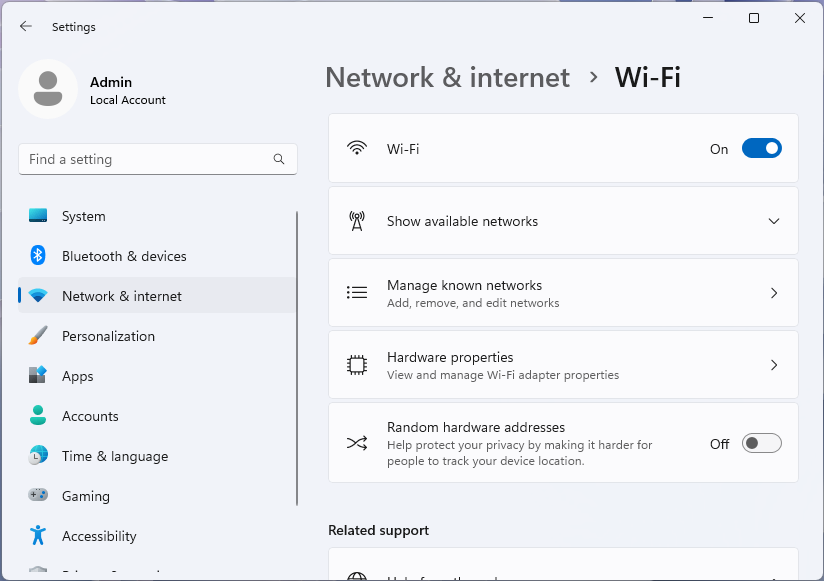
Visual 01 · Microsoft Windows 11 Microsoft Windows 11: the top Wi-Fi switch in Settings → Network & internet → Wi-Fi is initially On. Turn that switch Off for the local offline rehearsal, and restore it afterward. The Off label lower down belongs to Random hardware addresses. Ethernet and other connections need separate checks; no offline vault result is shown. Used with permission from Microsoft.
Microsoft Corporation. Microsoft Windows 11 product screenshot. Used with permission from Microsoft. Image source · Usage termsVersion notes
Microsoft Learn explicitly identifies the supplied desktop Settings screenshots as Windows 11. Current network documentation confirms the named Settings route; exact Windows build and capture date unknown. No live network comparison performed. - Let Bitwarden reach the finite timeout you selected. Confirm that it asks you to unlock rather than showing your vault contents. Unlock using the method already configured, supplying the master password if requested.
- Find the chosen records and open their details. Confirm that the expected username and password field are available. You do not need to copy a password into a text editor or submit a real account login to prove local retrieval.
- While still disconnected, close and reopen the desktop app and try unlocking again. This checks the reopening case as well as a timeout in an app left running. If it requests a fresh online login, record that result and reconnect; do not delete the local data to “fix” it.
- Reconnect Wi-Fi or Ethernet, run File → Sync vault again, and check the same item. Leave the timeout action on Lock, or restore your previous action if you decide against keeping a local outage-access plan.
Call the rehearsal successful only when both the timed-out app and the reopened app reveal the expected records offline. A remembered account name on the opening screen is insufficient. This is a check for your own device; it is not a claim that this publication tested your account, hardware or unlock configuration.
What a failed check tells you
- The app asks for an online login
- Its local signed-in state is unavailable. Reconnect, sign in, review the timeout action, sync and repeat the exercise. During a real service outage, preserve any other already signed-in device instead of logging it out too.
- The vault opens but a record is missing or stale
- Treat that as a failed freshness check. Reconnect, verify the active account and sync. Confirm the expected item before disconnecting again. A successful unlock alone cannot establish that yesterday’s password change reached this PC.
- The saved password is visible but a website still fails
- Separate retrieval from authentication. A site may need connectivity, an additional verification method, or a newer credential. Repeatedly resetting its password during an outage makes the saved copy harder to reconcile.
If syncing still fails after connectivity returns, check the PC’s date, time and time zone. Bitwarden documents incorrect timestamps as a possible connection problem. Keep the working local vault intact while investigating.
Keep account recovery outside the outage loop
Prepare one separate recovery record while online. In the web app, open Settings → Security → Two-step login → View recovery code, enter the master password and choose Continue. Follow Bitwarden’s recovery-code instructions and keep a printed copy somewhere secure and reachable independently of this PC.
The recovery code is for losing access to two-step login, not bypassing a server outage or replacing a forgotten master password. Redeeming it requires the account email and master password, deactivates personal two-step methods, and generates a replacement code. Do not redeem it merely to rehearse offline reading. After genuine recovery, re-enable two-step protection and save the new code.
Revisit the local rehearsal after changing how you unlock the vault, replacing the computer, or making major account changes. Keep the result with your continuity notes. A short, repeatable check gives you a clearer plan than assuming that every device displaying a vault has a usable offline copy.
Sources, versions & scope
The steps describe the documented controls and expected checks; they are not a claim that every device or software release has been physically tested. Platform and version differences are stated with the procedure.