First decide what has actually been exposed
A password warning can make every account feel unsafe at once. Start by separating three facts: which login was flagged, where else its password was used, and whether anyone has actually entered an account. Those answers determine the work. A shopping-site password found online does not, by itself, establish that someone has entered your email or stolen every password you store.
This guide uses personal accounts in desktop Chrome with Google Password Manager. It covers responding to an exposed website login, with a separate escalation route for suspected Google Account intrusion. Work-managed accounts need the organization's incident process; report the alert rather than changing shared credentials independently.

Keep a short incident note containing the affected domain, username, notice date and actions completed. Do not copy passwords or recovery codes into it. Your aim is an accurate repair list, not an impressive total of changed passwords.
Reproduce the warning through a trusted route
Do not begin with a password-reset link in an unexpected message. Open Chrome yourself, select More → Passwords and autofill → Google Password Manager → Checkup. Alternatively, type passwords.google.com, then select Go to Password Checkup → Check passwords; sign in if asked. Google's Checkup instructions distinguish compromised, reused and weak passwords.
A compromised result means a username/password combination was published online. It does not prove which company originally lost it or that someone successfully used it. Reused means the same password appears across saved logins; weak describes guessability. Prioritize the exposed password and its reuse before treating every weak-password suggestion as part of this incident.
Open the affected result and identify the exact username and domain. If you have personal and family logins at the same service, record which one is flagged. Checkup concerns saved credentials: include remembered reuse on accounts you never saved. A clean result cannot certify the security of every account you own.
If a company sent the notice, independently open its official website or app and check its notice or support guidance. An email-address-only leak is different from confirmed password exposure; record what the company actually says was involved. Never submit your password to a breach-search page to investigate.
Build the smallest complete change list
List every account that used the exposed password, including an old variation you recognize as an obvious adaptation. Treat those variations as candidates for replacement, not as proven Checkup matches. Give every replacement its own unique password; adding a year or punctuation mark preserves a pattern you are trying to retire.
For a hypothetical example, suppose you have 60 accounts. A store login is flagged, and you remember using that same password for a forum and your main email. That creates three immediate replacements, with email first because it receives recovery messages. The other 57 unique passwords do not automatically belong on this incident's reset list. If the email account shows intrusion, the scope expands.
Use a simple queue with four fields: account, why included, website change confirmed, fresh sign-in confirmed. “Same exposed password” and “obvious variation” are useful reasons. “I felt worried” is a prompt to investigate rather than a completed diagnosis.
Where several accounts need attention, handle primary email and other recovery accounts first, then accounts that control money or important data, then lower-impact logins. If you find unauthorized activity, switch from this narrow reuse exercise to the provider's compromised-account procedure immediately.
Finish one replacement before starting the next
- Open the affected service through its known address or official app. Find its own account-security or password-change settings. Confirm the signed-in username. Service menus differ; do not assume that a Chrome password entry is the service's settings page.
- Create a unique password using your password manager, submit it to the service, and wait for its confirmation. Keep your second-step device available. Do not close the only working session while the change is incomplete.
- Save the accepted password to the correct manager entry. If Chrome does not offer an update, open Google Password Manager → Passwords → the entry → Edit, replace the saved value, then select Save. This edits Chrome's record; it cannot change the website's password. Google's password-management documentation describes these controls.
- Preserve the working session and try a fresh sign-in in a separate browser profile on your trusted computer. Check the domain and username again, use the new password, and complete the normal second step. Reopening an already signed-in tab does not establish that the new credential works.
If the fresh login fails, stop that queue item. Check for the wrong account, a stale autofill entry or a rejected change. Use the service's official forgotten-password route if necessary, then update the manager after acceptance. Avoid repeated guesses that could trigger a lockout. If the password was accidentally saved before the service accepted it, repairing the saved entry and repairing the service are separate jobs.
Chrome may offer Change it for me on compatible websites. Its documented success state is Password changed; on failure, choose Change it on the site. Keep the tab open during the operation and still verify a fresh login. Absence of automation does not block the manual route.
If someone has entered your Google Account
Use Google's compromised-account procedure. Review Security & sign-in → Recent security events → Review security events; mark unfamiliar activity No, it wasn't me. Review Your devices → Manage devices, recovery contacts, second-step methods and connected apps. Check Gmail for unfamiliar forwarding, filters or delegation. Suspected malware calls for a trusted device and device cleanup.
This expands the change list beyond reused passwords. Google recommends changing passwords for sites that contact you through that email address, use it for sign-in, or have passwords saved in the account. Prioritize those accounts and inspect their activity. Enable 2-Step Verification if absent. If locked out, use Google Account recovery; recovery success is not guaranteed.
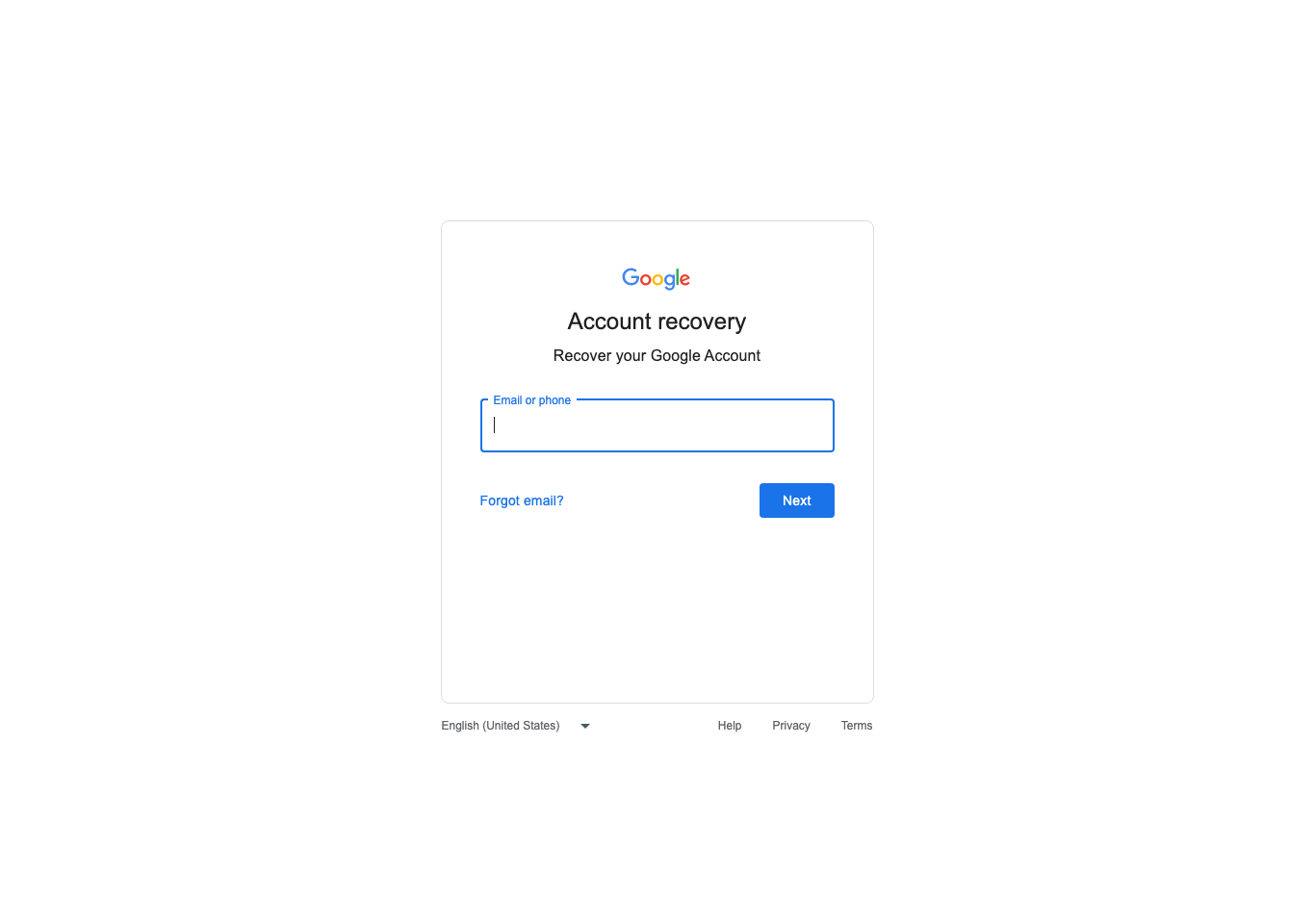
If the Google Account is locked out, the public recovery route begins with Email or phone, then Next. This empty entry screen shows where recovery starts; later questions and the result depend on the account.
Version notes
Captured from live accounts.google.com on 2026-10-31 using installed Google Chrome 156.0.8078.74, 1365 × 960 viewport, isolated new profile, no account data entered. Google web service exposes no release number; currency is established by same-day live rendering, not inferred from an old support asset. Layout can vary by device and server rollout.To change Google's password, open Google Account → Security & sign-in → How you sign in to Google → Password, authenticate, and select Change Password after entering the replacement. Google's reset documentation says some verification devices, third-party apps and home devices can retain access. Do not assume the change revokes every connection.
Close completed items and keep the unresolved ones visible
Rerun Checkup after updating saved entries. If a warning persists, inspect its domain and username before changing anything again: a second account or stale saved entry may explain it. Do not delete a credential you still need merely to reduce the warning count.
Google allows More → Dismiss warning and, under Dismissed warnings, More → Restore warning. Dismissal is reversible housekeeping, not a password repair. A service that has closed or cannot complete recovery should remain marked unresolved, with related reuse already replaced elsewhere.
For each completed item, retain the date, accepted-change confirmation and fresh-login result. A password replacement protects future authentication; it cannot retract information already copied. Keep monitoring the affected accounts for unfamiliar activity, and revisit the queue when the provider supplies new facts.
Sources, versions & scope
The steps describe the documented controls and expected checks; they are not a claim that every device or software release has been physically tested. Platform and version differences are stated with the procedure.