Make the desk dependable before buying more bandwidth
A home office connection succeeds when you can hear a colleague, present a document and save work through the busiest part of your day. A large download number alone cannot establish that. Build a connection you can repeat, then decide whether anything needs replacing.
This guide uses a Windows 11 laptop on an existing home router. It covers the desk connection and a practical acceptance check; router administration and automatic internet failover are separate projects. Have your authorized Wi-Fi password, a permitted Ethernet cable and, if needed, a Windows-compatible USB Ethernet adapter available. Keep employer-required VPN and security software running throughout.
Write a one-sentence requirement: “At this desk, with the door closed, I need a clear work call while the household uses the internet normally.” Add any essential remote desktop or file-saving task. That sentence becomes your stopping rule. You do not need to keep upgrading after it works consistently.
Give the laptop one known path
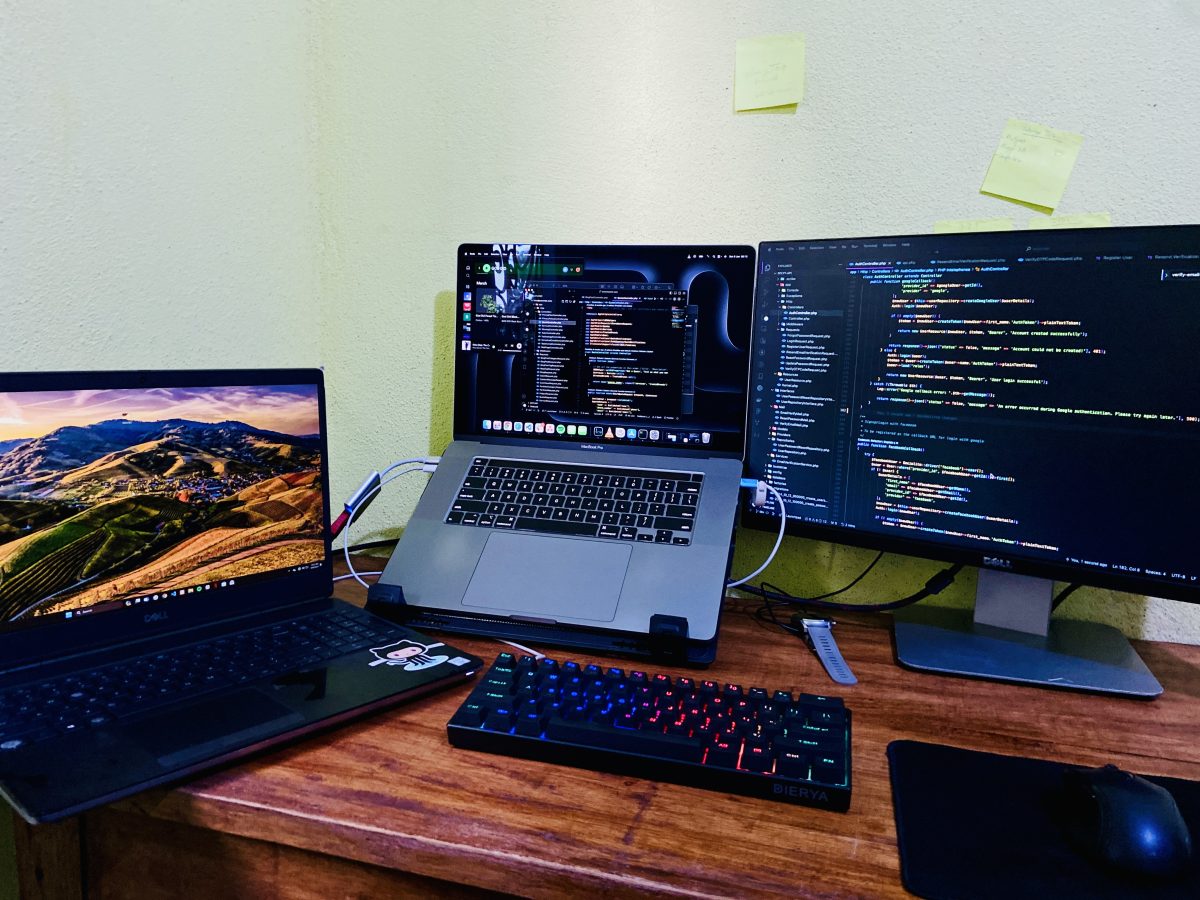
For a fixed desk with a safe cable route, start with Ethernet through the existing router. If the cable would cross a doorway or snag a chair, use it temporarily for comparison and plan a suitable permanent route before leaving it installed. Do not move provider cables to make room.
- Inspect the plug before seating it. Look for a broken retaining latch, a cracked plug or a sharply damaged cable. The close-up shows the clear latch and contact row to inspect; it cannot establish cable category, speed or internal condition. Substitute a known-working lead if yours will not stay seated.
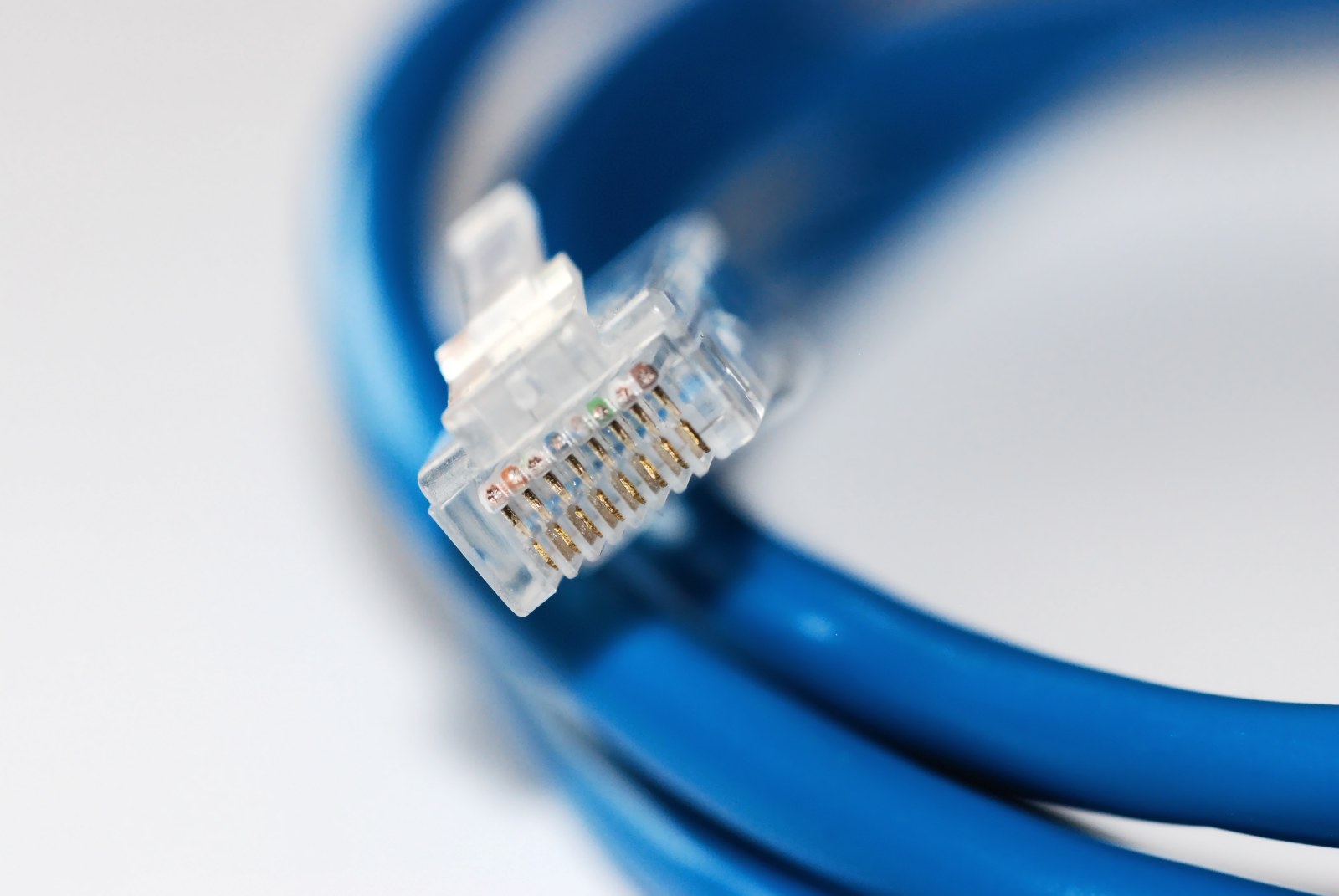
Visual 01 · Physical Ethernet plug inspection; independent of operating system Inspect the retaining latch and plug body before connecting. This reference photo does not establish cable category, speed or internal condition.
Devcore / Wikimedia Commons; CC0 1.0. Original unchanged. Image source · Usage termsVersion notes
Real photograph captured 26 May 2012; visually checked 31 October 2026. This is a connector inspection reference, not a current product recommendation or a Windows screenshot. No performance capability inferred from the plug. Display photograph resized for loading speed; the full-size link preserves the original download. - Connect the laptop or its Ethernet adapter to an available router LAN port, checking the printed label or model manual. Leave the Internet/WAN connection alone. Microsoft’s Ethernet guidance confirms this connection and the USB adapter option.
- Open Start > Settings > Network & internet. Check the Ethernet status for Connected. Temporarily turn Wi-Fi off in Network & internet > Wi-Fi, then open a familiar website and the work service you need. This prevents a working wireless connection from hiding an unsuccessful wired setup.
If Ethernet is absent or disconnected, reseat both ends, try another known-working cable and an available LAN port. If using a dock, check its power and adapter connection. Restore Wi-Fi if you need to continue working. Windows 11’s Network and Internet troubleshooter in Get Help is the next documented route; avoid removing adapters or resetting the network as a first experiment.
Once the wired path works, label the desk end privately and leave enough slack to move the laptop normally. Recheck after undocking and reconnecting: a setup that only works before the first meeting is not finished.
If the desk needs Wi-Fi, test the actual position
For a wireless desk, unplug the temporary Ethernet lead and enable Wi-Fi again. Open quick settings by selecting the taskbar’s Network, Sound or Battery area. Beside Wi-Fi, select Manage Wi-Fi connections, choose your recognized network and select Connect; enter its password and select Next if prompted. These are the steps in Microsoft’s Windows connection instructions.
Keep the laptop in its working position, with its normal monitor, dock and door arrangement. Compare that position with a short check nearer the router. Microsoft’s home-layout guidance recommends comparing locations and repeating measurements after changes. It also describes the range advantage of 2.4 GHz and the generally higher throughput of 5 GHz.
If your existing network exposes separate, clearly identified bands, compare them at the desk using the same task. Keep the one that behaves better there. If there is only one network name, leave band steering alone for this exercise. Do not rename the household network or force an adapter setting just to make a comparison possible.
If the desk repeatedly fails while the nearer position works, you have a location-dependent symptom. Try a modest desk or router-position adjustment within existing safe cable reach, then repeat. For a persistent coverage gap, use the existing mesh or wired access point guide before choosing equipment.
Rehearse the busiest ordinary work period
Set aside a practice session outside a critical meeting. Use a willing colleague or a permitted test call with non-sensitive material. The following is an editorial acceptance exercise, not a benchmark or a promise about your provider.
- Start with optional large transfers paused through their own applications. Keep the required VPN connected. Record the time, interface, desk position and whether anyone else is using the connection.
- Make a roughly ten-minute call with your normal microphone and camera. Take turns speaking and share a disposable document. Ask the other person whether your voice breaks up; your local camera preview cannot answer that question.
- Repeat during a normal busy household period. If a routine upload or backup is part of that period, let it run. Note when problems start and whether they stop when you pause that optional transfer.
- Save a small, non-sensitive work file through your normal service and confirm its completed save or synchronization state. Then disconnect and reconnect the laptop as you normally would between work sessions and check again.
A useful record says “audio broke up only while the photo upload ran,” rather than “slow internet.” Pause or schedule the competing transfer and repeat once. Resume any paused backup after the call. Do not end unfamiliar system processes or abandon backups permanently to make the desk appear reliable.
Upload capacity matters because your camera and shared material must leave the house. Zoom’s published requirements recommend 2.6 Mbps upload and 1.8 Mbps download for a 720p group video call. As a hypothetical planning example, two such calls total 5.2 Mbps upload before other traffic. That already exceeds a 5 Mbps upstream service, even if its advertised download speed is much higher. Actual application use varies; meeting the arithmetic alone does not guarantee clear calls.
If you take a speed reading, record upload as well as download and avoid running the speed test during the acceptance call: the test itself adds traffic. The existing call-quality guide explains why delay variation and loss can matter even with spare bandwidth.
Leave yourself a recovery route
Before the next important call, choose one fallback you can actually use: a previously checked wired desk connection, a nearer working position, or an employer-approved cellular connection. Rehearse joining the work service through it. A second Wi-Fi name on the same broadband line does not provide a separate route around a provider outage.
During a failure, save locally where the application permits, tell the meeting what is happening, and try the rehearsed route. If ordinary websites work but only the work service fails, note that distinction and contact work support. If several household devices lose access together, check the provider’s status using another available connection. Avoid restarting shared equipment during someone else’s call; a factory reset erases settings and is not a routine recovery step.
Finish with a private desk note: normal connection, successful practice date, transfers to schedule, fallback and support contact. Restore Wi-Fi after a temporary wired check and resume paused transfers. Keep the arrangement that passes your real workload on repeated occasions, and retest after changing the dock, desk location or internet service.
Sources, versions & scope
The steps describe the documented controls and expected checks; they are not a claim that every device or software release has been physically tested. Platform and version differences are stated with the procedure.