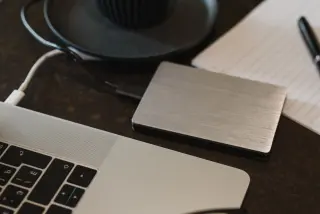
Choose what must work on the PC
A safe migration ends when you can do your work on Windows and still recover something you missed. This guide uses macOS 27, Windows 11 and an external drive for ordinary personal files. Keep the Mac signed in and usable throughout. Applications, account access and photo libraries need separate attention; copying your home folder does not settle all three.
Write down five tasks you must complete: perhaps editing a budget, finding an old photograph, sending email, opening a project and printing. Beside each, record its Mac application, actual data location, intended Windows application and a concrete acceptance check. For managed equipment, ask your administrator which data and transfer media are permitted before copying.
Check the developer’s Windows support and licence terms for essential software. Install the Windows edition from its official source. A copied Mac application is not a Windows installer. If a required tool has no workable replacement, leave that task on the Mac until you resolve it. Test your printer, scanner and specialist accessories too.
Before beginning, make a separate Mac backup and restore one expendable document from it. Keep that backup apart from the transfer drive. It protects your return to the Mac; it is not the ordinary-file import route described here.
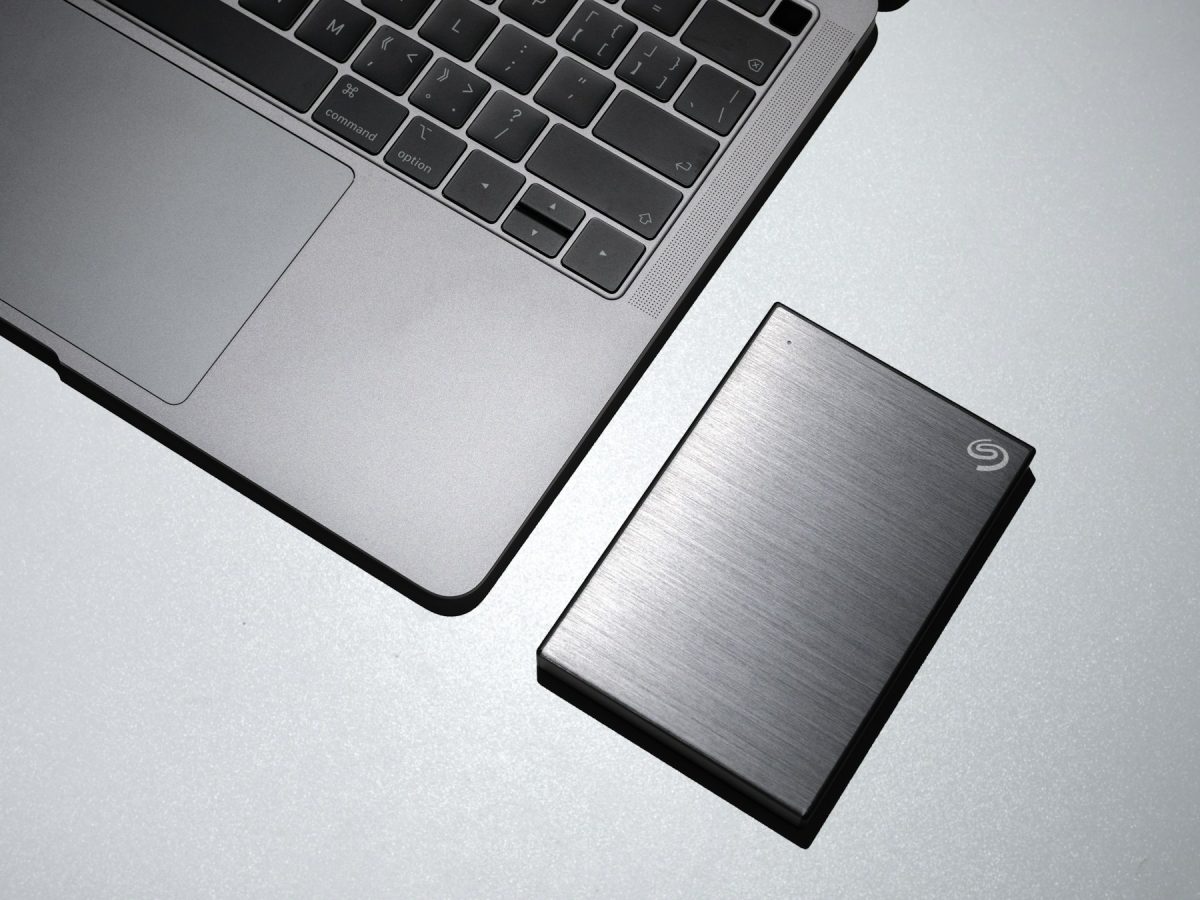
Find the files behind the familiar icons
In Finder, inspect Desktop, Documents, Downloads, Pictures, Music and Movies, then add folders you created elsewhere and other connected drives. Record the paths. A sidebar shortcut can point somewhere different from the folder you expected.
For iCloud Drive, open Finder, select iCloud Drive, then choose View > as List. Choose View > Show View Options and enable iCloud Status. Apple distinguishes files stored only in iCloud from downloaded items. Control-click an online-only item and choose Download Now. Wait for completion before copying; a visible filename alone is not proof that its contents are local. See Apple’s status guide.
Work in batches if the Mac cannot hold every cloud file at once. Download a manageable folder, copy it and verify it before continuing. Stop on download errors or storage warnings. Do not sign out of iCloud or delete cloud originals to force a transfer through.
For app-owned documents, export a representative copy into a format the intended Windows application supports. Preserve the native original as well. Reopen the exported copy on Windows and check layout, formulas, links and embedded media. Renaming a suffix does not convert a document. Keep account-based mail separate from local-only archives: confirm older messages and attachments actually appear on the PC before treating mail as finished.
Give the transfer its own drive
Use a separate external drive with enough free space for the selected files and exports. In a hypothetical move, 90 GB of documents plus 160 GB of exported media requires at least 250 GB free before allowing room for retries and extra exports. Check the PC’s available space too; the drive’s advertised capacity is not its current free space.
An exFAT transfer drive is a practical ordinary-file bridge. Apple documents it as a Windows-compatible choice for disks over 32 GB. If a spare drive needs formatting, open Disk Utility, choose View > Show All Devices, and identify the external disk by name and capacity. Disconnect unrelated external disks first. Select the intended disk, click Erase, choose the appropriate partition scheme and ExFAT, and give it a short name such as MACMOVE.
Formatting deletes the selected disk’s contents. Follow Apple’s formatting instructions only after preserving anything needed elsewhere. Cancel if identification is uncertain. If Windows instead asks to format an existing drive containing your files, cancel that prompt too. Formatting is not recovery.
Create a dated transfer folder with separate Documents, Media and App exports subfolders. Keep the drive physically secure: choosing exFAT does not itself encrypt your files. Use copy operations throughout, leaving the Mac’s originals intact.
Treat Photos as a collection that needs exporting
Do not count a copied Photos Library package as your Windows photo collection. In Photos on the Mac, select a small representative batch, including an edited photograph and a Live Photo if you use those. Export into separate folders so originals and viewing copies cannot overwrite one another.
- For original files, choose File > Export > Export Unmodified Original. Choose filenames and subfolder organisation, click Export, select your destination, then click Export Originals.
- For edited still photographs you want to view easily, choose File > Export > Export [number] Photos and choose JPEG as Photo Kind. Inspect the size and quality options before exporting to a separate folder.
- For videos, use File > Export > Export [number] Videos. Check the resulting movie on the PC, including sound and playback near the end, before exporting the rest.
Apple’s export guide explains that an original Live Photo produces a still file and a video file. Expect file counts to differ from selected-item counts. Original exports preserve source files; JPEG exports are separate viewing copies. Neither is a promise that your new photo application will recreate albums or editable adjustment history. Keep the Mac library and backup until you have checked what matters.
Copy a pilot batch, then prove it opens
Start with one small folder containing actual examples of your important file types. In Finder, select it, press Command-C, open the transfer destination and press Command-V. Wait for copying to finish, then eject the drive in Finder before unplugging it.
Connect the drive to the PC and open File Explorer. Under This PC, open the external drive. Create a local folder called Mac migration review outside any cloud-synced folder. Select the pilot files, press Ctrl-C, open that local folder and press Ctrl-V. Leave the drive copy in place.
In Windows 11 File Explorer, choose View > Show > File name extensions. Inspect the complete suffix on an imported sample before choosing an application. The Microsoft reference image shows the option before it is enabled; it does not show your imported files. Microsoft’s extension guide also explains why changing a suffix does not change the underlying format.
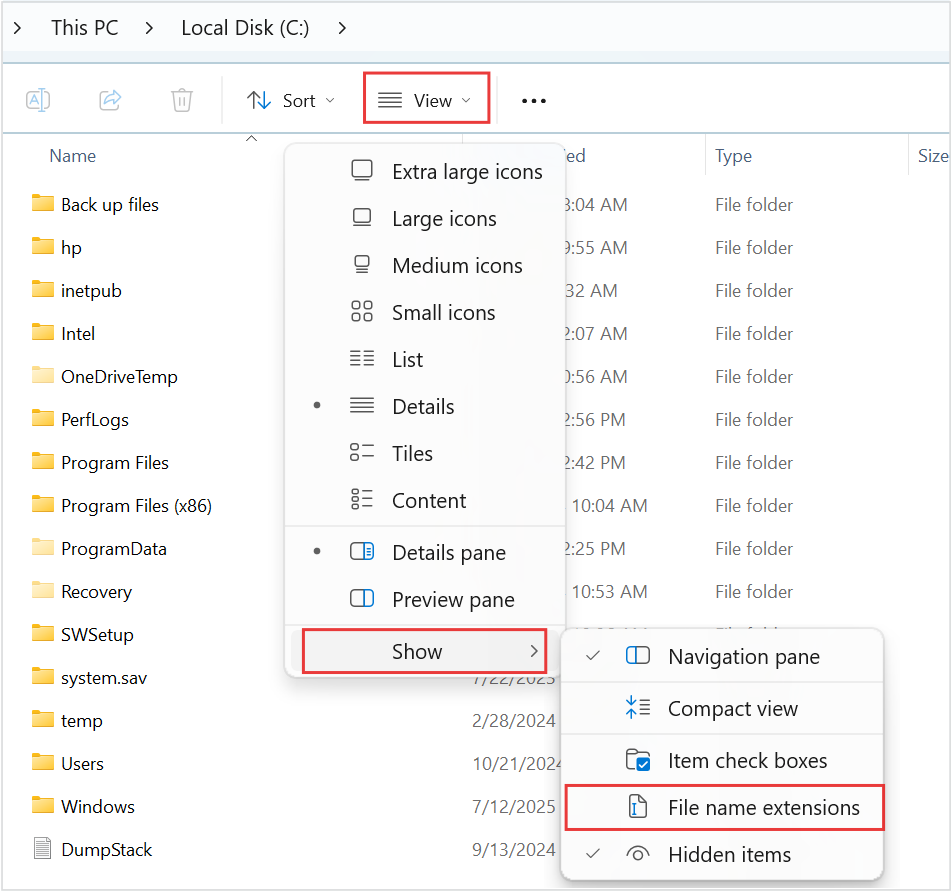
Microsoft Windows 11: open View → Show and enable File name extensions before inspecting an imported document’s suffix. The supplied image shows the option unchecked, with Microsoft’s red outlines unchanged; it does not show a completed migration.
Version notes
Microsoft’s current Windows 11 file-extension instructions provide this Windows 11 command-bar and Show-submenu image. Complete downloaded asset retained, including the source’s red outlines. Exact Windows build is not stated. Initial menu state only; it does not show the article’s files or completed extension display.Open each sample, make a disposable edit, save under a new name, close and reopen. Compare important content with the Mac original. Check a spreadsheet’s totals and a document’s page breaks. A missing application requires an installation or export decision; a copy error requires another transfer attempt. Keep those failures distinct.
Once the pilot passes, copy the remaining folders in named batches. Log errors and retry into a new folder rather than accepting replacement prompts blindly. Compare folder sizes and file counts as clues, then inspect representative files. Those checks can expose omissions; they do not certify every byte or preserve every Mac-specific attribute.
Retire the Mac only after the last dependency clears
On Windows, verify email, your password manager, second-factor access and recovery information while the Mac remains available. Avoid creating a plaintext password export just to make the move convenient. Record any app data or local archive that still needs a dedicated import process.
Complete the five tasks from your note using the PC’s local copies. Back up the new Windows working files independently, then copy any final Mac changes as a clearly named last batch and recheck them. Avoid editing the same document on both computers during this handover.
If something fails, resume that task on the unchanged Mac and investigate using copies. Keep both the transfer drive and Mac backup until the missing dependency is resolved. Only then schedule the separate sign-out and retirement process. Erasing the Mac removes your easiest recovery route; it should follow successful work, not a completed progress bar.
Sources, versions & scope
The steps describe the documented controls and expected checks; they are not a claim that every device or software release has been physically tested. Platform and version differences are stated with the procedure.