Keep the PC available until the Mac earns your trust
A successful move means you can finish your normal work on the Mac and recover anything you missed. This plan covers a personal Windows 11 PC moving to macOS 27 using Apple’s Migration Assistant. Its copy operation leaves the PC’s information intact. Keep that advantage: postpone erasing, selling or trading in the PC until your checks pass.
Choose a quiet period without an approaching deadline. Write down three jobs the Mac must handle: perhaps editing the household budget, joining a work meeting and printing a shipping label. These are your acceptance checks. A desktop that looks familiar is insufficient evidence.
For a managed work or school computer, have the administrator confirm the migration route first. Your personal plan should not include changing an organisation’s security controls or copying restricted files into a personal account.
Make a short dependency map
Create a migration note with four columns: task, actual file location, required application, and Mac check. Record full folder locations rather than relying on sidebar favourites. Include Downloads, folders outside Documents, additional drives and files belonging to another Windows user.
For each essential application, check the developer’s Mac download and your licence entitlement before moving day. Plan a fresh installation from the developer or Mac App Store. Copying a Windows program folder is not your installation plan. If a specialist application has no suitable Mac route, keep that task on the PC until you have a verified alternative.
Use a representative document to investigate compatibility. Open a copy in the intended Mac application, inspect its layout and calculations, make a disposable edit, save, close and reopen. A spreadsheet with a working total is a stronger check than an application that merely launches. Include linked media, templates, fonts or plug-ins when your task depends on them.
Check access separately: your email address, password manager, second factor and recovery method. Prove you can sign in from the Mac without relying entirely on an already signed-in Windows browser. Keep recovery secrets in their secure store, not in the migration note. Do not export a plaintext password file just to make this checklist easier.

Turn visible filenames into recoverable files
Before migration, make a separate backup of irreplaceable work and open sample files from that backup. Preserve the source PC as well. A second copy that has never been opened leaves an important uncertainty unresolved; the backup recovery guide explains a fuller rehearsal.
If you use OneDrive, distinguish online-only items from downloaded files. In Windows File Explorer, right-click the OneDrive folders you intend to carry locally and select Always keep on this device. Wait for the solid green circle with a white check, then open representative files offline. Microsoft documents this download behaviour; a blue cloud marks an online-only item.
Do this in manageable batches if the PC lacks room. Alternatively, plan to access those files through OneDrive on the Mac and verify that route before retiring Windows. Record which route owns each folder. Avoid feeding the same library through both routes without a reason: duplicates make later verification harder.
Use copy, rather than move, when creating your separate backup. In a synchronized folder, deletion can propagate to other devices and the web. Never delete the Windows OneDrive folder as a migration cleanup shortcut. For now, leave cloud originals and existing folder relationships alone.
Budget for working space, not just a nominal drive size. Hypothetically, 180 GB of local files plus 60 GB of cloud files you want downloaded requires 240 GB before applications and future work. A Mac with 220 GB currently free cannot hold that plan. Reduce the selected data or change the storage plan before starting; those figures are an example, not a measured requirement.
Make one deliberate transfer
Update both computers, save work, close applications and connect power. Keep the machines nearby with Wi-Fi and Bluetooth enabled. Download Windows Migration Assistant through Apple’s download page; the checked release is 3.2.0.0, requiring Windows 10 or later and macOS 14.4 or later.
- On the Mac, use the transfer stage during setup, or open Migration Assistant with Spotlight afterward. Choose From a Windows PC, then Continue.
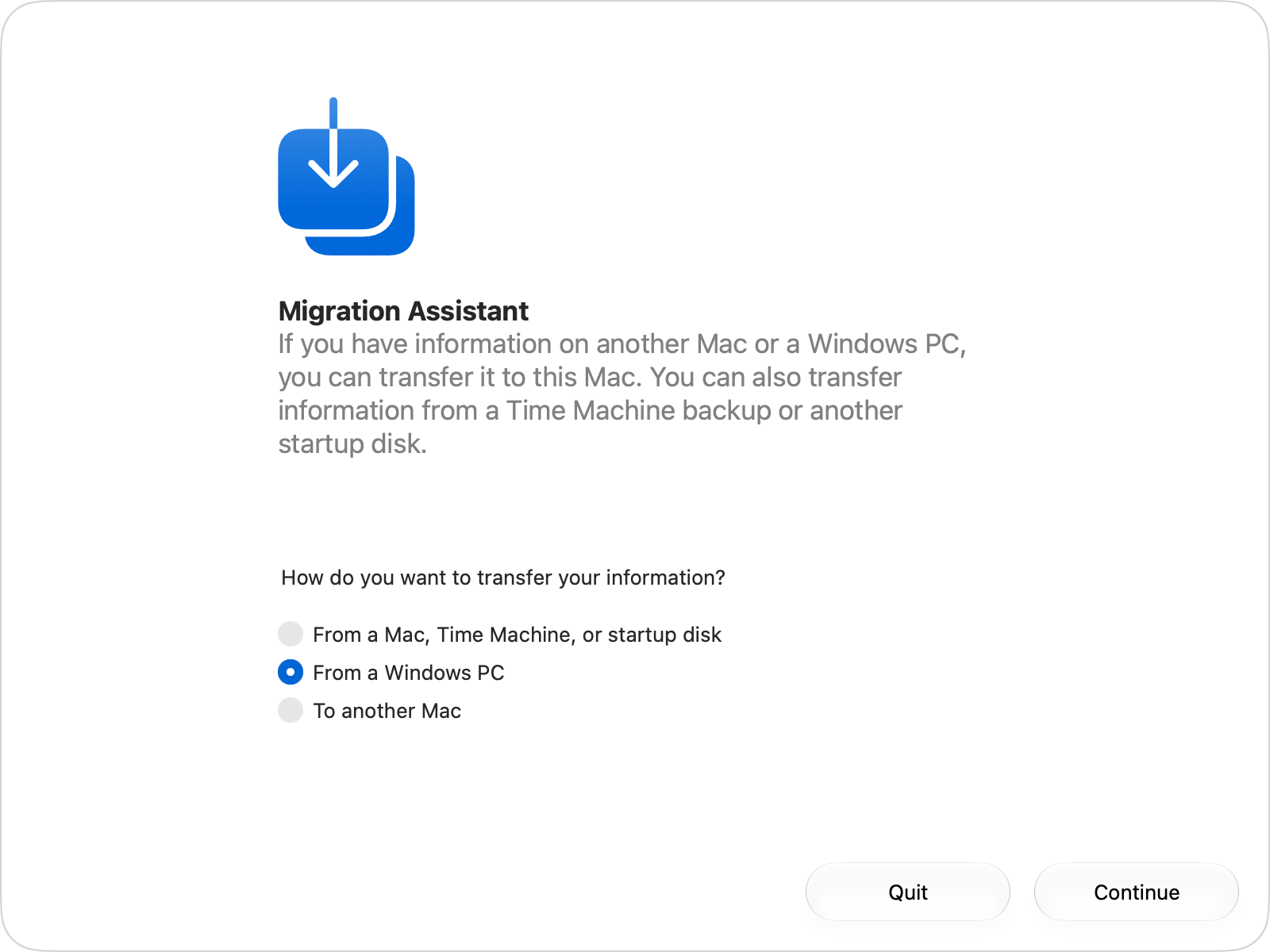
Visual 01 · macOS 27 Migration Assistant Apple’s macOS 27 example has From a Windows PC selected. Choose that transfer method on your own Mac.
© Apple Inc. Official instructional screenshot; copyright retained by Apple. Image source · Usage termsVersion notes
Unchanged official Apple image linked from support article 102565, published September 14, 2026 and checked October 31, 2026. Source filename explicitly identifies macOS 27 Migration Assistant. Exact minor OS/app build and capture date unknown. Vendor example, not an actual migration performed for this article. - Open Windows Migration Assistant. Enter the code displayed on your own Mac and click Continue. Do not use the screenshot’s example code.
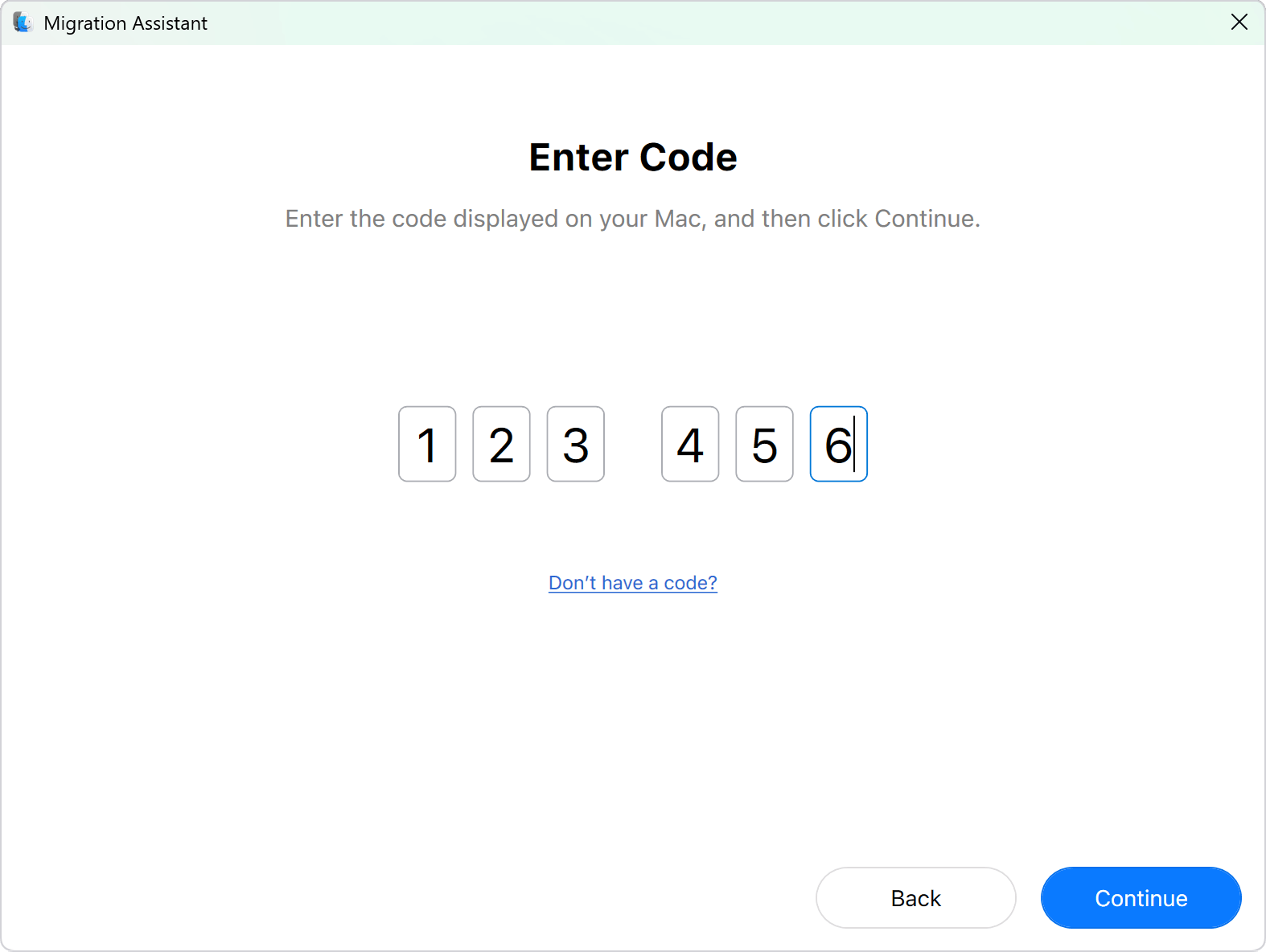
Visual 02 · Windows 11 · Windows Migration Assistant 3 Enter the code from your own Mac. The displayed 123456 is Apple’s demonstration, not a code to reuse.
© Apple Inc. Official instructional screenshot; copyright retained by Apple. Image source · Usage termsVersion notes
Unchanged official Apple image linked from support article 102565, published September 14, 2026 and checked October 31, 2026. Source filename explicitly identifies Windows 11 · Windows Migration Assistant 3. Exact minor OS/app build and capture date unknown. Vendor example, not an actual migration performed for this article. - On the Mac, wait for the size calculation. Expand categories and select the items you need before choosing Continue. Compare the selection with your migration note.
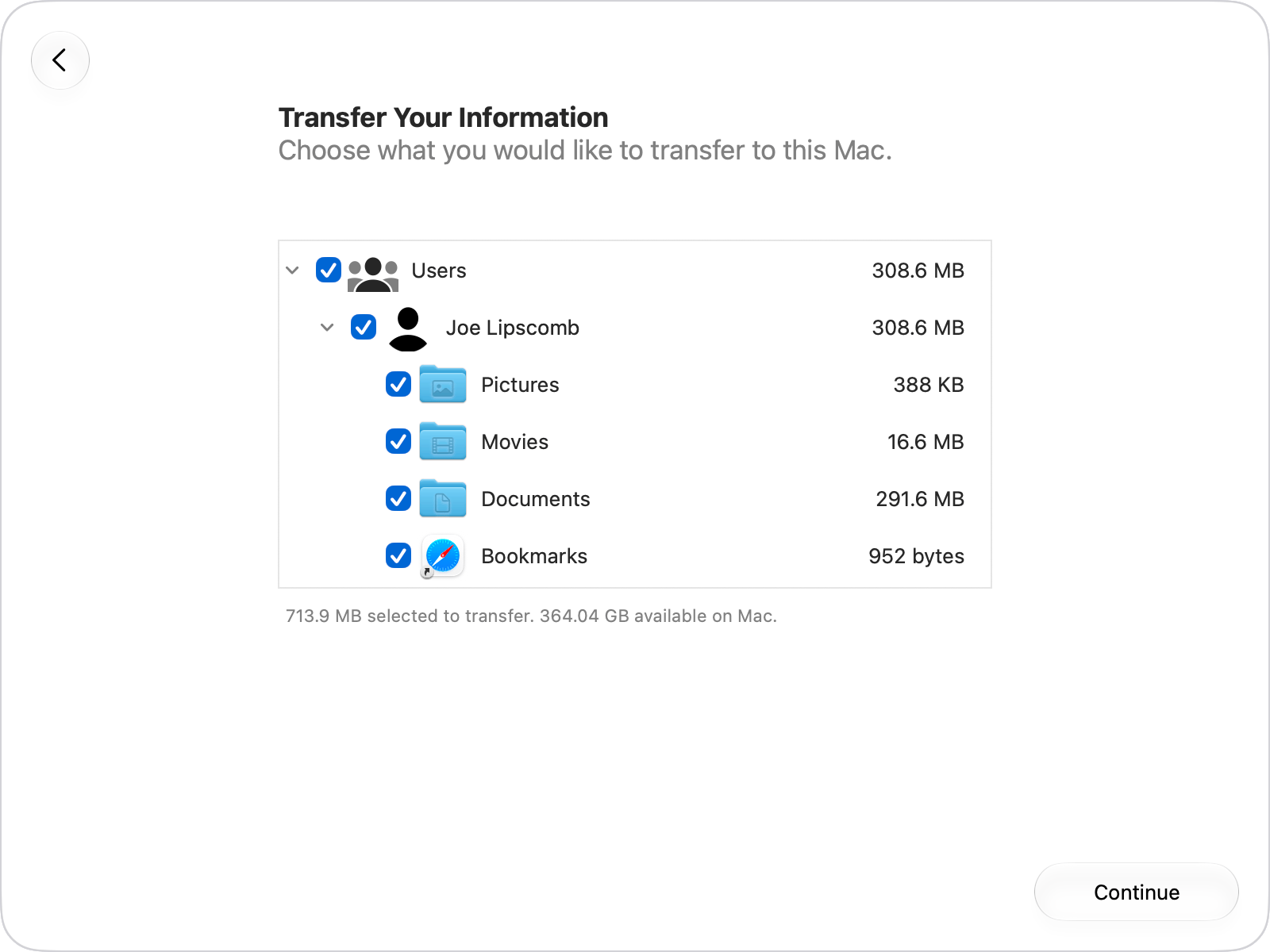
Visual 03 · macOS 27 Migration Assistant Expand the account and review selected categories. Apple’s sample name, sizes and available space describe its example, not your migration.
© Apple Inc. Official instructional screenshot; copyright retained by Apple. Image source · Usage termsVersion notes
Unchanged official Apple image linked from support article 102565, published September 14, 2026 and checked October 31, 2026. Source filename explicitly identifies macOS 27 Migration Assistant. Exact minor OS/app build and capture date unknown. Vendor example, not an actual migration performed for this article. - Follow the account-password prompts and retain the password securely. Let the transfer finish; large transfers can take hours. Log in to the migrated Mac account afterward.
Restore any security software settings you temporarily changed for the transfer. Keep a record of such changes so that troubleshooting does not leave protection disabled.
Check the work, not just the progress bar
In Finder, choose Go > Home to start checking the migrated account’s folders. Apple’s macOS 27 switching guide documents this route. Check that you are inspecting the intended account before deciding a folder is missing.
Return to your dependency map. For each important folder, compare recognizable contents with the PC and open an older file, a recent file and a large file where available. Counts can expose omissions, but matching counts alone do not establish matching contents. Record unresolved differences instead of deleting apparent duplicates immediately.
Run the three jobs you chose at the beginning. Send a harmless test message, check a known calendar appointment, open your usual browser destinations and perform the necessary printer or meeting task. For photos, inspect actual image files and deliberately check the library in the application you intend to use; do not assume a copied folder proves your preferred library is ready.
Choose one computer for new edits once you begin using the Mac. If you alternate between two unsynchronized local copies, record which contains the latest work. Back up the Mac’s new work before considering the PC disposable. Retain the old machine through a normal working cycle that exercises your less frequent tasks, rather than choosing an arbitrary overnight deadline.
Recover without sacrificing the fallback
The computers will not connect: recheck the downloaded assistant and the preparation conditions in Apple’s migration instructions. Apple advises temporarily turning off installed antivirus, firewall or VPN software during preparation. On your own devices, record any change and restore it afterward; for managed protection, ask the administrator.
The transfer fails or files are missing: preserve the error wording and inspect what arrived before retrying. Copy a missing folder into a distinctly named staging folder rather than overwriting existing Mac work. Compare its contents, then decide where the verified copy belongs. Avoid repeated blanket transfers that make account and folder differences harder to understand.
A critical task fails: resume it on the intact PC while resolving the Mac application, licence or file dependency. Copy back any newer Mac document you need using a new filename and verify it opens before editing. Keeping Windows available is what makes this a controlled migration instead of a deadline emergency.
Sources, versions & scope
The steps describe the documented controls and expected checks; they are not a claim that every device or software release has been physically tested. Platform and version differences are stated with the procedure.