Keep the memory; leave out the coordinates
A photograph of something you are selling can carry an unexpected extra: the place where you photographed it. The location is separate from the visible picture. Before sending a buyer an image taken at home, decide whether you want to exclude that location just for this delivery or remove its association in your photo library.
This guide covers Apple Photos on iPhone, using the current iOS 27 documentation. Start inside Photos rather than an upload button in another app. You can keep useful place information privately while controlling what accompanies a particular share.
For a routine one-off send, use the share options below. For a photo you expect to reuse repeatedly, consider the library adjustment too. Neither choice can conceal an address printed on a parcel or a recognizable view through a window.
First inspect the picture and its information
Open the intended photo in Photos, then swipe up or tap the Info button. This opens the information panel beneath the picture; device details and capture information may appear alongside its location.
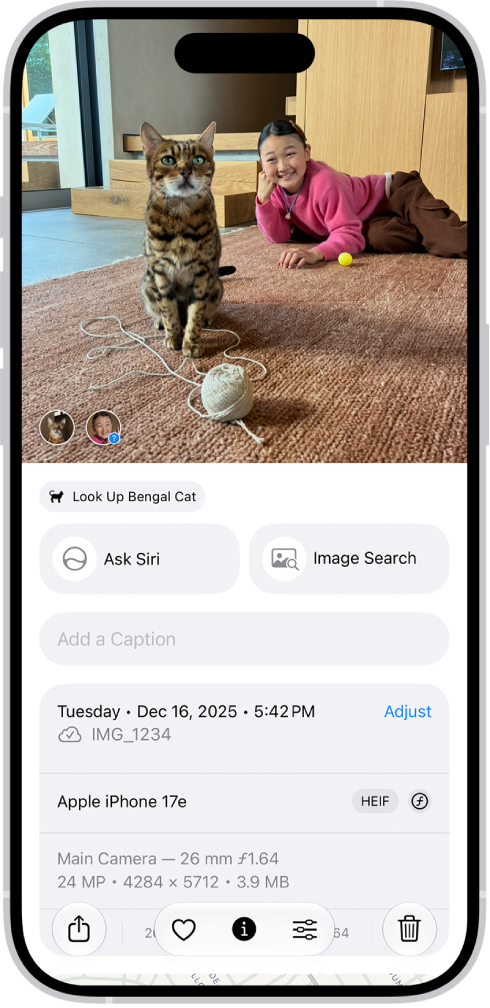
The current iPhone guide shows the photo information panel. Scroll through your own panel to review its location; this illustration does not show a location removal.
Version notes
Official current iOS 27 user-guide illustration checked 2026-10-31. Distinct from the explicitly versioned iOS 26 asset in both bytes and visible content; exact capture build unspecified.Look for a place or map, scrolling through the information if needed. Apple's metadata guide identifies the location entry and the option to add one when it is missing. A panel without a location is useful evidence about this library item, but it is not a promise about every previously exported copy.
Next examine the image itself at a readable size. Check labels, door numbers, reflections and nearby signs. For a hypothetical marketplace listing, two otherwise similar photographs might show the same chair, while only one includes a shipping label with your street address. Choose the safer composition before worrying about hidden fields.
Exclude location from this share
Use this route when you want to retain the photo's location in your own library. Apple's personal safety guide documents the Location switch and its confirmation text.
- In Photos, open the photo you intend to send. For several pictures, use Select and choose only the intended thumbnails.
- Tap Share. Before choosing a person or app, find Options near the selected-photo information at the top of the share sheet. A Location Included message means you still need to change the sharing setting.
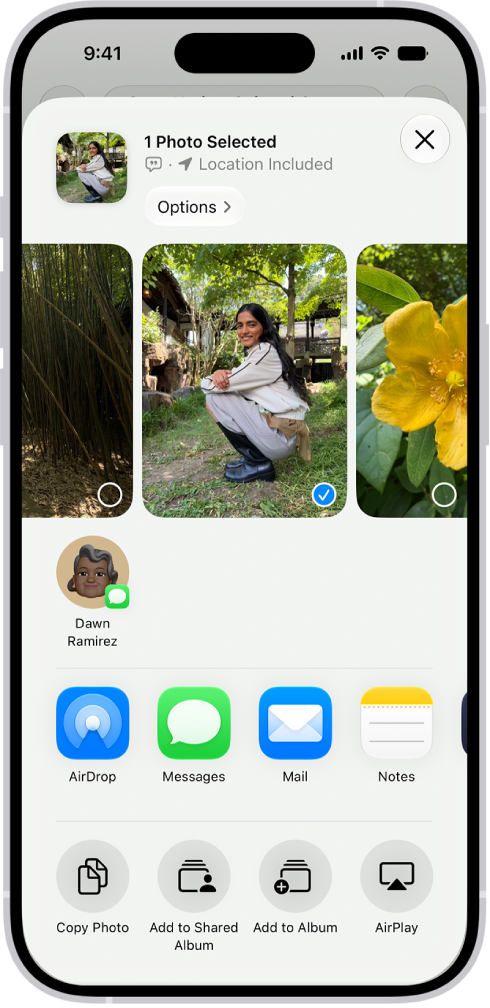
Visual 02 · iPhone · iOS 27 Before changing the setting: Location Included appears above Options. Open Options before choosing a recipient. This is not a location-free success state.
Apple iPhone User Guide. Copyright Apple Inc.; contextual editorial interface quotation. Image source · Usage termsVersion notes
Official current iOS 27 user-guide illustration checked 2026-10-31. Distinct from the explicitly versioned iOS 26 asset in both bytes and visible content; exact capture build unspecified. - Tap Options and turn off Location. Return to the share sheet, closing the options panel if necessary.
- Check for Location Not Included above Options. Then choose your destination and finish sending.
Treat the confirmation as a checkpoint for each new delivery. If you cancel, change the selection or restart from another app, check again. The time to discover an included location is before you tap the final send button.
If Location is missing, return to Photos and inspect the item. Do not hunt through a messaging app's attachment picker for the same controls. You can instead adjust the library item using the next section. If you cannot establish what will leave the phone, postpone that upload.
Remove the location association in Photos
For a picture you plan to share repeatedly, open it in Photos, tap the More button, then choose Adjust Info → Adjust Location → No Location. Reopen its information panel and check that the previous place is no longer shown.
This changes the library item's location association. It does not reach into an attachment you already sent, an older export on a computer or a copy someone downloaded. Think of those as separate deliveries that need separate handling.
If you chose the wrong picture, Apple's metadata guide documents the undo route: open the photo's More menu, return through Adjust Info to Adjust Location and choose Revert. That restores its original location when available. The ability to revert is also why this should not be described as irreversible destruction of every location record.
Do one photo first so you can recognize the before-and-after state. For a batch, Photos supports selecting multiple thumbnails before the adjustment. Check your selection carefully: holiday pictures and listing pictures can sit next to one another, and you may want to keep their location histories differently.
Check the outgoing copy when the destination matters
For a sensitive image, make a private trial delivery through the same route you intend to use. Keep track of the original and the received file so you do not accidentally inspect the original again. Open the received copy in a viewer that exposes location metadata; on another iPhone, save it to Photos and inspect its information panel.
If the received copy still identifies the place, stop. Recheck the selected photo and the Location Not Included confirmation, then repeat the trial. A successful trial through one route does not validate a different upload process. Avoid sending a real home-location photo merely to experiment with an unfamiliar service.
Also leave All Photos Data off when offered. Apple's sharing guide says that option sends the original with edit history and metadata through AirDrop. Choosing Automatic, Current or Most Compatible concerns file format; those labels are not confirmation that location was excluded.
The goal here is narrower than removing all metadata. Dates, device details and captions deserve their own review if they matter to your situation. A clean-looking preview alone cannot settle what information accompanies the file.
Prevent future tags, and handle an earlier mistake
To stop Apple's Camera app collecting location for new pictures, open Settings → Privacy & Security → Location Services → Camera → Never. This does not clean existing photos. If you later want Camera to use location again, return to that same permission page and choose the access you intend to allow.
Apple's Location Services explanation describes permissions as app-specific controls. Review another camera app separately if you use one; Camera's setting is not a universal switch for every app. Changing the individual permission also avoids disabling location for unrelated tasks such as navigation.
If you already shared an image with a location, changing it now cannot recall the earlier file. Remove the public upload where possible and replace it with a checked copy. Ask a direct recipient to delete the earlier attachment, recognizing that you cannot verify every retained copy.
Before the next send, make the final decision from the recipient's perspective: does this delivery contain only the picture and information you meant to give them? Check the chosen image, the location confirmation and the destination together.
Sources, versions & scope
The steps describe the documented controls and expected checks; they are not a claim that every device or software release has been physically tested. Platform and version differences are stated with the procedure.