Agree which clock the meeting follows
A correct invitation gives everyone the same moment, even when their calendars show different hours or dates. This guide uses Google Calendar in a desktop browser, with you organizing the event. Before opening it, ask each participant for the city where they will be on the meeting date and their acceptable local hours. A colleague's office location may be irrelevant if they are traveling.
For a single meeting, agree a date, duration and reference city: “30 minutes, 9 November 2026, 09:00 in New York.” Avoid “9 Eastern” without a date. For a recurring meeting, ask a different question: whose local clock must stay fixed when seasonal offsets change? Put that decision in the description so a later organizer understands it.
Keep a short scheduling note with the reference city, proposed date, local working windows and who must attend. It gives you something concrete to compare with the saved event, and something to return to if a correction becomes necessary.
Compare the date you are booking
Open Google Calendar. Under the Settings gear, choose Settings → General → Time zone. Check Primary time zone. Enable Show additional time zones and select a Secondary time zone; add a Tertiary time zone if useful. Search by city or country and check the region before choosing.
Return to the calendar and use Week or Day view. Read the labeled time columns down the left of the grid to compare a candidate slot. Google's reference below demonstrates three columns side by side. Its example dates, abbreviations and appointments are demonstration content; use your own cities and actual meeting date.
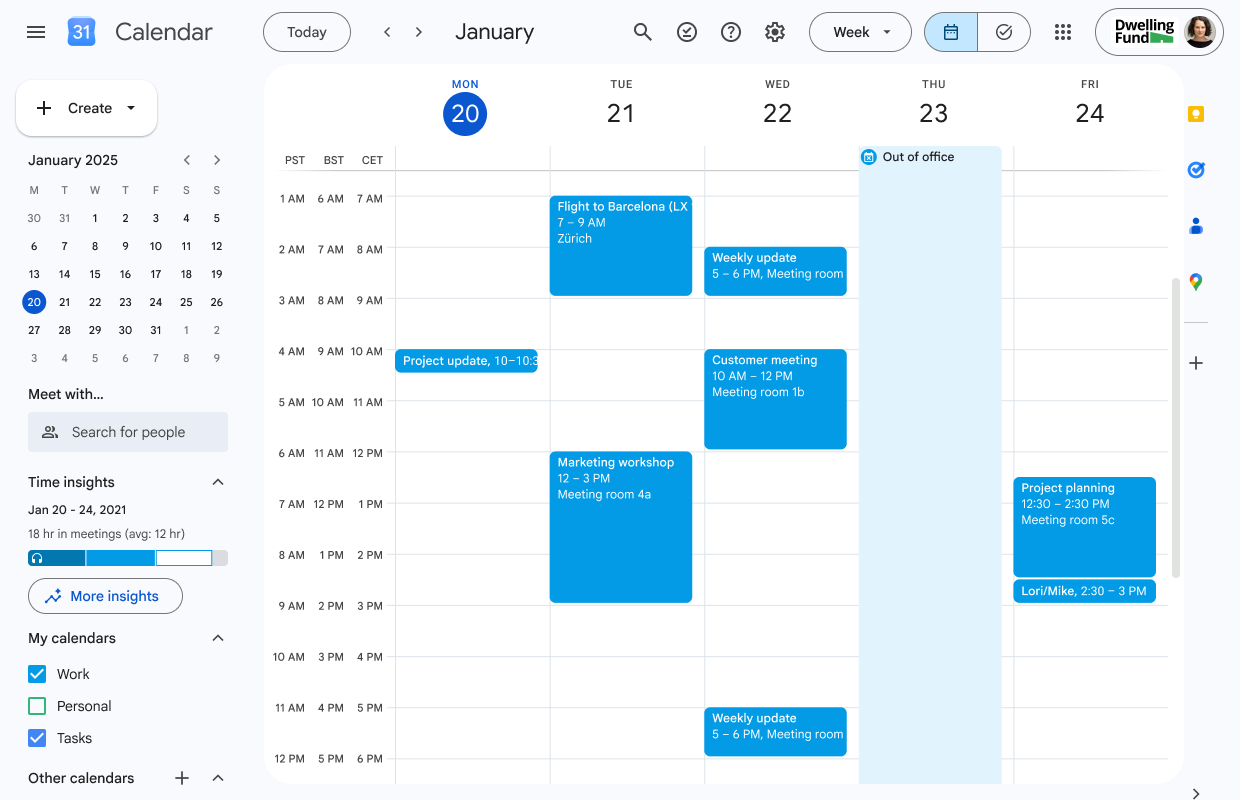
Compare a candidate row across the three columns at the left. This is Google’s demonstration grid, with sample January 2025 dates and labels; it is not the article’s November example or a verified conversion for those cities.
Version notes
Official 2026 release illustration, retrieved and visually checked 2026-10-31. Full downloaded image unchanged. Exact web build undisclosed. Vendor demonstration, not a private-account capture.The three-zone feature also supports Custom multi-day view and Find a Time while scheduling. Give the columns clear city labels in Settings. If you cannot see the expected columns, first check that you are using one of those grid views rather than Month view.
Here is a hypothetical scheduling example, calculated for 9 November 2026. A meeting at 09:00 in New York corresponds to 14:00 in London and 21:00 in Ho Chi Minh City. At 30 minutes, it ends at 21:30 for the Vietnamese participant. Correct conversion alone does not make that an acceptable work meeting: ask before sending it.
For any candidate near midnight, write the local date alongside the hour. Someone seeing Tuesday morning while you see Monday evening is not necessarily seeing an error. If no reasonable overlap exists, shorten the live discussion, rotate inconvenient slots with agreement, or collect updates asynchronously.
Enter the agreed hour in the event's zone
- Choose Create → Create event → More options. Beside the event time, open Time zone.
- Search for the reference city in the event's time-zone picker. Read the matching place and region before selecting it, then choose OK. Google's example shows several different places called Mountain View; the name alone is insufficient.
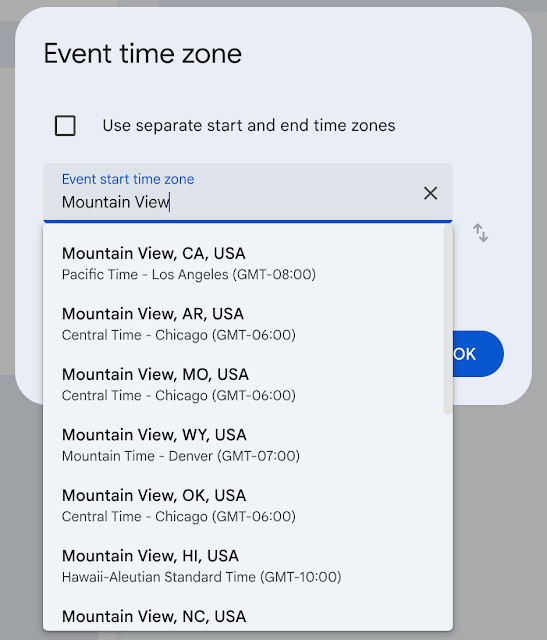
Visual 02 · Google Calendar desktop web Choose the correct place and region from city search results. Google’s Mountain View example shows why matching only the city name can select the wrong zone; the separate start/end option is unchecked.
Google Calendar is a trademark of Google LLC. Official Google interface reference; copyright Google LLC. Signal Desk is not affiliated with or endorsed by Google. Image source · Usage termsVersion notes
Official 2026 release illustration, retrieved and visually checked 2026-10-31. Full downloaded image unchanged. Exact web build undisclosed. Vendor demonstration, not a private-account capture. - Check the start date, start time, end date and end time against your scheduling note. For the hypothetical example, the event should describe 09:00–09:30 in the New York zone. Recheck the hour after selecting the zone rather than assuming the previously entered value is still your intended value.
A normal remote meeting has one event zone for both endpoints. Leave Use separate start and end time zones unchecked; that option is useful for journeys with endpoints in different regions. Keep the meeting as a timed event, not an all-day item.
Google's time-zone instructions explain that invitees see events converted to their local zones. Do not manually create another invitation for each city or add the offset to the hour twice. Additional grid columns help you compare; the event's chosen date, time and zone define what you are sending.
Check availability, then verify the invitation
Add each intended email address under Guests. Where calendar sharing allows it, use Find a time to inspect free/busy information. A blank area is useful evidence only when the calendar is available to you; it is not a promise that an external guest has no commitments. Ask guests whose availability you cannot inspect.
Before saving, read a final sentence aloud: date, reference city, start, finish, guests and meeting location or joining link. Include the reference city in the description, but let the calendar event carry the conversion. If you add explanatory local times, keep them consistent when you edit the event.
Choose Save and send the invitation email when offered. Reopen the saved event and compare it with your note and the grid columns. Ask an attendee in the other zone to confirm the date and hour shown in their calendar. This is a recommended verification step, not a claim that an invitation was sent or tested for this article.
If a guest sees no event, check the exact invited address, their inbox and spam folder, and ask them to RSVP from the invitation. Google's guest guidance explains that unfamiliar senders may require a response before the invitation appears. Resending a duplicate meeting can create a second scheduling problem; establish whether the original invitation arrived first.
Check repeats and repair the correct thing
Before making the event repeat, decide which city's wall-clock time is the commitment. Google's event model uses one time zone to expand a recurring series. Inspect occurrences on both sides of seasonal clock changes: a stable local hour for one city can become a different local hour elsewhere. Review the next affected date with participants instead of assuming today's difference applies all year.
- Everyone sees the same instant, but your display is inconvenient
Review your primary display zone and additional columns. Record your old setting before changing it so you can restore that view. Do not move the event merely to make your displayed hour match somebody else's.
- The invitation actually describes the wrong moment
As organizer, open the event, choose Edit, and inspect its date, hour and Time zone together. Correct them against the agreed note, save and send the update. If the change is mistaken, edit back to the recorded values and send a correction; an earlier email cannot be recalled by changing your view.
- Only one occurrence should change
Read the recurring-event scope prompt before confirming. Choose the scope that affects the intended occurrence rather than automatically changing the series. Reopen that occurrence and a later one to check the boundary. If you are only an attendee, ask the organizer to correct the shared invitation.
After any repair, confirm the local date and time again with the person who reported the problem. A saved change and a shared understanding are separate checks.
Sources, versions & scope
The steps describe the documented controls and expected checks; they are not a claim that every device or software release has been physically tested. Platform and version differences are stated with the procedure.