A useful parental-control setup leaves a child able to finish homework, ask for help and understand when entertainment time ends. Start with a few rules you can explain and check together. An unexplained lockout creates a troubleshooting problem as well as a family argument.
This guide covers Google Family Link for a child’s Android phone or tablet with an existing personal Google Account. You will add supervision, set a daily allowance, handle individual apps and choose a Chrome website policy. These are account and device controls; setting them does not establish a household-wide internet filter.
Agree on the rule before choosing the number
Write down three things: what the limit is meant to protect, which activities must remain possible and who handles exceptions. For example, protecting an uninterrupted homework session calls for a different arrangement from preventing a game from absorbing an entire afternoon.
Use an ordinary school day to work through the plan. Where does the child get assignments? Which app receives a pickup message? Does a lesson require a video? Keep a list of those dependencies beside you during setup. Include other devices the child uses, so your agreement describes the whole evening.
A hypothetical starting agreement might allow 90 minutes of general device use, including at most 30 minutes in one game, with an adult available for schoolwork exceptions. These numbers illustrate how to express a rule; they are not an age-based recommendation. Agree on a review date rather than treating the first allowance as permanent.

Link the child’s account while you are together
Google requires the supervising adult to have a Google Account and be at least 18, or the appropriate age locally. The child must agree to supervision and live in the same country. Install the parent Family Link app from Google Play or Apple’s App Store. Keep the child and their Android device nearby.
- On the child’s Android device, open Settings → Google → All services. Under Kids & Family, choose Parental controls.
- Tap Let’s do this, select the child’s account and complete the supervision prompts together. Read the service changes before accepting.
- Open Family Link on the parent’s device. Check that the intended child’s profile and Android device appear before changing restrictions.
Google’s supervision instructions cover this existing-account route. If the device or account does not appear, stop here and resolve enrollment first. Do not experiment on a sibling’s profile or create another account just to make a menu appear.
Set a weekly allowance, then read it back
In the parent app, select the child and open Screen time → Time limits. Turn on Daily limit, then open Weekly schedule. Select a day, enter the allowance and save with Done. Use the all-days option only if the same allowance fits every day.
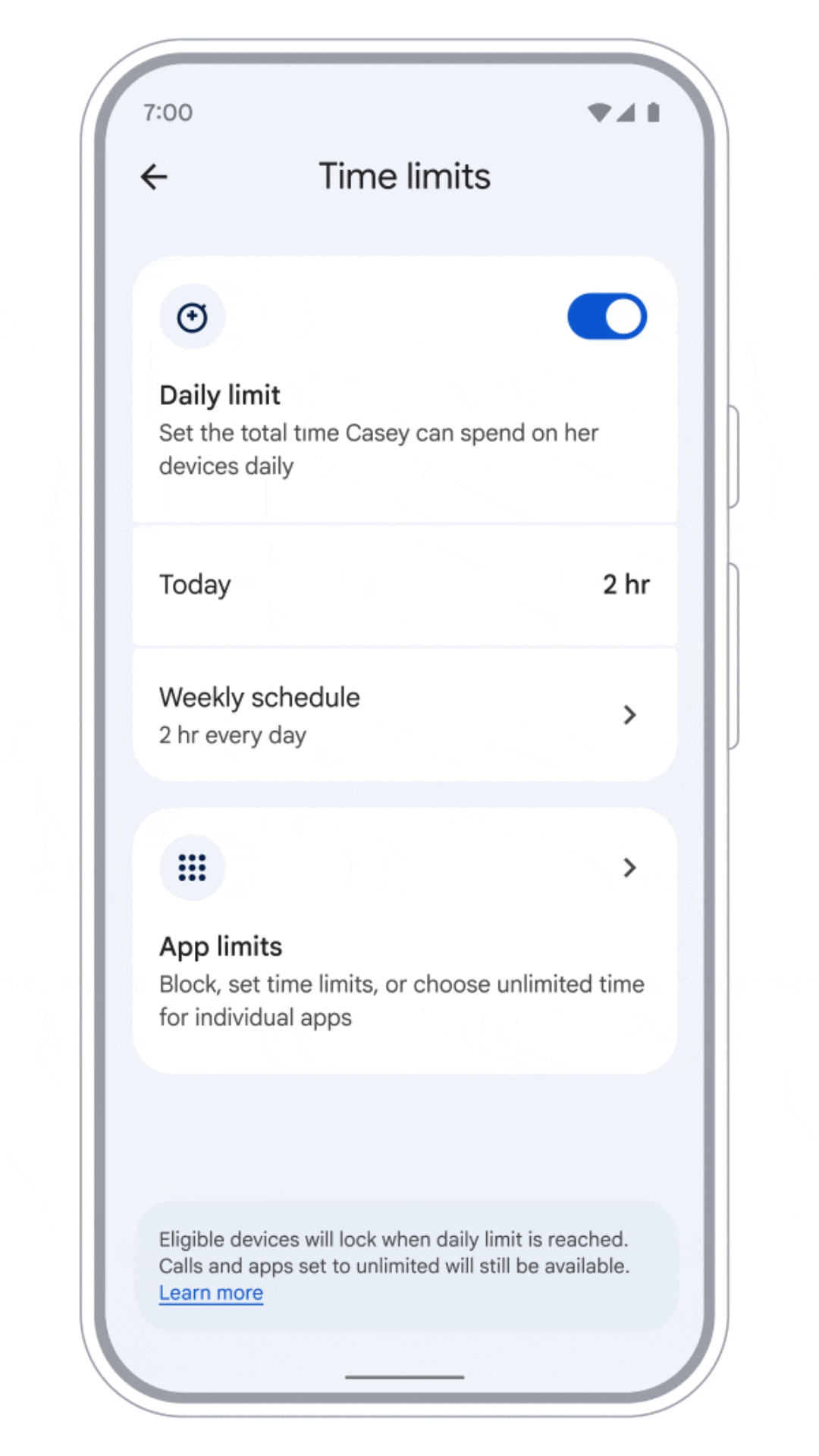
Google’s Family Link example has Daily limit enabled and shows the entry for Weekly schedule. Its two-hour allowance is a vendor example, not a recommended family limit.
Version notes
Full, lossless still at 4 seconds from the unchanged official weekly-limit GIF linked by Google’s current screen-time guide, retrieved October 31, 2026. Source framing and pixels retained; no added highlights or cropping. Exact app build and capture date are undisclosed. Demonstration account and allowances belong to Google’s example.Return to Weekly schedule and inspect each day’s displayed allowance. Look for an unintended unrestricted day or a weekend value copied onto school days. Google’s example shows two hours every day; use your agreed values instead.
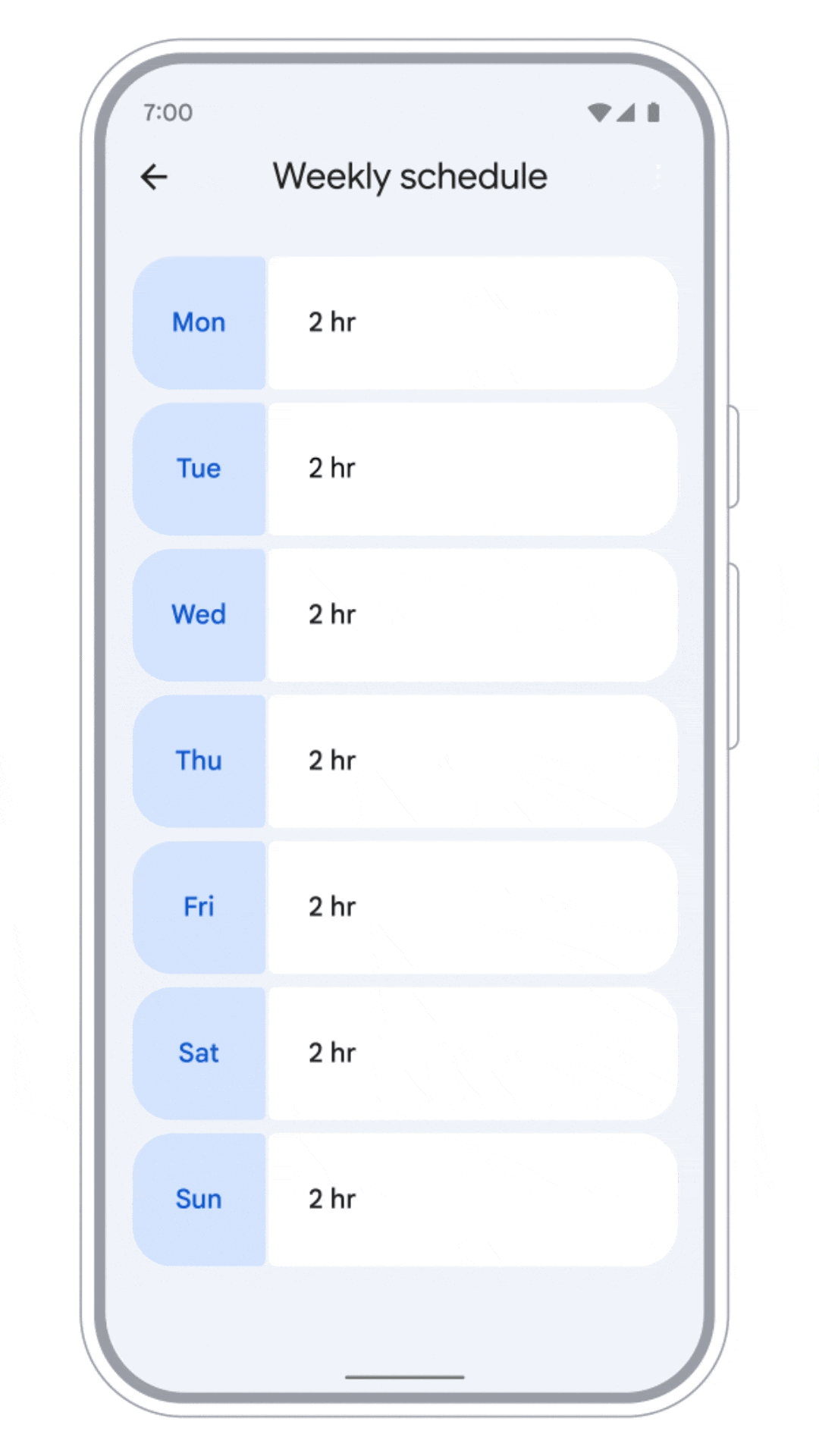
Read back every day in Weekly schedule. This Google demonstration shows two hours on all seven days; check your own agreed values and any intentional exceptions.
Version notes
Full, lossless still at 10 seconds from the unchanged official weekly-limit GIF linked by Google’s current screen-time guide, retrieved October 31, 2026. Source framing and pixels retained; no added highlights or cropping. Exact app build and capture date are undisclosed. Demonstration account and allowances belong to Google’s example.Google says daily limits apply separately to each device. A 90-minute allowance on a phone and another on a tablet can permit 180 minutes between them. A family-wide 90-minute agreement therefore needs an additional practical arrangement, such as choosing one entertainment device.
After the allowance runs out, the device locks. On an Android phone with a calling plan, the child can answer calls and use Emergency to call; that does not guarantee ordinary messaging access. Plan how the child will reach you before relying on the lock.
Give essential apps a deliberate exception
From Screen time → Time limits → App limits, select the game, choose Set limit, enter its hours and minutes, then tap Done. System apps cannot receive app limits. App limits apply across the child’s Android and ChromeOS devices.
For an essential app, the same list offers Unlimited time → Done. These apps do not consume the daily allowance and remain available when it is exhausted. Google excludes devices running Google Kids Space from this feature. Review the app’s full purpose before exempting it: an educational app may also offer entertainment.
Manual locking is different. Unlimited apps are unavailable by default after a manual lock. The documented exception setting is Controls → Signed-in devices → [device] → Lock screen settings → Unlimited time apps. Google’s app-limit guide explains this distinction. Review it before assuming that a manual lock tests the daily-limit behavior.
To revise an app rule, return to that app’s entry. App limit off removes its individual timer; changing an unlimited exception back to a timed rule restores a boundary. Read back the selected state after saving.
Choose what a blocked website should mean
Open Controls → Google Chrome and Web. Try to block explicit sites attempts to filter sexually explicit content, without a guarantee. Only allow approved sites permits your chosen sites but requires more maintenance. Neither choice is a review of everything inside every app.
Under Manage sites, open Approved sites or Blocked sites, then Add a website. Check the exact address: permission for one website does not automatically cover differently named subdomains. Test the actual school task, including its sign-in and lesson links.
For a safe check, temporarily block a harmless public site you normally allow. On the child’s Chrome, open it and try Ask in a message; review the notification in Family Link. Afterwards, restore the site’s intended access. This exercises the request route without seeking inappropriate material.
Google documents Chrome filtering and its boundaries. A working block confirms that address in that browsing context. It does not establish that a separate browser or another app’s content is filtered.
Rehearse a lockout before the next school day
With work saved and both of you present, arrange a short trial of the allowance. Write down the original values first. Observe what happens to an ordinary app, then try the essential app you exempted. Restore the agreed allowance afterwards. These are checks for your household to perform, not results from a device tested for this article.
For a one-day extension, use Screen time → Bonus time beneath the device name, choose an amount and tap Done. This preserves the recurring schedule. To withdraw the daily timer, return to Time limits and turn off Daily limit.
If a restriction seems ineffective, compare the child, device, account and app against your notes. Check whether the app has an unlimited exception. If homework fails, identify whether the obstacle is the website rule or the time allowance before changing either. Restore one relevant setting, repeat the task and keep the smallest correction that works.
Review the arrangement together after a week: which exceptions were needed, which tasks broke and whether the rule still serves its purpose. Tell the child what you inspect. For supervision added to an existing account, Family Link does not let a parent read messages or remotely view the screen. Leave a clear route for reporting uncomfortable content or asking for help even when the controls appear to work.
Sources, versions & scope
The steps describe the documented controls and expected checks; they are not a claim that every device or software release has been physically tested. Platform and version differences are stated with the procedure.