Visitors need a route outside, not into your storage
A visiting laptop needs internet access for messages and streaming. It does not need a route to your shared folders, backup drive or printer. Giving it the household Wi-Fi password puts those decisions onto individual computers and appliances. A properly configured guest network lets the router enforce a separate boundary.
This guide covers TP-Link Archer wireless routers operating in router mode, using the web interface with separate guest permissions. It does not cover Deco, business access points or ISP-customized firmware. Match the controls below to your model and hardware revision; a network name containing “Guest” is not evidence of isolation.
Keep the owner’s computer on the main Wi-Fi or Ethernet throughout setup. Have the router’s administrator password available. Visitors receive only the new guest Wi-Fi password. Leave your ordinary computers and storage on the main network.
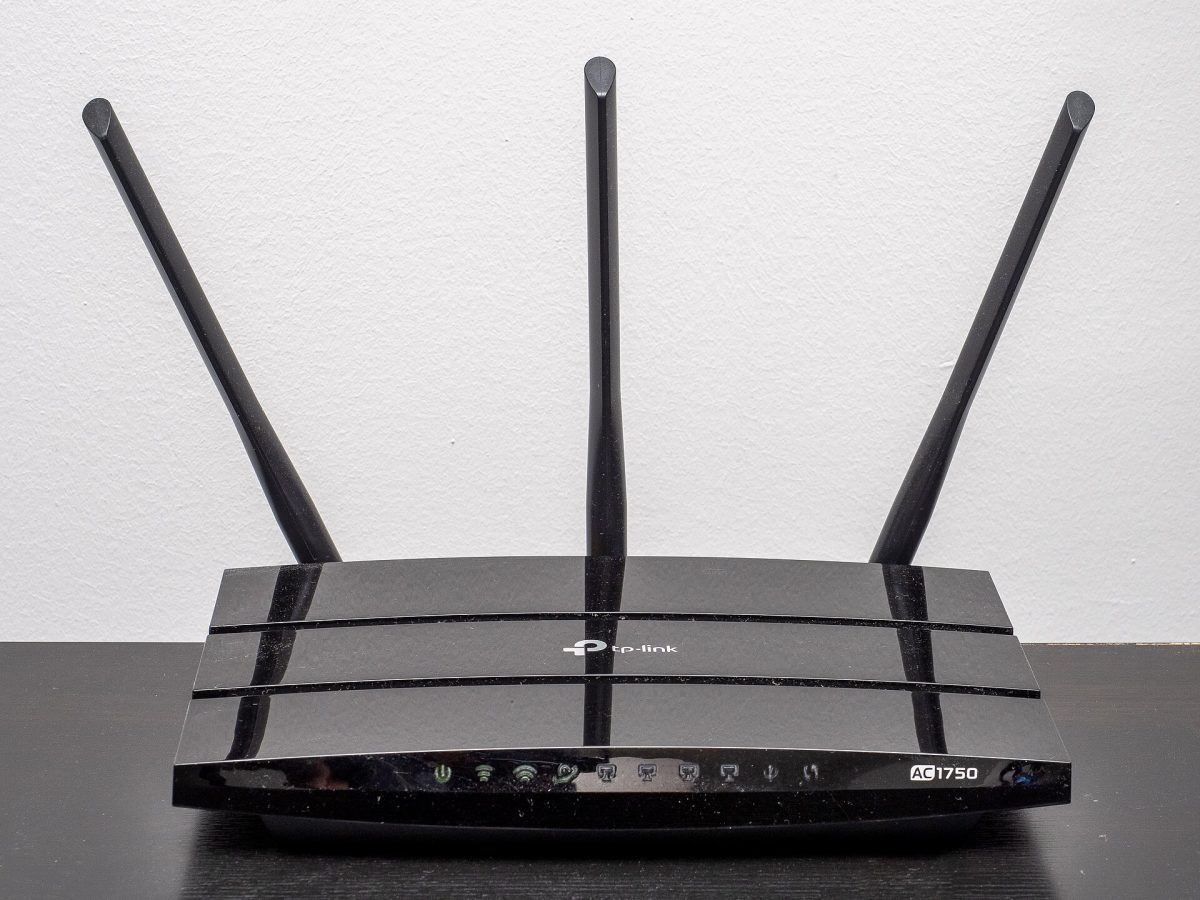
Check the operating mode before changing passwords
Open your saved router administration address while connected at home and sign in. Inspect the current operating mode using your model’s manual. Do not change it during this procedure. TP-Link’s router-versus-access-point explanation uses an Archer A7 example and explicitly warns that its access-point-mode guest network can reach the main network. It also says capabilities vary by device.
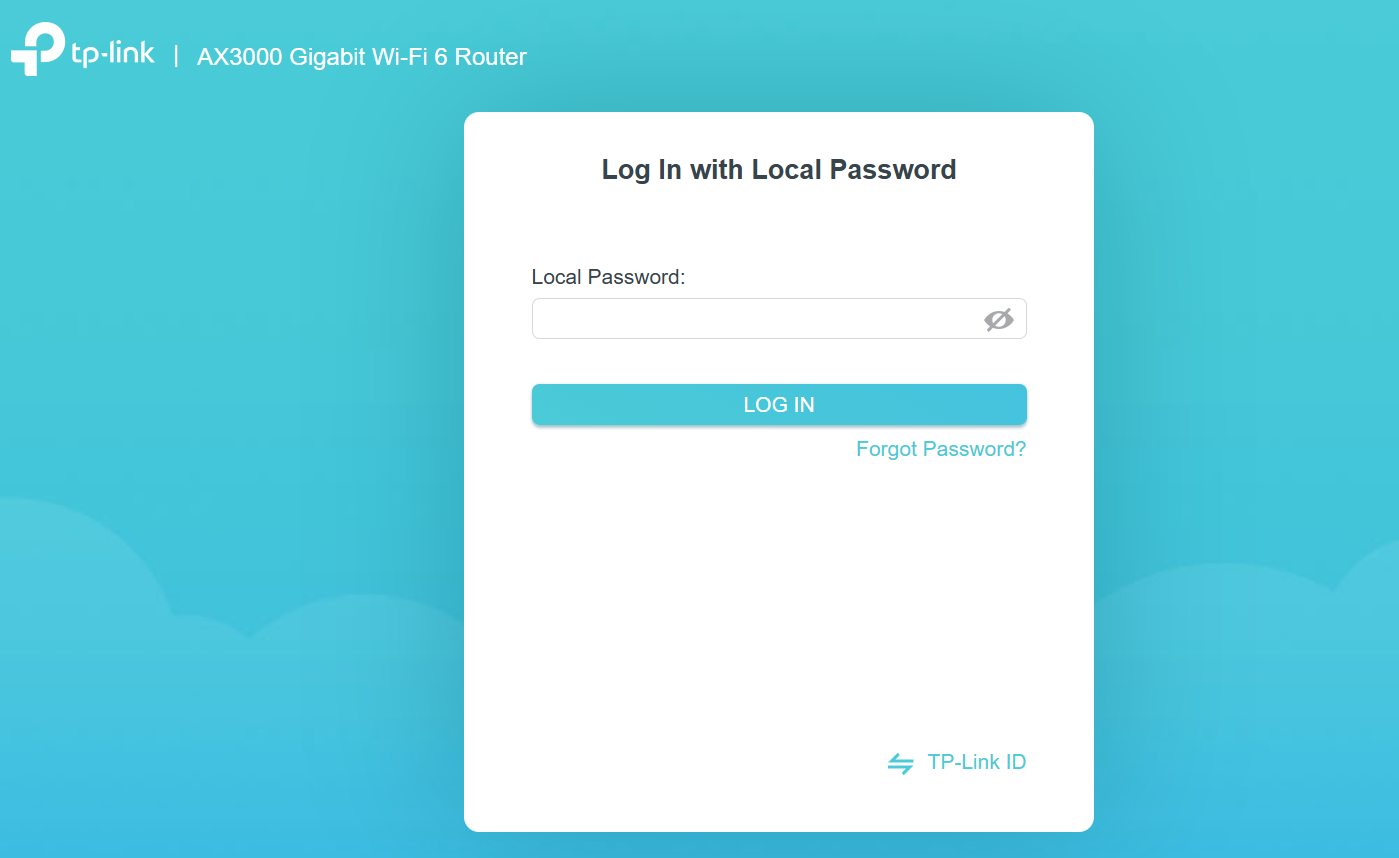
Use the existing local administrator password in Local Password, then choose LOG IN. TP-Link’s AX3000 example keeps TP-Link ID login separate.
Version notes
Official March 2026 source asset; supported Classic interface cross-checked against TP-Link’s September 2026 Archer AX55 setup guide. Exact firmware build and capture date undisclosed; not a first-time setup or successful login.If your Archer is acting as an access point behind another router, stop here unless its exact documentation confirms the isolation you need. A visible guest switch is insufficient. Changing operating mode can alter addressing and disconnect the household; it deserves a separate network plan.
Also check where the private files live. A drive connected to the Archer itself is a different target from a NAS connected to a LAN port. If the manual offers guest access to router-attached storage, keep that permission disabled. If its behavior is undocumented, treat that drive as an unresolved exposure rather than assuming the general isolation setting covers it.
Create a guest entrance with its own credentials
TP-Link’s guest setup instructions, updated June 2026, give the web route below. Their security example is not a promise that every Archer has identical choices.
- Open Advanced → Guest Network. In Wireless, enable the guest network for the band or bands visitors need. If your interface differs, use the model manual rather than changing the main wireless network.
- Choose an obvious, distinct name, such as the hypothetical
Maple-Visitors. Leave name hiding off so guests can select it normally. A suffix identifies the entrance; it supplies no security by itself. - Set a unique guest password and use a password-protected security mode supported by the router and visitors’ devices. The documented interface uses WPA/WPA2 Personal. Keep stronger supported protection where available; do not select an open network to fix a connection problem.
- Save. If there are separate pages for different bands, inspect each enabled guest configuration. Keep the main network name, password and security unchanged.
The expected result is a new selectable Wi-Fi name. Its appearance establishes only that the radio is advertising it. Finish the permissions before handing out the password, even if a device could already connect.
Set the two permissions according to their destinations
In the guest page’s Settings area, inspect these separately. TP-Link’s guest-permissions reference distinguishes traffic to household devices from traffic between guest clients.
- Allow guests to access my local network
- Leave this unchecked. It is the permission for reaching devices on the main wireless network or the router’s LAN ports, including a wired file server.
- Allow guests to see each other
- Leave this unchecked for ordinary visitors who only need internet access. This governs communication between guest devices; changing it does not grant a carefully limited exception to one household printer.
Save the permissions, then reopen the page and confirm they stayed off. If your model has only one of these controls, do not infer the other policy. Read its manual or ask TP-Link about the exact hardware revision. Record any separate storage-sharing permission as well.
Local printing, casting and nearby file transfers may stop working across this boundary. That can be the expected consequence of isolation. Enabling broad household access to make a television appear also changes who can approach your storage. For an occasional document, the owner can print it from an approved copy instead.
Check a known file path, not an empty device list
Use a spare computer you control as the visitor. Before moving it, open an existing local share on the main network and note its exact address. Choose a harmless test file already in that share. Do not create anonymous sharing, weaken permissions or disable a firewall for this check.
For example, a hypothetical NAS might have a share at \\192.168.1.50\Public. Use your actual address and your computer’s usual file-sharing client. Confirm that opening the harmless file works now, while the NAS is awake. Without that baseline, a later failure could simply mean the server was unavailable.
- Disconnect the test computer from Ethernet and join the new guest Wi-Fi. Confirm its connected network name. Close any previously opened share window; reopen the exact address for a fresh attempt.
- Open a fresh public HTTPS page to establish that guest internet access works. Avoid alternate connections during this comparison, including a phone hotspot or a VPN that provides another route home.
- Try the same local file address. The intended outcome is no connection to that service. A server login prompt, directory listing or opened file means the local service is reachable; a rejected password is not proof of network isolation.
- Return the test computer to the main network and repeat the file check. If it fails there too, the comparison is inconclusive. Restore the baseline and repeat before sharing the guest credentials.
This checks one known service and route, not every possible local destination or IPv6 path. If you lack a suitable share, mark file access untested. A missing NAS icon or silent ping alone cannot establish that files are unreachable.
Fix access problems without opening the household
Guest Wi-Fi connects but has no internet: compare with the main network first. If both fail, investigate the internet connection. If only guest access fails, recheck its saved settings and the operating mode. TP-Link’s AP-mode troubleshooting note describes configurations where blocking local access also blocks the upstream gateway. Its proposed local-access workaround conflicts with this article’s goal; do not apply it as an isolation fix.
The guest can reach the NAS: disable guest Wi-Fi while investigating. Confirm the test computer did not reconnect to the main network, then recheck saved permissions and model documentation. Keep file authentication enabled regardless. Do not distribute credentials until the unexpected route is resolved.
You want to undo the change: disable the guest network on every band you enabled and save. Your owner connection remains available because the main credentials were not changed. For a later visit, rotate only the guest password and repeat the connection checks. If visitors already knew the main password, adding guest Wi-Fi does not revoke it; plan a separate main-password change and reconnect household devices.
Sources, versions & scope
The steps describe the documented controls and expected checks; they are not a claim that every device or software release has been physically tested. Platform and version differences are stated with the procedure.

.jpg)