Name the first thing that fails
A monitor goes black, an external drive disappears and the laptop stops charging. When all three travel through one USB-C hub, replacing laptop drivers immediately loses a useful clue: they share a connection. Start by finding the smallest arrangement that reproduces the fault.
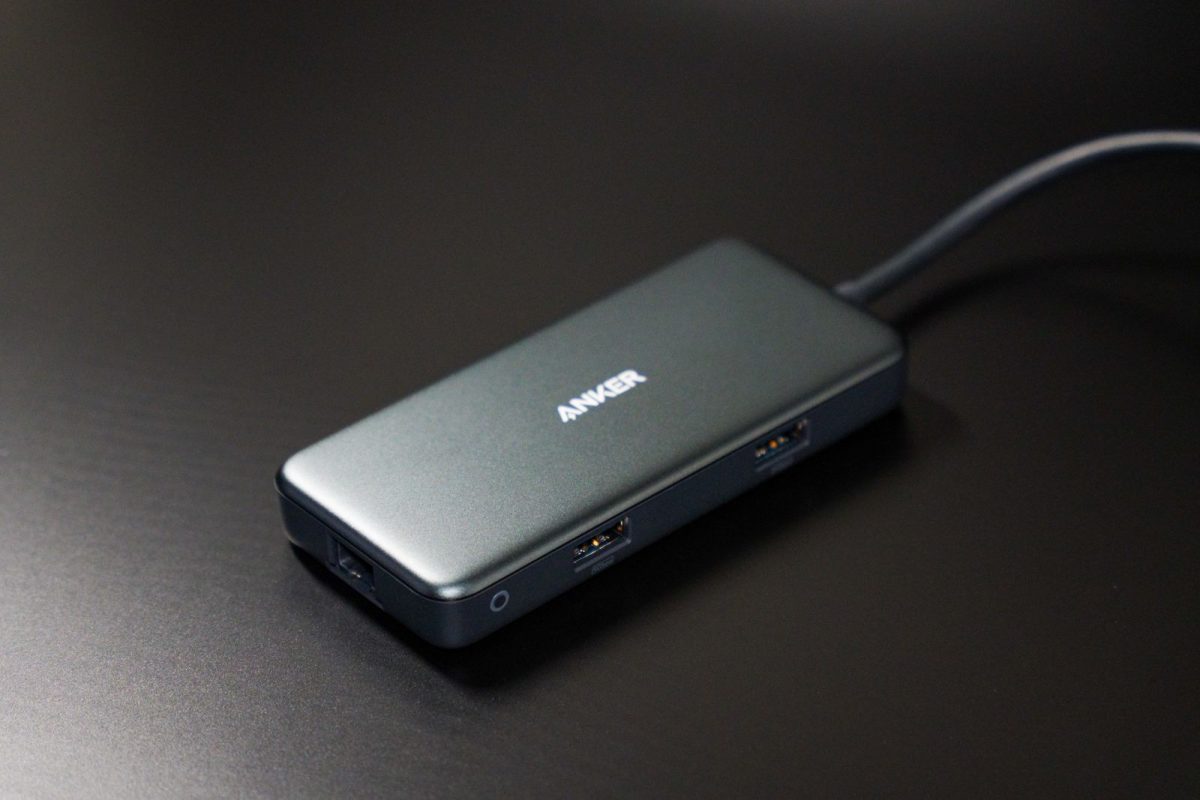
This guide covers a compact USB-C hub or multiport adapter on Windows 11 or a Mac. “Hub” here includes products marketed with HDMI and charging passthrough. The sequence below is a diagnostic method assembled from official troubleshooting guidance, with original comparisons and interpretation; it is not a report of hardware testing.
Write one precise symptom: “keyboard stops responding when the drive connects,” rather than “USB is broken.” Record the laptop model, operating system, exact laptop socket, hub model, host cable and power supply. Note whether failure begins at connection, during use or after sleep. Keep the laptop open so its own screen and keyboard remain available.
Save work, finish transfers and eject storage before changing connections. Protect important files through a stable route first. If storage holds the only copy and repeatedly disconnects, stop using it as a test accessory. Disconnect damaged connectors or equipment with a burning smell; do not keep reconnecting to collect more evidence.
Give the hub one simple job
Disconnect monitors, Ethernet, storage and other accessories from the hub. Remove extensions and any intervening dock. Identify the host connection and power-input socket from its manual; do not assume every USB-C socket has the same role. Use the supplied host cable where detachable. Keep any power supply required by the manual connected.
Choose a wired keyboard or mouse already known to work. A keyboard gives a visible check: type a harmless sentence into an empty local document. For a mouse, move the pointer and click a local window. A light on the accessory is not the pass condition.
- Test the accessory directly on the laptop through a compatible connection. Record whether the action works. If a simple adapter is necessary, record it too; that comparison includes the adapter.
- Connect the hub directly to the chosen laptop port. Attach only that accessory to a documented data port and repeat the action.
- If it fails, try another data port on the hub with everything else unchanged. Then, if available, repeat using another laptop port documented to support the same job.
Apple's USB power guidance recommends bypassing a hub, changing the computer port and checking a self-powered hub's AC connection. Here those checks become controlled comparisons: change one connection, repeat one action, write one result.
A working keyboard establishes a basic input path. It does not validate the hub's high-speed storage, display output or laptop charging. If no direct comparison is possible, mark that result “unavailable”; another unverified hub is not a clean control.
Resolve recognition before calling it a hardware fault
On a Mac laptop with Apple silicon, unlock the Mac and reconnect your own trusted accessory. Approve it if prompted. Apple documents that choosing Don't Allow blocks recognition and data access while charging can continue. A charging laptop therefore does not prove that the accessory has permission to exchange data. On a managed laptop, ask the administrator if approval is controlled centrally; keep the normal security setting.
On Windows 11, preserve any USB notification verbatim. For an unrecognized device, Microsoft documents this check: search Start for Device Manager, find the device with a yellow exclamation mark, right-click it and choose Properties. Copy the code from Device status.
If you cannot confidently identify the entry, record the notification instead. Recognition errors can involve hardware or a driver; the code alone does not convict the hub. Avoid uninstalling controllers while the physical comparison remains unfinished.
Run a separate power comparison
Two questions need separate answers: can the laptop power the attached accessories, and can the charging arrangement sustain the laptop? Microsoft lists insufficient accessory power and inadequate laptop charging as distinct USB-C problems. Its remedies include external power, removing unused devices and using the laptop's supplied charger and cable.
For a hub that supports optional power input, use only a manufacturer-approved supply and connection. Never improvise power into an unspecified socket. With storage ejected, compare the single-accessory setup under its permitted power arrangements. Keep the accessory, host cable and laptop port fixed.
If the accessory works with approved hub power but fails without it, that supports a power-dependent fault or limitation. It does not identify a failed component or establish the available watts. If removing accessories restores operation, leave them disconnected while investigating the documented power requirements.
For laptop charging, compare the ordinary charger connected directly with charging through the hub, if both routes are supported. Keep the workload similar and note warnings and battery direction. A full battery or charging limit can make this inconclusive. Do not infer delivered wattage from an icon or a short percentage change. Direct charging working while passthrough fails narrows the suspect route to the hub charging arrangement, including its supply and cables.
Add back the device that changes the outcome
Once the single accessory works, reconnect one item at a time. After each addition, repeat the original action and that item's own function. Preview the webcam in an application you already use. For backed-up storage, read a disposable file whose original remains elsewhere; stop at the first disconnect. Do not benchmark an unstable drive.
For video, begin with one screen, the monitor's intended input and a mode documented for the complete route. VESA explains that native DisplayPort-over-USB-C uses DisplayPort Alt Mode; support should be established from device documentation. A working USB accessory cannot establish that video capability. For a hub using a different display technology, follow its stated host and software requirements.
If the screen fails alone, compare another known-working display cable or a documented direct display route when available. If it works alone but fails with other devices attached, record the combination. Recheck simultaneous-use restrictions before declaring a defect. Keep screen count, resolution and refresh rate in that record.
In a hypothetical desk setup, a keyboard works through the hub, but adding a bus-powered drive makes both disappear. Removing the drive restores typing. That pattern prioritizes power and the drive branch; it does not prove the laptop is faulty. In a different hypothetical setup, USB accessories remain usable while HDMI is blank. Investigate the video route separately instead of replacing everything.
Make a replacement decision from the pattern
If available, try the same minimal setup on a second trusted computer whose port meets the hub's documented requirements. A failure on an incompatible host adds little evidence. Use this matrix to decide what deserves the next check.
| Observed pattern | Next decision |
|---|---|
| Accessory fails directly and through the hub | Investigate the accessory, its cable and host recognition first. |
| Accessory works directly; hub route fails on two compatible hosts | Hub and host cable become stronger suspects. Substitute a documented compatible detachable cable before replacing the hub. |
| Only one hub data socket fails | Avoid that socket and report the port-specific result to the hub supplier. |
| Hub works elsewhere; one laptop port fails | Compare that port's documented capabilities and seek laptop support if equivalent direct devices also fail there. |
| Everything works alone; the combined arrangement fails | Check documented power and simultaneous-use limits, then simplify the arrangement. |
A captive host cable cannot be independently swapped. Treat it and the hub as one suspect assembly. Without a spare compatible host or cable, your conclusion remains narrower; borrowing a suitable control can be more useful than buying a replacement on a guess.
Restore a dependable desk and send useful evidence
Return to the last working arrangement: eject storage, disconnect the hub, reconnect the ordinary charger and use the built-in display and input devices. Put essential accessories on verified direct connections. If the fault only followed sleep, repeat that specific sequence after saving work and disconnecting storage; a pass immediately after plugging in does not settle a wake failure.
Send support the model details, exact cable route, error text, minimal failing combination and direct-versus-hub results. Check model-specific updates through the manufacturer only after preserving this baseline; apply one documented change and repeat the same check. Firmware procedures and recovery are model-specific.
Keep a configuration that completes your actual work without recurring disconnects or warnings. A short pass narrows a diagnosis; it cannot certify long-term reliability or every unused socket.
Sources, versions & scope
The steps describe the documented controls and expected checks; they are not a claim that every device or software release has been physically tested. Platform and version differences are stated with the procedure.