A meeting app asks for your microphone. An installer asks to change your device. Another control is unavailable because your employer manages it. Each involves permission, but each needs a different decision.
This guide covers Microsoft Windows 11 work computers, with Microsoft Edge for the website example. Its practical goal is to understand one request, make a permitted change, and know how to recover. It does not cover cloud-account consent or changing your employer’s management configuration.
Read the request before looking for a switch
First write down what you were trying to do and which application or website asked. “Join the scheduled call with audio” is useful. “Make the warning disappear” gives you no way to judge whether the requested access fits the task.
- Access to a capability
- Microphone, camera, location, contacts, and calendar permissions concern particular device features or information. A voice call explains a microphone request; simply reading a document does not explain one.
- Permission for a website
- A browser can have device access while a particular site remains blocked. Record the site address as well as the browser name.
- Administrator approval
- A User Account Control prompt concerns elevated changes to Windows. Treat it as a separate decision from granting a meeting microphone access.
A request that does not fit the feature deserves investigation. Decline or cancel it, then see whether the intended task still works. For required work software, ask your support team what the feature needs rather than experimenting with broader access until the message disappears.

Inspect one capability and its reach
Microsoft’s privacy-settings guide places these controls under Start → Settings → Privacy & security. Open the relevant capability. Begin with Microphone for an audio problem; Camera is a separate page for video.
Record the switch labels, their current states, and whether you can change them. Keep your note in an approved work location. A screenshot can help support, but check that it contains no confidential app names, meeting details, or other people’s information before sharing it.
On the Microphone page, distinguish Microphone access, Let apps access your microphone, any individual app switches, and Let desktop apps access your microphone. Microsoft’s camera and microphone documentation explains these layers. Device or group switches have a wider reach than one application.
Desktop software may have no individual switch. Under Microsoft’s documented desktop-app model, the desktop switch affects the group. Do not interpret a missing row as proof of blocked access. The Microsoft Store can distribute desktop apps too; the download location alone does not establish which controls apply.
If your work computer presents a different set of controls, record that difference. Use your organization’s instructions for its deployed configuration rather than looking for a hidden switch or assuming another computer’s layout must apply.
Make the next action a reversible trial
Choose a quiet time outside a live meeting. Suppose, hypothetically, an approved calling application has an individual microphone switch that is Off, while the broader controls are On. Your employer permits you to manage this setting. The trial is to enable that one application and check its audio preview.
- Record the application name and its original microphone setting. Leave Camera and unrelated capabilities unchanged.
- Turn on the application’s microphone switch. If the switch is locked or a managed-setting message appears, stop and use the support route below.
- Reopen the application and use its available audio preview or private test feature. Choose the intended input device and check its mute state. Avoid joining someone else’s meeting merely to test access.
- If a recording-and-playback test is offered and permitted, use a harmless phrase. Hearing it back is better evidence than a moving level meter alone. Otherwise record exactly what the preview demonstrates.
- Return to the permission page and confirm the setting. Note whether the feature worked and which other controls you left unchanged.
If the trial fails, restore the application’s original switch state and reopen it. Preserve the failure message. A permitted microphone with no sound could still involve a muted headset or the wrong input; granting camera, contacts, or location access does not resolve those possibilities.
If only the desktop group switch is available, recognize the wider change before proceeding. Ask IT whether enabling that group is appropriate for your approved app. Restoring it later can affect other desktop applications, so check with support before treating it as an isolated repair.
For an Edge meeting, inspect the website too
In Microsoft Edge, open Settings and more → Settings → Privacy, search, and services → Site Permissions → All sites. Select the actual meeting site and inspect Microphone or Camera. Record the existing choice before changing it. Microsoft documents this route in its camera and microphone guide.
Compare the address with the trusted meeting invitation. A similarly named site is a separate permission decision. Allow a needed capability only for the intended service and within your employer’s rules; leave unrelated sites alone.
Retry the site’s preview after a permitted change. If it still fails, inspect Windows access for the browser as well. A site allowance cannot overcome a device-level denial. To undo your website change, return to the same site and capability and restore the recorded choice. Blocking microphone access will prevent that site’s audio features from working.
Administrator approval needs a different explanation
Microsoft’s User Account Control guide describes the approval prompt for changes requiring administrator permissions. An installation or system change can trigger it. A familiar publisher name still needs to match the action you deliberately started.
When an unexpected User Account Control dialog appears, read the application name and publisher, then choose No. In Microsoft’s example, the named program is Windows Command Processor; that does not establish why it launched on your computer. Note what you were doing immediately beforehand and contact support if the cause is unclear.
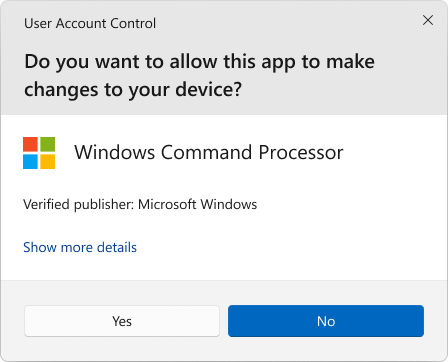
Microsoft Windows 11: inspect the named program and publisher before responding. This vendor example names Windows Command Processor and shows No with focus; choose No for an unexpected request. It does not show a request from a meeting app.
Version notes
Unchanged dialog image from current Microsoft Windows 11/Windows 10 User Account Control support documentation, checked 2026-10-31. Rounded window and buttons match Windows 11 appearance; precise build and capture date undisclosed. Vendor example only, not an observed prompt on a tested work computer.If your work account cannot approve a required change, use your employer’s approved installation or support process. Do not borrow a colleague’s administrator credentials or lower User Account Control notifications to avoid the prompt. Denying an unexpected request gives support an opportunity to investigate before the change proceeds.
Turn a locked setting into a useful support request
A control you cannot change may reflect company policy. Microsoft’s microphone policy documentation allows administrators to leave the decision to users, force access on, or force it off. Forced settings prevent employees from changing that decision. IT may also require an app restart after a policy update.
Send support the app or site name, the feature you need, the exact error, the relevant switch states, and whether each control is editable. Include the change you tried, its result, and whether you restored it. Ask for the supported configuration or an approved alternative, rather than requesting unrestricted access.
Finally, distinguish future access from information already captured. Turning a permission off does not retract an uploaded recording or prove that retained data was deleted. Your review establishes a narrower, useful result: which access your current work task needs, which controls you can manage, and which decisions belong to IT.
Sources, versions & scope
The steps describe the documented controls and expected checks; they are not a claim that every device or software release has been physically tested. Platform and version differences are stated with the procedure.