Decide what “gone” should mean
Removing an application can leave a perfectly normal collection of documents, preferences and downloaded installers behind. The useful check is whether the program has been removed, whether anything still starts with Windows, and which remaining files you actually want to keep. A folder bearing the app’s name is a clue to investigate, not an instruction to delete it.
This guide covers an ordinary application on a Windows 11 PC you manage yourself. It is not a malware-removal procedure or a way around an employer’s software controls. Choose one app and finish its checks before removing another; otherwise, a new error or missing file becomes harder to trace.
Write down your aim: reclaim disk space, stop using the software, or prepare for a fresh installation. A fresh installation may deliberately reuse saved settings. If you want a completely new profile, that is a separate decision with its own backup requirement.

Save the return route before uninstalling
Open the application once more and save unfinished work. Export anything that exists only inside it, such as a local project library or custom presets, using its own export instructions. Copy a representative project to your backup location and confirm that the copy is present. Simply remembering that you enabled cloud sync is not a recovery check.
- Record the application’s exact name and publisher, and where you would obtain its legitimate installer again.
- Keep the account details or licence information needed to reactivate it. If the vendor requires deactivation before moving a licence, follow that product’s instructions while the app still works.
- Decide what happens to recurring billing separately. A completed Windows uninstall is not confirmation of subscription cancellation or online account deletion.
For a space comparison, open File Explorer, select This PC, and record the free space shown beneath the drive containing the app. Record the drive letter too; comparing two different drives will tell you nothing about the removal.
Microsoft’s example shows 194 GB free of 475 GB beneath Local Disk (C:). Read the equivalent line on your own drive before uninstalling; the example is not a target or a result from this guide.
Let Windows launch the uninstaller
- Close the application. Open Start > Settings > Apps > Installed apps and find its exact name. Check the publisher where shown, especially if several entries have similar names.
- Open the app’s More menu, shown as three dots, and select Uninstall. Read any confirmation and the vendor’s removal screens. If asked whether to keep settings or user data, choose deliberately; do not assume every app offers this choice.
- Allow removal to finish and save other work before any requested restart. Reopen Installed apps and search again. The intended result is that the app’s entry is gone.
If Settings cannot remove a desktop program, Microsoft documents Control Panel > Programs > Programs and Features: select the program and choose Uninstall or Uninstall/Change. Some built-in apps cannot be uninstalled. See Microsoft’s removal instructions.
Deleting a desktop shortcut only removes that launch link. Deleting the application’s folder first can also remove files its uninstaller needs. Use the supported removal route before considering leftover folders.
Sort the remains by purpose
Before judging leftover files, open File Explorer > View > Show > File name extensions and enable that option if it is off. Read the full filename when distinguishing an installer from a document. A suffix helps identify the file type; it does not establish that the file is safe to delete.
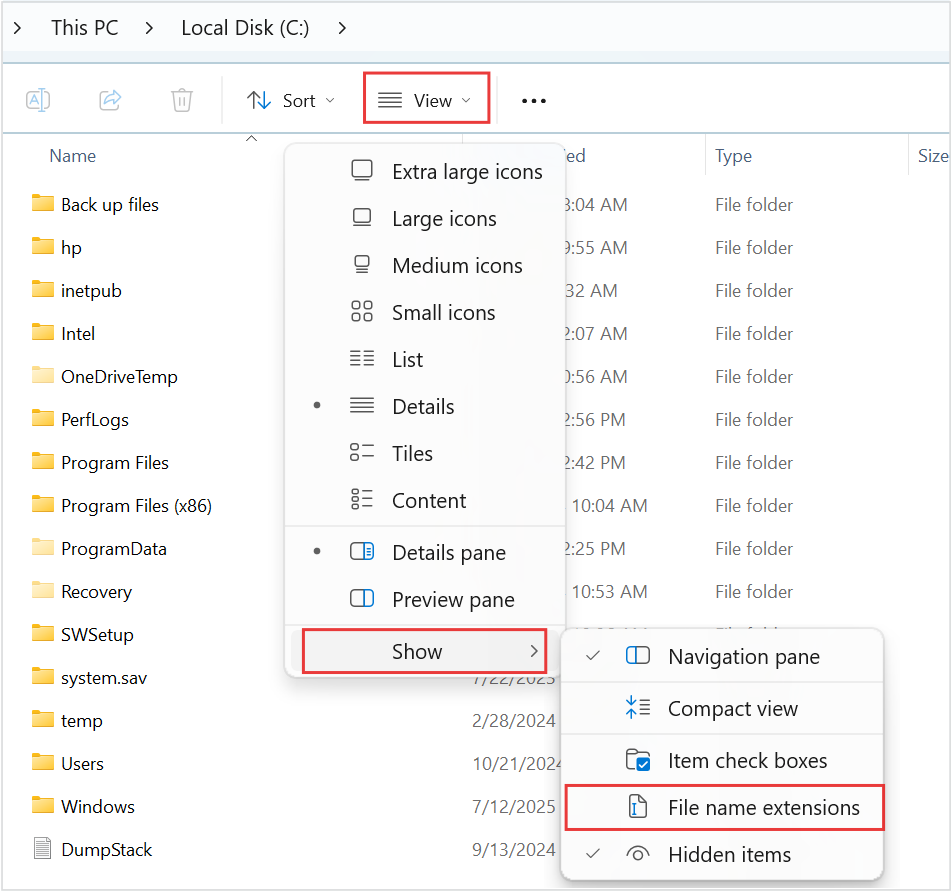
Microsoft Windows 11: View → Show → File name extensions reveals suffixes for inspecting leftover files. The option is unchecked in this reference; enable it on your PC. The source’s red outlines are unchanged. No file has been selected or deleted.
Version notes
Current Windows 11-specific Microsoft reference, visually inspected 2026-10-31 and reused unchanged with its original provenance and rights basis. Exact capture build undisclosed. Shows the initial unchecked option, not the reader’s files, completed selection or cleanup result.Review the locations where you actually saved work: Documents, Downloads, Desktop and any chosen project drive. Work outward from known folders rather than searching the whole computer for a brand name and deleting every match.
- Documents and project libraries
- Keep these until you have checked that their contents are exported, backed up or usable in replacement software. A project file that needs the removed app may be intact even though double-clicking it no longer opens it.
- Downloaded setup files
- An installer in Downloads is separate from the installed program. Keep it if you need that legitimate offline installer; otherwise, deleting it is a separate space-saving choice.
- Profiles, preferences and caches
- Identify these through the application vendor’s documentation. A profile can contain passwords, bookmarks or unsynced work as well as preferences. Its survival does not prove uninstall failed.
- Shared components and publisher folders
- Leave these alone unless the vendor identifies an app-specific removal procedure. Other installed products may use the same publisher folder or runtime.
Firefox provides a concrete example. Mozilla says its profile lives separately from the program and can survive uninstalling. Before removal, enter about:support in Firefox’s address bar, then use Open Folder beside Profile Folder to identify the actual location. Record it, close Firefox, and copy the folder if you need to preserve it. The Microsoft Store version uses a different location, so avoid assuming one fixed path fits every installation. See Mozilla’s profile guide.
For other applications, do not transplant Firefox’s paths. If a remaining folder’s role is unclear, retain it and look up that product’s documentation. A small unidentified folder is rarely worth sacrificing the return route.
Check what happens at the next sign-in
Open Settings > Apps > Startup and look for the removed app or a clearly identified companion. For a remaining entry you recognise, set its toggle to Off. This prevents that entry from launching at sign-in; it does not uninstall another component. Record the name so you can investigate rather than disabling every item from the same publisher.
For shortcut-based startup entries, press Windows key + R, type shell:startup, and press Enter. Inspect the shortcuts in that folder. Remove only a link you have identified as belonging to the removed program. Microsoft also documents shell:common startup for shortcuts affecting all users; a change there has a wider scope.
A “We couldn’t find this app” entry can point to a missing path after uninstalling, or to an unavailable drive. That label alone does not establish that software is still installed. Consult Microsoft’s startup guidance; leave registry editing out of a routine cleanup.
Restart when convenient and watch for the specific behaviour you meant to stop. If a tray icon or error returns, write down its exact name and message. A separately installed updater or companion needs its own identification and removal decision.
Check space, then stop at a useful boundary
Return to This PC and compare the same drive’s free-space line. In a hypothetical example, 38 GB free becoming 40 GB free means about 2 GB more available at that moment. It does not prove every byte belonged to the app: other activity and rounded display values affect the comparison.
If you want further cleanup, open Settings > System > Storage > Cleanup recommendations. Review individual candidates before selecting Clean up for a section. Microsoft’s drive-space guide explains the categories. Leave unrelated system-recovery files alone during an app removal.
If uninstall fails, keep the exact error and use the vendor’s support instructions before deleting folders or trying a cleanup utility. If you need the app back, reinstall from its official source; the program download may not restore deleted projects or settings. Files still in Recycle Bin may be recoverable there, but do not assume a vendor uninstaller sends its deletions to the bin.
Finish with a short record: app entry removed, startup behaviour checked, personal files retained or intentionally deleted, and free space compared. That is a useful stopping point even when some documented settings remain.
Sources, versions & scope
The steps describe the documented controls and expected checks; they are not a claim that every device or software release has been physically tested. Platform and version differences are stated with the procedure.