The key is part of the backup
An encrypted backup can survive the loss of your phone and still be useless to you. The missing piece may be the secret needed to open it. Before enabling one, answer two questions: where will the protected copy live, and how will you unlock it when your everyday device is gone?
This guide uses Signal Secure Backups on Android to make that trade-off concrete. It covers Signal's hosted chat archive, rather than a whole-phone backup or the separate on-device backup feature. Knowligent is an independent publication; the shared name does not imply an affiliation.
End-to-end encryption means the backup service does not receive the secret needed to read the archive. Signal generates a 64-character recovery key on your device and does not share it with its servers. Its design explanation distinguishes this key from your Signal PIN. Recovering account access and decrypting stored conversations are different jobs.
That is useful protection if the storage provider cannot be trusted with readable conversations. It also moves responsibility onto you: a helpful support agent cannot substitute an identity check for a missing decryption secret. Encryption does not protect a conversation already open on an unlocked phone, or prevent its recipient from saving a copy.
Decide what must survive a lost phone
The backup support page describes a free archive covering text messages and the most recent 45 days of media. A paid option accommodates up to 100 GB of media. View-once items and messages due to disappear within 24 hours are excluded. Check the plan offered in your app before paying.
For a hypothetical example, imagine a conversation containing a photograph received 60 days ago and one received yesterday. A free cloud restore is not a promise to retrieve both photographs. If the older picture matters, preserve an authorized independent copy while you can still open it. A conversation's visible text does not prove every attachment is recoverable.
There is also a less obvious edge case: Signal's September 2026 update says individual messages larger than 128 KB are treated as attachments and subject to the free plan's media window. The same update describes a new hosted backup every 24 hours replacing the previous one. This is a recovery copy with limits, not a calendar of indefinitely retained snapshots.
Write a short expectation before setup: “I need my recent chats and these three family photographs.” Save the photographs separately if they need longer retention. This turns a vague desire to keep everything into something you can check after recovery. See our guide to sync and backup for why another synchronized screen alone is insufficient evidence.
Enable it with an independently accessible key
- Update Signal through Google Play. In Signal, open your profile/settings, then Backups. Choose the hosted Secure Backups setup rather than assuming a local backup has enabled the cloud service.
- Following Signal's documented flow, select Setup > Enable Backups. Save the recovery key to your password manager or record it manually. Give the entry a clear name identifying Signal and this account; avoid mixing it with another service's recovery code.
- Reopen the saved entry and compare it carefully with the displayed key. Confirm the key in Signal, then choose Next > Continue, select the free or paid plan, and finish with OK.
- Return to Settings > Backups and verify that Secure Backups is enabled. Inspect any completion or error information the app provides. An enabled switch establishes configuration; it does not by itself prove a usable archive has finished uploading.
Do a separate access rehearsal: without relying on the Signal phone, establish that you can unlock the password manager containing the key. A manager whose only working sign-in method is on the lost phone creates another recovery problem. Our password-manager recovery guide helps identify that dependency.
A securely stored paper copy can provide another route. Keep it private and separate from the phone. Do not put the only copy in a Signal conversation, and do not send it to someone claiming to offer recovery assistance. Record the storage location in your recovery plan without copying the secret into an ordinary checklist.
A thumbnail may depend on the archive
Signal's current Android illustration shows a Storage screen with Optimize Signal storage switched on, alongside a paid-backup upgrade prompt. With this feature enabled, unused media can be offloaded: a thumbnail remains locally and the full-size file stays in the paid backup, retrievable by tapping the attachment. The illustration's 2.3 GB figure is vendor example content, not a measurement of your phone.
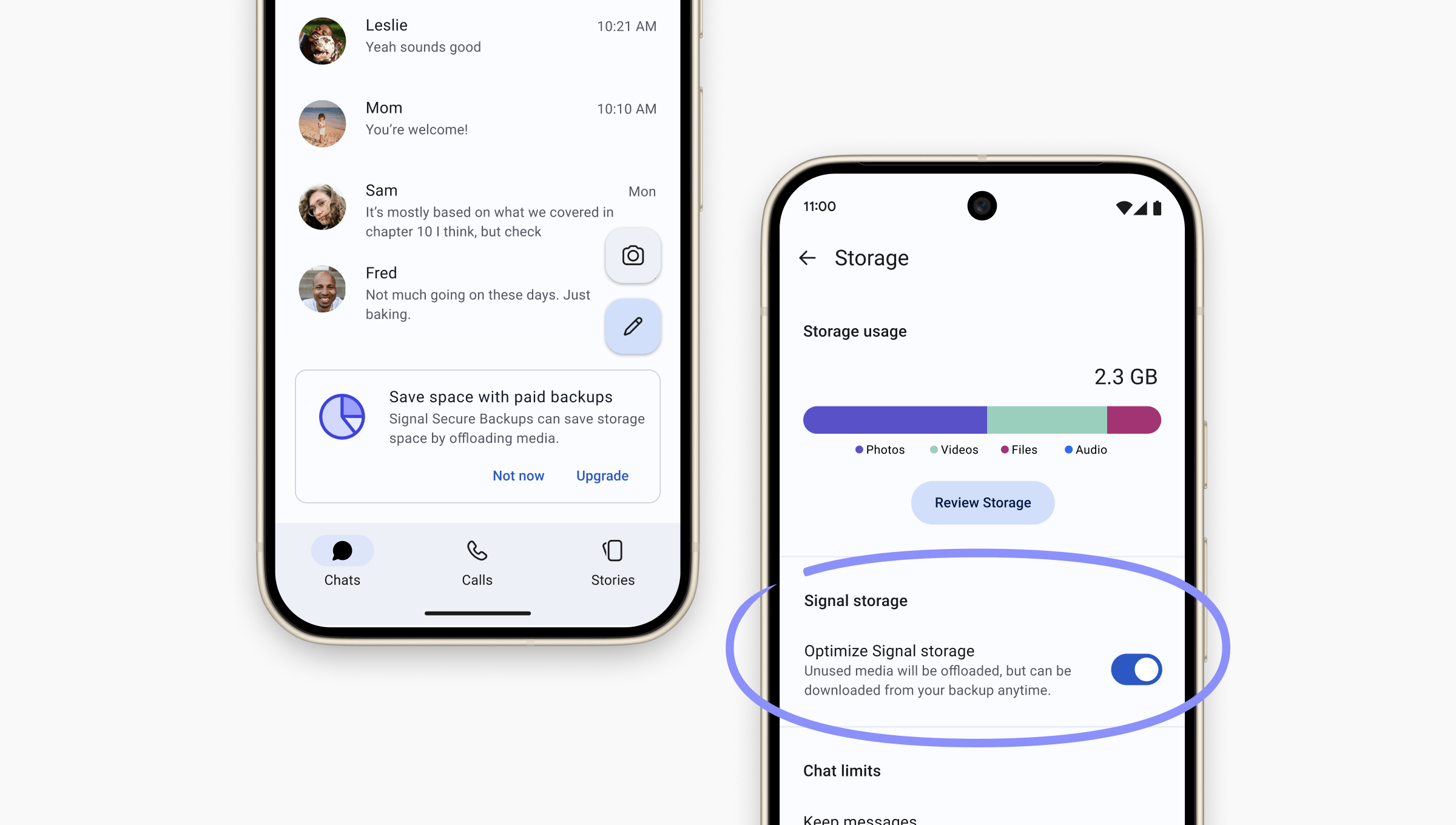
Signal’s September 2026 Android example shows storage optimization enabled. Thumbnails can remain on the phone while full-size media depends on the paid backup. The 2.3 GB value belongs to the vendor example.
Version notes
Published in Signal’s September 28, 2026 backup-improvements announcement; checked October 31, 2026. Shows the Android Storage screen and enabled optimization, not archive completion or recovery. Original composite, including vendor annotation, retained unchanged.If you encounter this control, inspect its state before treating the chat as a local archive. For an important attachment, open the full-size item while connected and preserve an independent copy if you need it outside Signal. Do not enable storage optimization merely to follow this guide. Its relevance here is the new dependency: a visible preview may rely on continued access to the protected remote copy.
Restore before starting a new history
For an actual replacement or reinstall, Signal's restore troubleshooting requires the same phone number, the recovery key, an up-to-date app, and working internet. Restore belongs to initial setup. On Android's Restore or Transfer Account screen, choose From Signal Backups, provide the recovery key when requested, and select Restore Backup.
Keep the old phone intact if it still works. After recovery, inspect a known conversation, a recognizable recent message, and an attachment within your plan's coverage. Open the attachment itself. Note missing items and their dates before concluding the restore failed; older media and intentionally excluded messages require different explanations.
If no archive appears, check whether hosted backups were enabled beforehand and whether registration uses the original number. For a key error, compare all 64 characters with the saved record. For a stalled transfer, try a stable trusted connection and check whether VPN or network restrictions are blocking access.
If you skipped restoration, Signal documents reinstalling to return to setup. Pause before doing that: preserve anything newly received that you need, and establish that the existing archive and key are available. Signal does not support merging backups. Do not uninstall a working installation just to run a casual test.
Know which exits close the recovery route
Turn Off and Delete Backup, followed by its confirmation, removes the hosted archive. It is a destructive choice, not a troubleshooting refresh. Canceling a paid Android subscription instead uses Google Play's profile > Payments & subscriptions > Subscriptions > Signal Secure Backups > Cancel subscription. Treat billing cancellation and archive deletion as separate decisions.
If your only key copy is lost and no accessible device or saved record can supply it, Signal cannot bypass the encryption. If no archive was ever created, enabling backups after losing the phone cannot reconstruct those chats. The useful work happens beforehand: protect the right content, preserve the key outside the threatened device, and understand what evidence you still need before erasing anything.
Sources, versions & scope
The steps describe the documented controls and expected checks; they are not a claim that every device or software release has been physically tested. Platform and version differences are stated with the procedure.