Decide where the surviving file belongs
A duplicate finder answers whether files match. It cannot decide whether a copy belongs in an active project, an archive, or a backup. Removing the wrong location can break a document link even when identical bytes survive elsewhere. Your first decision is therefore a folder to preserve, followed by a folder whose extra copies you are willing to remove.
This guide uses dupeGuru on Windows 11 to review ordinary local documents and downloads. It uses Standard mode with a Contents scan, rather than similar-photo or filename matching. Keep application folders, Windows folders, backup repositories, photo-library databases, and synchronized folders outside this first cleanup. Do not scan the entire drive.
Start at the official dupeGuru release page. At this documentation check, 4.3.1 is marked Latest. Its notes describe a fix for false duplicates in Standard content scanning affecting earlier releases from 4.2.0 onward. Update before scanning; discard results produced by an affected version and run a fresh scan. These instructions use the released Windows Qt interface, whose menus differ from the older help in places.
Back up the folders you intend to change to a separate destination, and open a sample from that backup. Leave the backup outside the scan. A second working copy in another folder is useful, but it is not automatically a backup you should delete; see why sync and backup serve different purposes.

Give the scanner a narrow boundary
For a hypothetical cleanup, imagine an approved Documents\Travel receipts folder and a disposable Downloads\Receipt imports folder. These names are examples, not folders the application creates. Close files in both locations so they do not change during review.
In File Explorer, choose View > Show > File name extensions. Confirm the suffixes and actual folder addresses before adding anything to the scanner. A PDF and an editable document with the same displayed name are different assets. Showing extensions helps you notice that distinction; changing an extension does not convert a file.
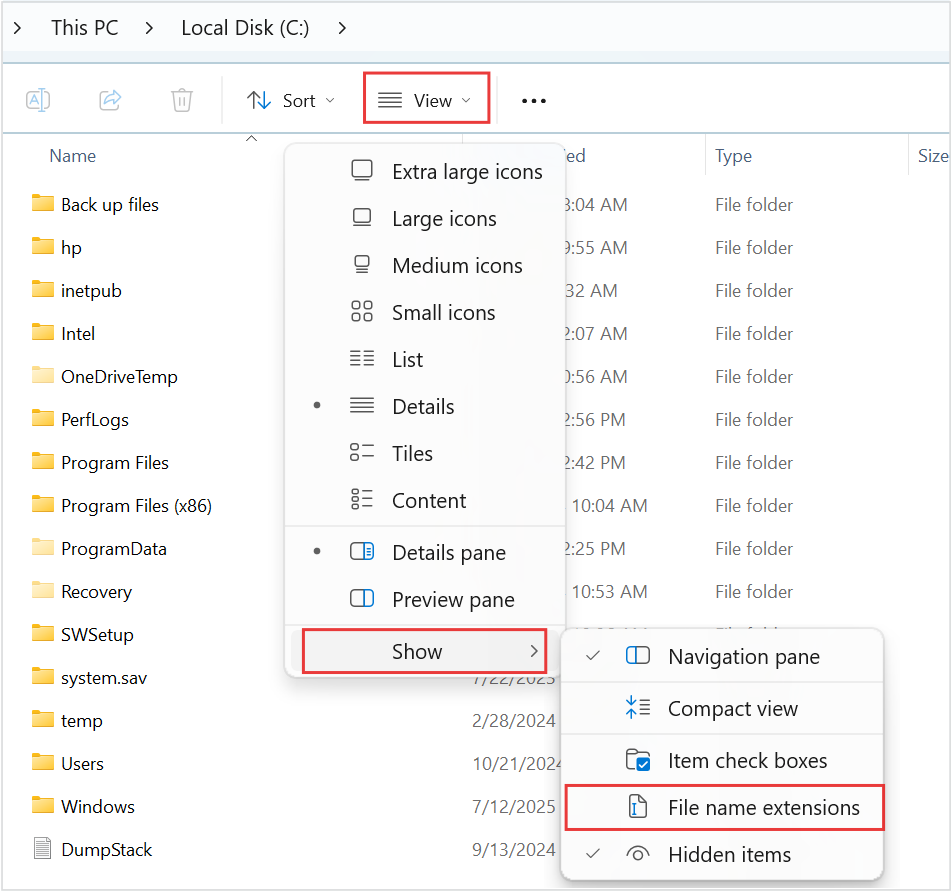
Show the suffix before reviewing files. Microsoft’s screenshot locates View → Show → File name extensions; the option is unchecked here. Enable it in your own window.
Version notes
Official current Windows 11 section of Microsoft’s file-extension guide. Vendor annotations retained unchanged. This image shows the initial unchecked menu, not an enabled setting, dupeGuru, or the article’s hypothetical folders. Exact Windows build is not disclosed.- Open dupeGuru and select Standard under Application Mode. Set Scan Type to Contents. A filename match alone is insufficient evidence for this cleanup.
- Use the + button to add the approved folder and the import folder. If a recent-folder menu appears, choose Add Folder… to browse. Check each resulting path rather than accepting a familiar folder name.
- In the approved folder’s State cell, select Reference. Leave the import folder Normal. Expand any subfolders and check for explicit state overrides. The folder-state documentation explains that children inherit their parent’s state unless changed individually.
- Remove any unrelated top-level folder with the minus button. Use Excluded for a subfolder you do not want scanned. Then click Scan and wait for results.
Reference protects files from removal through this scan; it does not lock them in Windows or create another copy. If matching files are all inside Reference folders, dupeGuru does not present those protected copies as deletable duplicates. That can explain a smaller result list than expected.
Read one group as a proposed change
Keep Dupes Only off initially so the survivor remains visible. Read each group from its reference row to the indented duplicates. The reference has a disabled mark box. An unmarkable row is a protection, not an error to bypass.
Click a candidate and open Details to compare it with its reference. Inspect full paths, file types, and sizes. Double-click trusted documents to open them in their associated applications; inspect both copies when the content or purpose is uncertain. Never launch an unfamiliar executable merely to review a match.
Standard Contents scanning checks file content rather than requiring the names to match. Different names can therefore belong to one group, while two visually similar photos with different encoding may not match. Treat edited documents, resized images, and alternative exports as separate until you deliberately review them in an appropriate workflow.
For every proposed removal, complete this sentence: “The copy at this path can go because the surviving copy at that path is the one I use.” Check whether a spreadsheet, presentation, playlist, or project expects the removable path. If it does, keep that copy until you have deliberately repaired and verified the dependency.
If the automatic reference is wrong in a group without a protected Reference folder, select the intended survivor and choose Actions > Make Selected into Reference. A protected folder’s reference cannot be displaced this way. If your folder policy was wrong, return to folder selection, correct it, and rescan.
Mark a few removals, then inspect the consequences
Highlighting a row selects it; ticking its box marks it for an action. Begin with Mark > Mark None, then tick only the duplicate rows you have approved. Avoid Mark All on the first pass. Keep a short note of the surviving and removable paths for this batch.
The older results help explains grouping and marking, but its Edit-menu route is not the released Windows route used here. Before proceeding, inspect the marked rows again, including any results hidden by a filter. Cancel if you cannot account for every marked file.
Choose Actions > Send Marked to Recycle Bin…. In Deletion Options, leave both Directly delete files and Link deleted files unchecked. Direct deletion removes the intended Recycle Bin recovery route; replacing files with links introduces dependencies this guide does not require. Check the proposed batch, then choose Proceed.
Open the Recycle Bin immediately and confirm that the expected names and original locations appear. Then open the retained files from their approved folder and use any project that depends on them. Do this before processing another batch. A result disappearing from dupeGuru alone does not prove that the correct copy survived.
If a file is wrong, restore before continuing
If you removed a needed copy, open the Recycle Bin, select that item, right-click it, and choose Restore. Microsoft’s recovery guidance confirms that Windows returns it to its original folder. Check that path and reopen the dependent document. If Windows asks to replace an existing file, cancel and investigate both versions before overwriting either.
If deletion fails, stop and inspect the reported file paths. Close an application holding the file, or check whether you can access its folder. Do not enable Directly delete files to force success. Network locations, removable media, and local Recycle Bin settings can make recovery behave differently; this is why the first batch must establish what actually happens on your chosen local drive.
If the item never reached the Recycle Bin, or the bin has already been emptied, Restore cannot recover it there. Retrieve your separate backup. Avoid further cleanup while the missing file is unresolved. dupeGuru’s results list is not a stored copy of the file.
Count space only after the checks
Hypothetically, three independent copies of a 200 MB file occupy 600 MB of file data. Keeping one and removing two makes 400 MB eligible for reclamation. That is not a measured saving: filesystem allocation and linked files can change the actual amount, and files retained in the Recycle Bin still consume space.
Leave this batch in the bin until you have used the surviving documents in ordinary work and confirmed the separate backup remains readable. Emptying it ends that convenient undo route. After the review, permanently remove only the approved items, rescan the same narrow folders, and check free space. A clean result means no matching candidates within that scope; it says nothing about folders you excluded.
Sources, versions & scope
The steps describe the documented controls and expected checks; they are not a claim that every device or software release has been physically tested. Platform and version differences are stated with the procedure.