A useful tutorial shows the task clearly without turning your inbox, file history or background conversation into part of the lesson. The safest recording starts with material you can publish, then limits what the recorder sees and hears. Editing afterward is a fallback, not the preparation step.
This guide uses Windows 11 and Snipping Tool for a short recording of a rectangular screen area. It covers preparation, a rehearsal, recording and release review. You do not need to show a real account, enter a password or upload a draft to complete the workflow.
Build the lesson from publishable material
Write the intended result in one sentence: for example, “Show how to sort a sample spreadsheet by date.” Make a practice document containing invented entries, with a neutral filename such as sorting-demo. Label hypothetical names and figures as examples. Recreating a small sample is safer than deleting visible names from a copy that still contains comments, hidden sheets or revision history.
Open every menu or dialog the demonstration will need before recording. A harmless document can lead to a revealing Save As dialog, recent-file list, account menu or folder breadcrumb. Check those routes for your Windows username, employer, customer names and private locations. If a step cannot be demonstrated with safe content, explain it in narration instead of opening it on camera.
For a browser lesson, close unrelated tabs and use a window containing only the demonstration. Inspect the bookmarks bar, profile badge, page title, address bar and autocomplete suggestions. A private window does not sanitize the page you open or the credentials you type. Use an approved demonstration account when sign-in is essential; begin recording after authentication is complete.
Save unrelated work, then close mail, chat and other personal applications. Clear the visible desktop of sensitive filenames by moving the demonstration window over them, without deleting files. Keep the capture on one display and avoid switching applications during the lesson.
Quiet the desktop, including exceptions
Open Start → Settings → System → Notifications. Note your original notification settings so you can restore them afterward. For a temporary recording session, you can turn the main Notifications switch off. Microsoft documents both this switch and controls for individual senders in its notification settings guide.
If you prefer Do not disturb, open Notification Center and select its bell with zZ. Check the priority notification settings as well: alarms, reminders and permitted apps can still produce banners. Do not treat the bell alone as a guarantee of a clean recording.
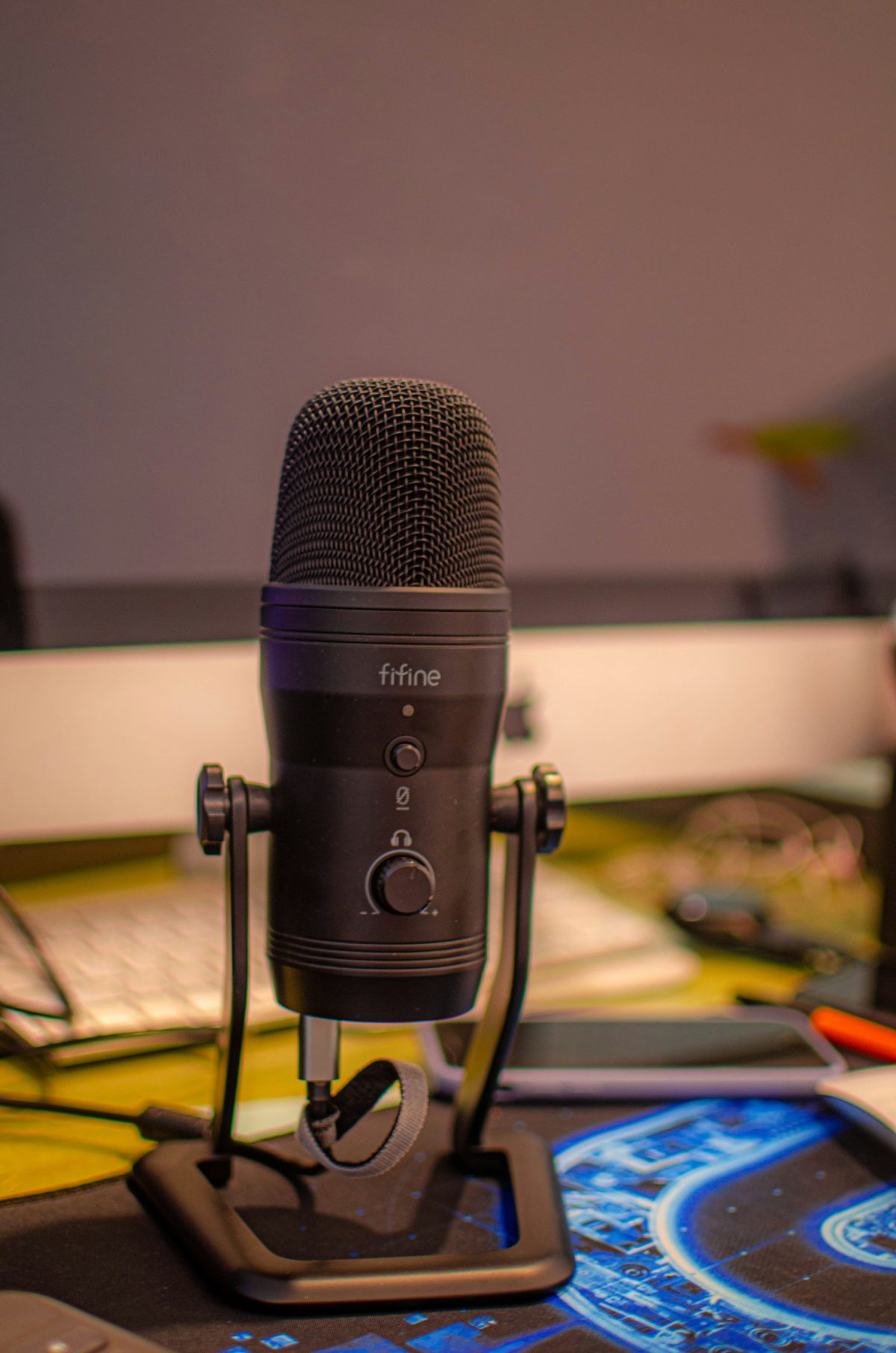
Windows notification controls also cannot remove a message already displayed inside a web page or stop you from opening an inbox. Close those sources. Stop music and other playback, and choose a quiet room if you plan to narrate. Your screen boundary does not limit what a microphone hears.
Choose the rectangle, then make a disposable take
Arrange the demonstration window at its final size. Increase the application’s zoom until the important text is readable, then leave enough room for the menus you rehearsed. Exclude the taskbar, unrelated windows and browser chrome unless they are needed to explain the task. Cropping too tightly can hide the very control your viewer needs.
- Open Start, search for Snipping Tool and launch it. Select the video-camera Record button, then New. Alternatively, press Windows + Shift + R to open the recording overlay.
- Drag a rectangle around the demonstration area. Treat it as a screen location: another window entering that rectangle can become part of the video. Keep the target window stationary and avoid opening the application switcher.
- Before starting, inspect the audio controls offered by your installation. Disable microphone capture if you do not need narration; disable PC audio if the lesson does not need application sounds. When narrating, select the intended microphone rather than assuming the default is correct.
- Select Start, perform one representative action, speak a neutral test sentence if needed, and select Stop. Play the preview before making the real tutorial.
Microsoft’s current Snipping Tool instructions confirm the rectangle, recording shortcut and Start/Stop workflow. Its original audio announcement documents separate PC-audio and microphone options; it is historical feature documentation, not a current interface image.
Use the rehearsal to answer concrete questions: Can you read the menu labels at normal playback size? Does the whole dropdown fit? Is narration audible without another conversation? Did an unexpected window enter the frame? If any answer is wrong, fix the setup and repeat the short take.
Stop when the setup stops matching the plan
- The target moves outside the rectangle.
- Stop and reposition it, then create a fresh capture area. Do not continue with missing controls and hope the viewer can infer them.
- The narration is silent.
- Check the recorder’s microphone selection and mute state first. If access is blocked, open Settings → Privacy & security → Microphone. Review Microphone access, app access and any listed Snipping Tool permission using Microsoft’s microphone permission instructions. Change only what is necessary and repeat the rehearsal. Leave administrator-controlled restrictions to the administrator.
- A private detail appears or is spoken.
- Stop immediately. For a short tutorial, replace the affected take with a clean recording. Hiding the detail on screen afterward does not remove it from frames already captured.
If the Record option is missing, confirm you are using Windows 11’s Snipping Tool and check for an available app update through Microsoft Store. Do not substitute Print Screen or Windows + Shift + S: those produce still-image captures. On a managed computer, ask for the approved recording route if the feature is unavailable.
Release only the file you have watched
Record the final lesson in short, deliberate actions. Pause the pointer near each control before clicking, and leave the visible result long enough to understand. Stop before opening any unrelated application. Save the recording to a private location you recognize; check whether that location is synchronized or shared before using it for a draft.
Watch the complete saved file, with sound, from beginning to end. Pause around menu openings, text entry and window transitions. Inspect the edges as carefully as the center: a profile name, folder path or sliver of another window can be enough to identify someone. Listen for names, meeting audio and spoken credentials. A thumbnail or the opening seconds cannot establish that the rest is safe.
If editing is necessary, export a new delivery file and review that entire export again. A blur must cover every affected frame, including transitions; muting must cover the sensitive audio too. Snipping Tool’s still-image Text actions are not a video redaction workflow. For a brief demonstration, rerecording is often easier to verify.
Upload only the reviewed delivery file, not a folder containing rejected takes. Check the destination’s audience and link permissions before sharing. If a sensitive draft has already been uploaded, revoke access and remove the exposed copy; this cannot recall downloads. If it revealed a password, token or recovery code, replace that secret through the relevant service as well.
Finally, restore the notification and microphone settings you changed. Review locally saved takes and any synchronized copies, retaining only what you need. The finished tutorial should let a viewer repeat the task without learning anything about your private workspace.
Sources, versions & scope
The steps describe the documented controls and expected checks; they are not a claim that every device or software release has been physically tested. Platform and version differences are stated with the procedure.
- Microsoft Support: Use Snipping Tool to capture screenshots
- Microsoft Support: Notifications and Do Not Disturb in Windows
- Microsoft Support: Turn on app permissions for your microphone in Windows
- Microsoft Windows Insider Blog: New Updates for Snipping Tool and Notepad for Windows Insiders (historical audio feature announcement)