The black box is only the visible part
A PDF can look censored while still containing the words beneath a rectangle. The release task is to remove the sensitive content, remove hidden information, and inspect the saved copy that another person will receive. A dark highlight, drawing shape, or changed text color does not establish that removal.
This guide follows Adobe Acrobat Pro on desktop, using the new Acrobat experience. It assumes you already have access to Pro and a PDF you are authorized to edit. It does not cover Reader, browser PDF viewers, or mobile apps. If your original is a Word document, prepare a PDF copy first; keep the editable original private.
Redaction protects the released PDF. It cannot recall a previously sent original, erase cloud version history elsewhere, or stop a reader inferring a name from surviving context. Decide what the recipient may learn before selecting any text.

Separate the original from the release
Keep the original in its existing protected location. Make a working copy in a private folder and choose a distinct eventual filename, such as statement-release-redacted.pdf. Avoid sensitive names or account numbers in that filename. Do not work inside a folder whose contents the recipient can already browse.
Write a short private removal list: names, identifiers, addresses, signatures, and any details that would reveal the same information indirectly. In a hypothetical six-page statement, the account number might appear in the opening summary and every footer. Removing its first occurrence leaves five others. Record which information must disappear throughout the document.
Check whether the recipient needs remaining comments, attachments, or interactive features. Hidden-data cleanup can change document features, so plan to check usability afterward. If editing is blocked by document restrictions, request an authorized editable copy from the owner. Do not substitute a drawn box because the proper tool is unavailable.
Mark the content, then inspect every page
Open the working PDF. Select All tools, then Redact a PDF. This opens the redaction workflow; choosing a comment or drawing tool would not perform the same operation. Adobe’s current desktop tutorial shows this entry point.
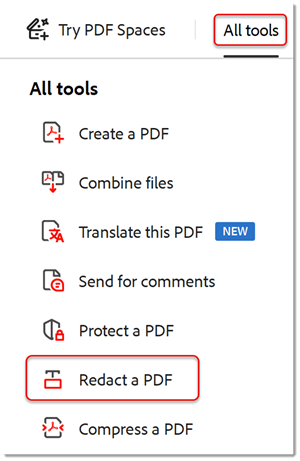
Choose All tools, then Redact a PDF. Adobe’s published reference outlines both controls; it shows the entry point before marking content.
Version notes
Current official new-experience tutorial updated June 28, 2026; controls corroborated by desktop redaction help updated August 31, 2026. Exact captured OS and minor build undisclosed. Complete vendor-published asset retained unchanged, including red outlines and shadow. No hands-on result claimed.- In the left pane, choose Redact text and images. Drag over the text or image that must go. Inspect the selection boundaries before moving on; keep necessary neighboring text outside the mark.
- Continue through every page, including headers, footers, tables, and scanned inserts. Treat handwriting, signatures, and numbers inside pictures as visual content that needs deliberate selection.
- Hover over a marked area to preview the result. These are still proposed removals. Review them while corrections remain possible, before applying anything.
Search helps catch repetition. Choose Find text and redact in the redaction pane and accept its introductory prompt. Select a single phrase, multiple phrases, or patterns; set the search location to the current document. Enter the target and run Search & Remove Text. Despite that button’s name, the documented workflow still requires selecting results, marking them, and applying the redactions.
Review the returned occurrences, check the appropriate results, and choose Mark Checked Results for Redaction. Adobe’s search instructions also distinguish whole-word and partial-word marking. If you intend to retain the last four digits of an identifier, inspect exactly what remains rather than assuming a partial selection is correct.
A zero-result search is not clearance. A scan may lack searchable text; a number may contain spaces or different punctuation. Search useful variants, then inspect the page visually. If the target is a picture of text, mark its image area. Search is an aid to the removal list, not a replacement for reading the document.
Apply the marks and remove hidden information
After the page review, select Apply in the redaction pane. In the Apply redactions dialog, leave Sanitize and remove hidden information enabled before choosing Continue. This is the step that combines the visible removals with hidden-data cleanup.
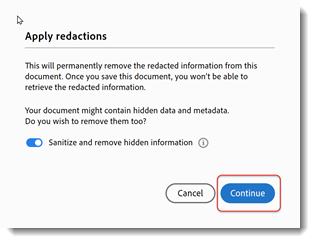
Before continuing, confirm hidden-information removal is enabled. Adobe’s dialog warns that saving makes redaction permanent; this reference shows confirmation, not a completed save.
Version notes
Current official new-experience tutorial updated June 28, 2026; controls corroborated by desktop redaction help updated August 31, 2026. Exact captured OS and minor build undisclosed. Complete vendor-published asset retained unchanged, including red outlines and shadow. No hands-on result claimed.Use the Save Sanitized Document dialog to save the distinct release filename in your chosen private destination. Adobe’s redaction instructions document this apply, sanitize, and save sequence. Do not send a copy containing only pending marks.
If you previously applied redactions without cleanup, open that saved copy and choose All tools → Redact a PDF → Sanitize document. Choose Remove all, specify the output filename and destination, and save. Adobe’s sanitization guide identifies metadata, comments, and hidden layers as potential sources of hidden information.
The same dialog offers selective removal with a Hidden Information panel. That requires deciding which detected items may remain. For this release workflow, use the full cleanup and then check the useful content. If required features disappear, return to the private original and resolve the recipient’s needs before producing another release.
Inspect the file you will actually send
Close the PDF and reopen the release copy from its saved location. Check the filename, then work through these checks. They are reader-side checks you can perform; no hands-on test of your document is implied.
- Look: inspect every page at readable zoom. Sensitive regions should be removed, with no stray characters at their edges. Check that surrounding sentences, totals, and page order still make sense.
- Search: look for each removed name and identifier, including useful fragments and alternate formatting. Any surviving sensitive occurrence means the release needs more work.
- Copy: select text around redacted areas and paste it into a local plain-text editor. The removed words should not appear. Delete this scratch text afterward if it contains other private material.
- Inspect extras: review document properties, comments, and attachments for information that should not leave. Check that remaining searchable text and required reading features still work.
Failure to copy anything from a scanned page proves little: the page may never have contained selectable text. Likewise, a smaller file size is not proof of removal. These checks catch common errors; they are not a forensic certification. For a release requiring formal assurance, follow the organization’s review process before distribution.
Recover privately, then hand off one copy
If you marked the wrong content, correct the pending marks before Apply. Once redactions are applied and saved, treat them as permanent: the Apply dialog warns that the information cannot be retrieved from that document. Recover by returning to your protected original and making a new working copy. Never rely on being able to uncover the release file later.
If a reopened copy still reveals sensitive content, withhold it. Check whether you reopened the original, saved only the proposed marks, skipped cleanup, or missed another occurrence. Repeat the affected work and all release checks on the replacement.
Attach only the inspected release PDF. If sharing a link, upload that copy into an appropriate restricted location and verify the link targets it. Do not bundle the original, working files, or search notes. If an unsafe copy has already escaped, revoke available links and follow the applicable incident process; replacing your local file cannot erase someone else’s download.
Sources, versions & scope
The steps describe the documented controls and expected checks; they are not a claim that every device or software release has been physically tested. Platform and version differences are stated with the procedure.